How to Set a Custom Bitcoin Network Fee
What Is a Custom Network Fee?
A custom network fee lets you choose the fee rate for a Bitcoin transaction instead of using the Normal or Fast option suggested by Gem Wallet.
Bitcoin fee rates are displayed in satoshis per virtual byte (sat/vB). A satoshi is the smallest unit of Bitcoin, and the virtual size represents how much block space the transaction uses. Gem Wallet uses the selected rate and estimated transaction size to calculate the total network fee.
- A higher fee rate can increase the likelihood of faster confirmation.
- A lower fee rate can reduce the fee, but the transaction may remain pending longer.
- The total fee depends on both the selected rate and the transaction's virtual size.
Use a custom fee only when you understand current Bitcoin fee conditions. A rate that is too low can leave a transaction pending for an extended period.
Set a Custom Bitcoin Network Fee
Open Bitcoin Wallet
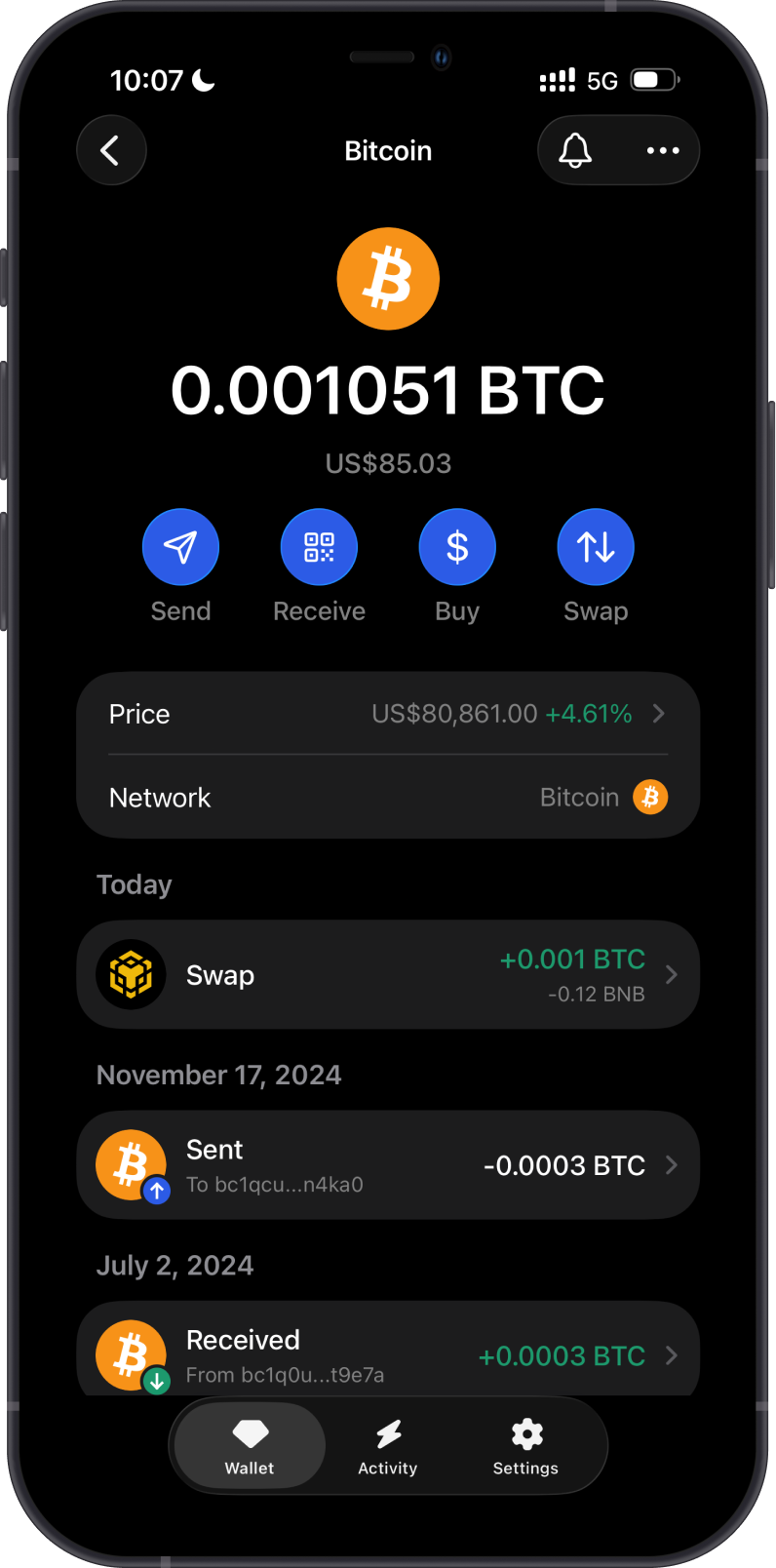
Open Bitcoin in Gem Wallet and select Send.
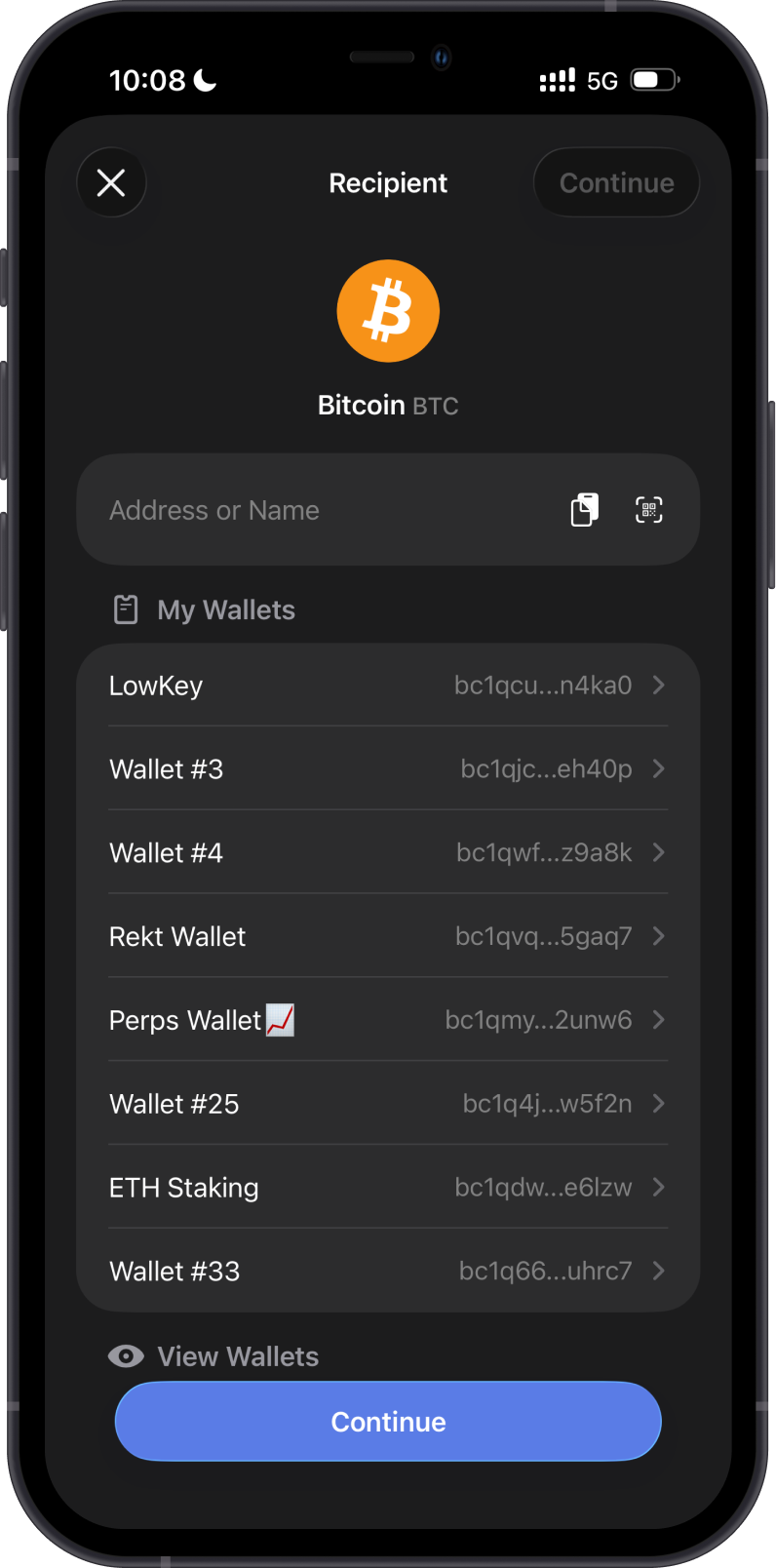
Enter or scan the recipient's Bitcoin address. You can also select one of your own wallets under My Wallets. Verify the complete recipient address before continuing.
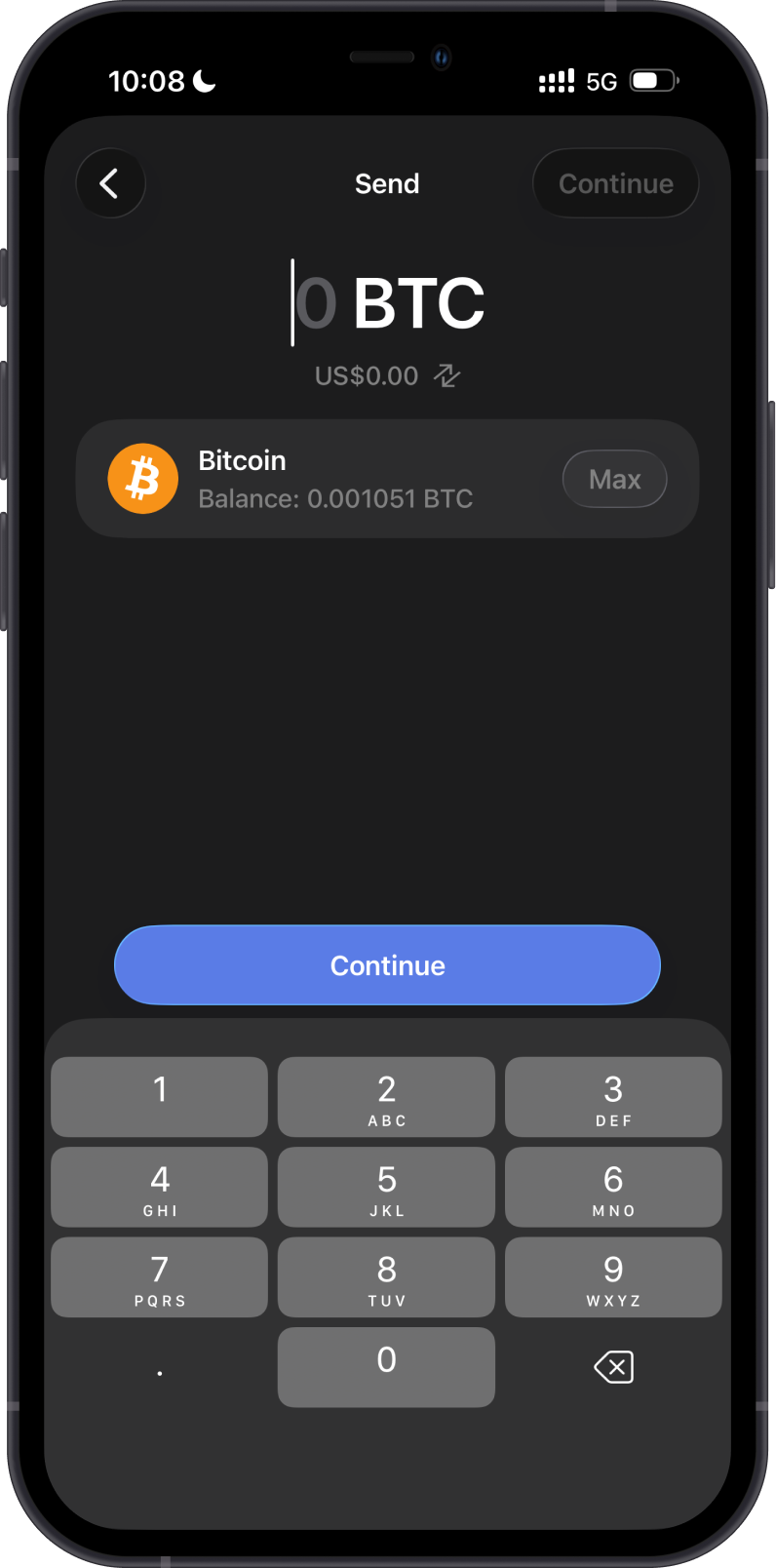
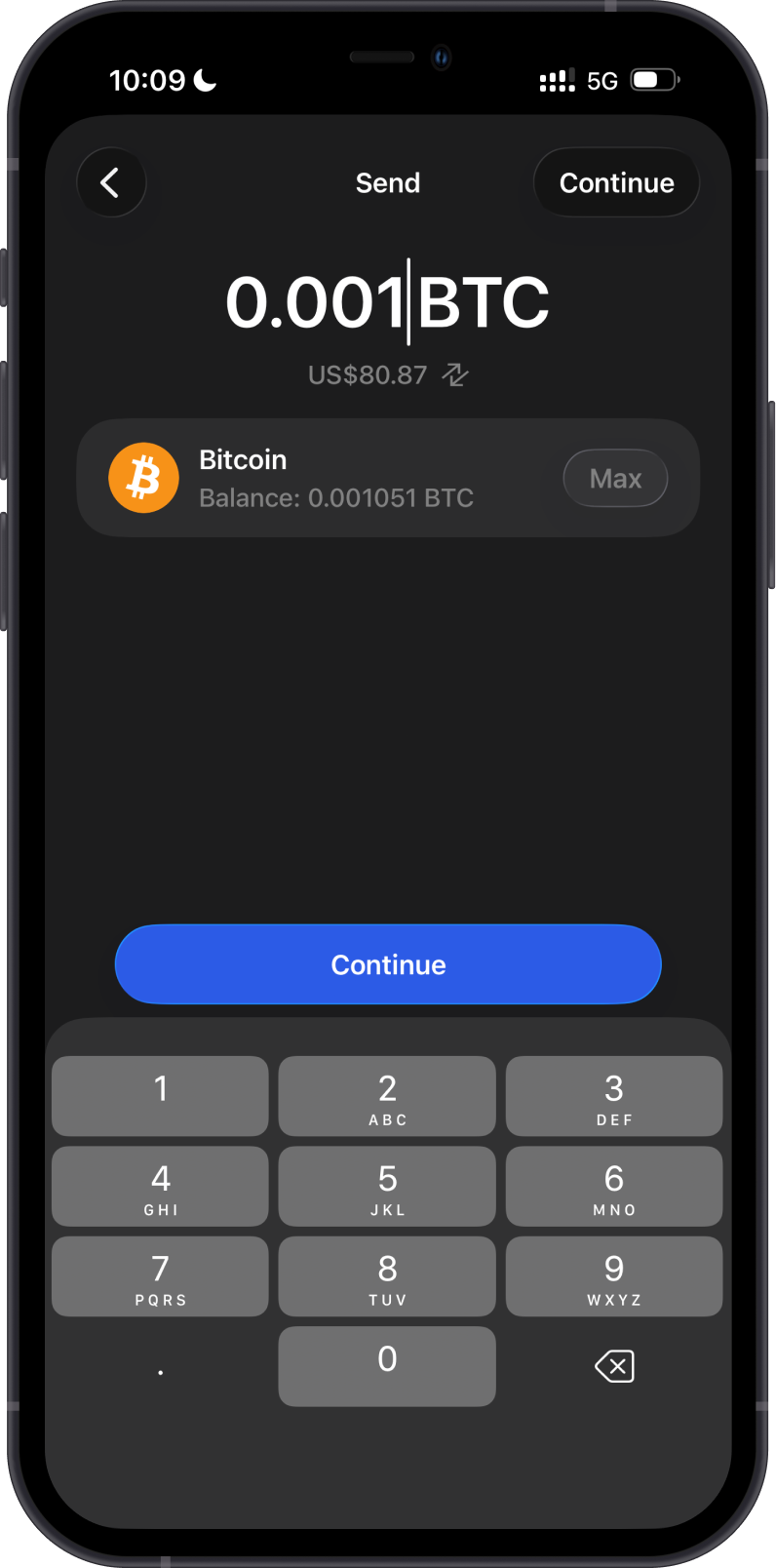
Enter the amount of BTC you want to send, then select Continue.
Access Network Fee Setting
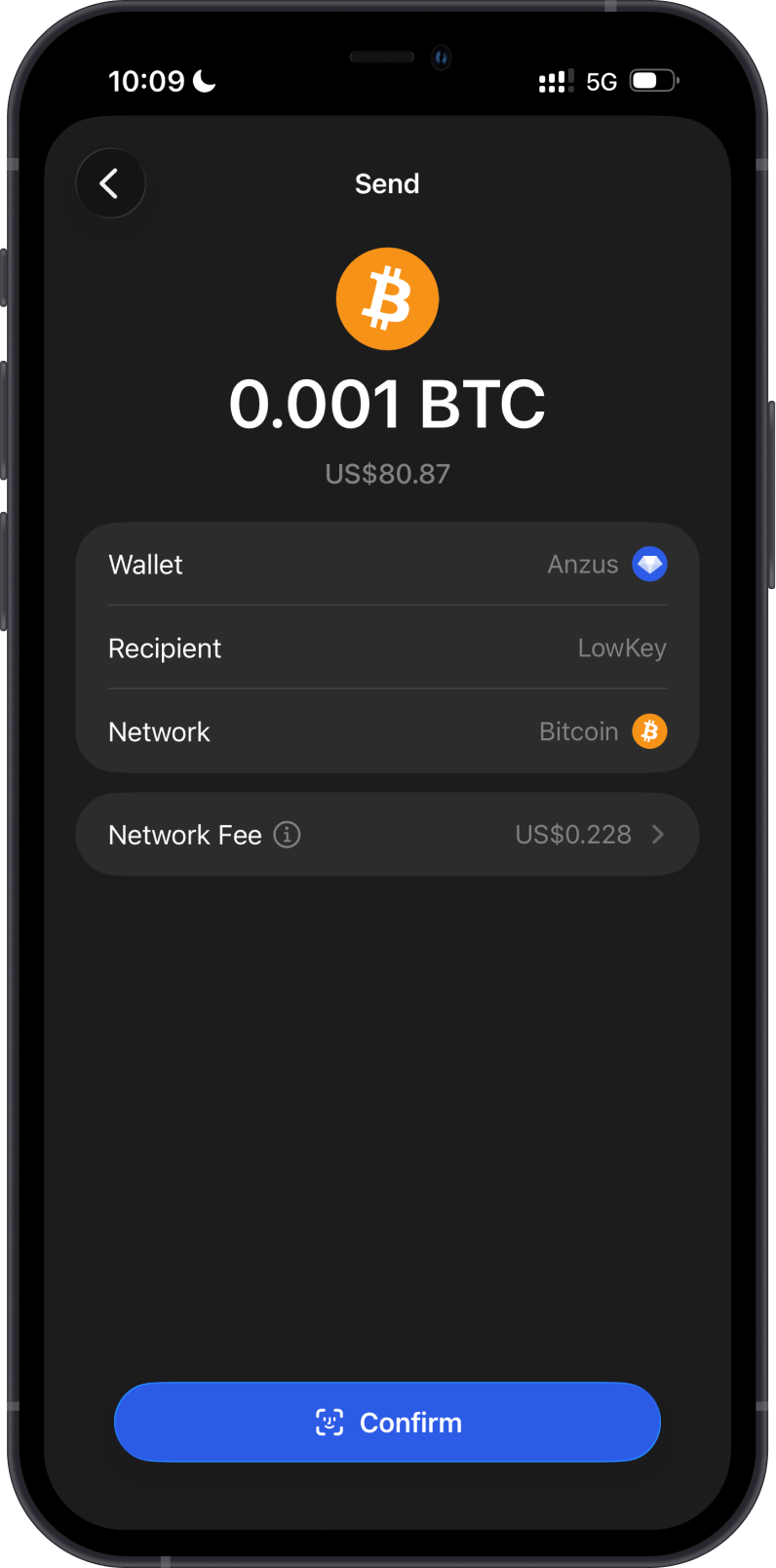
Review the wallet, recipient, network, amount, and estimated network fee on the confirmation screen. Select Network Fee to change the fee rate.
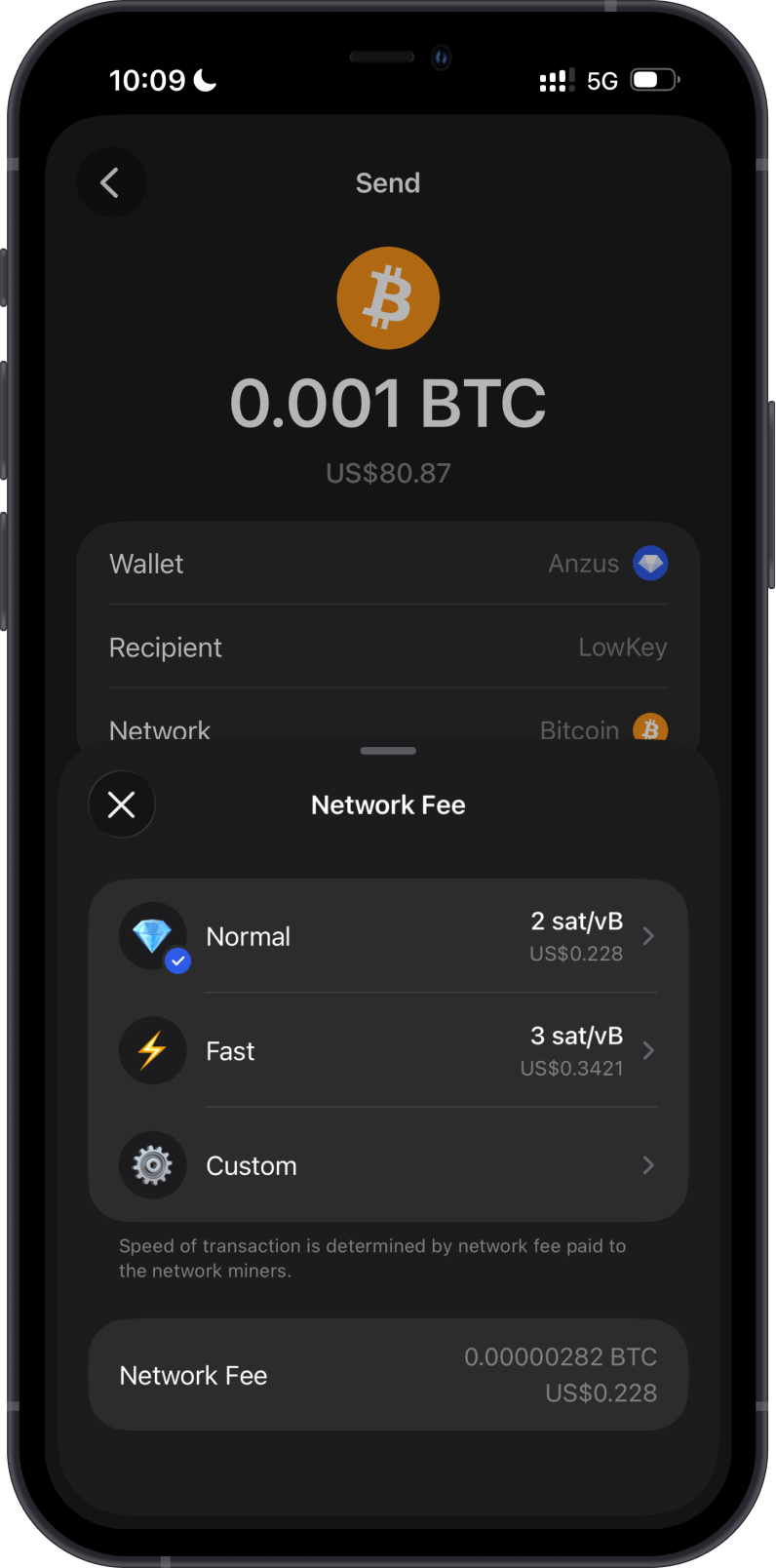
Gem Wallet displays the available fee-rate options:
- Normal — the standard suggested rate.
- Fast — a higher suggested rate for faster priority.
- Custom — a fee rate entered by you.
The suggested rates and estimated BTC or fiat fee can change with Bitcoin network conditions and transaction size.
Adjust the Custom Fee
Select Custom, then enter your preferred fee rate in sat/vB. Gem Wallet updates the estimated total Network Fee as the rate changes.
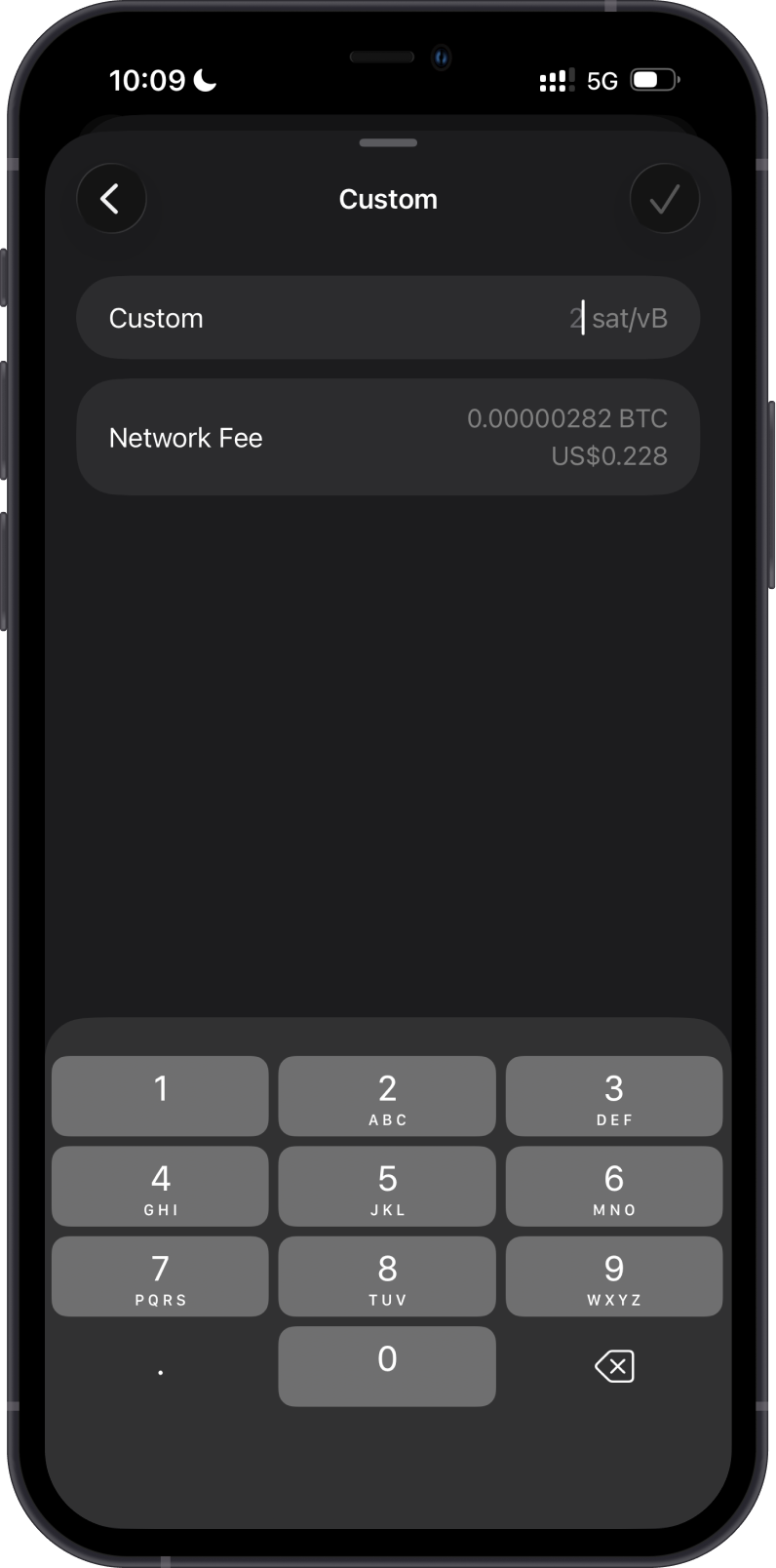
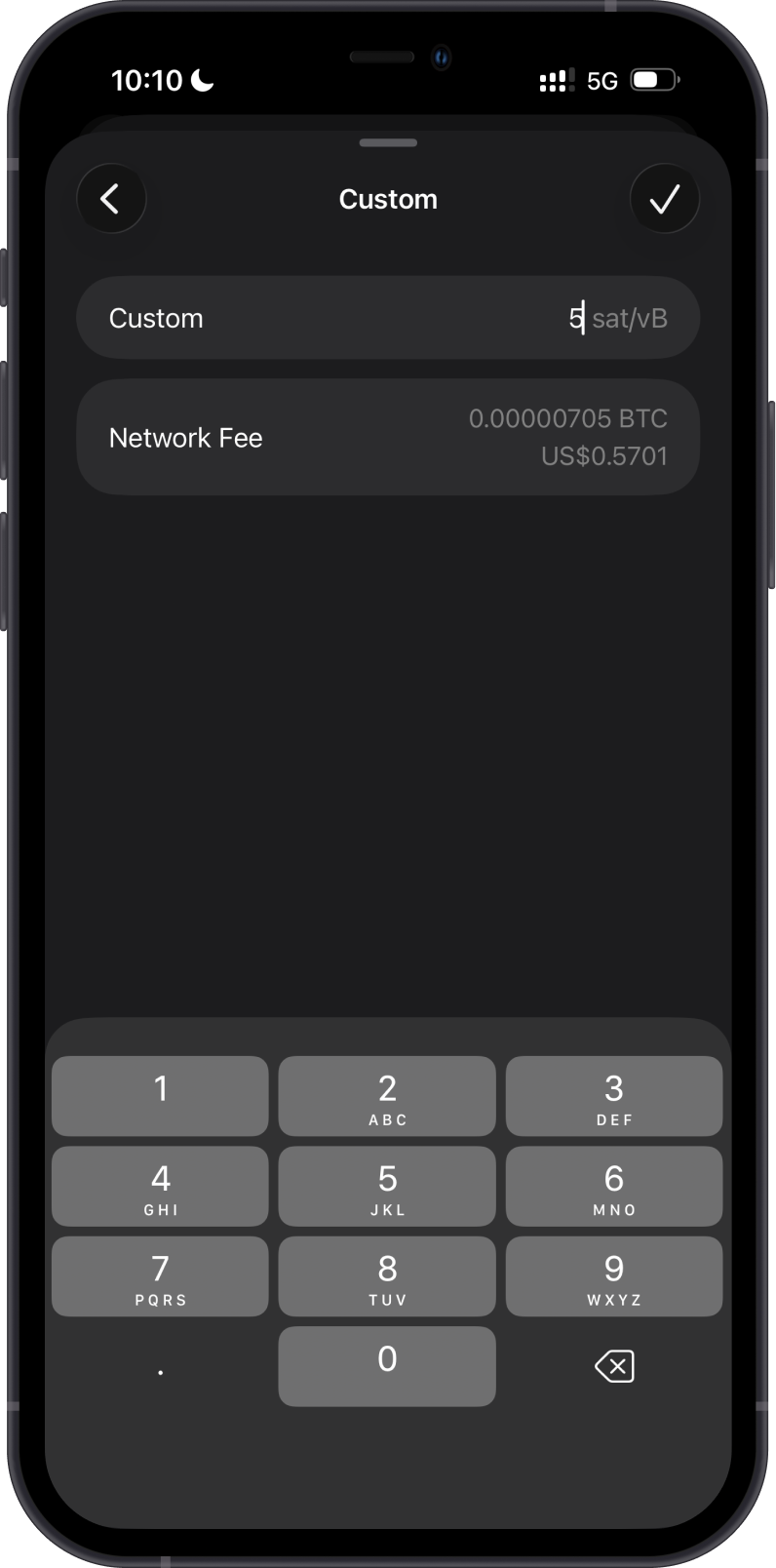
In this example, the rate is changed from the normal 2 sat/vB suggestion to a custom rate of 5 sat/vB. The estimated fee increases from 0.00000282 BTC to 0.00000705 BTC.
Select the checkmark to apply the custom rate. Gem Wallet limits custom values to an allowed range based on its fee configuration. If a rate is below the minimum or above the maximum, the app shows the permitted value and does not enable confirmation.
The screenshots are examples, not recommended rates. Check current Bitcoin network conditions before choosing a value. The BTC and fiat amounts shown in your wallet will differ.
Confirm and Verify the Final Fee
Confirm the Network Fee
Back on the confirmation screen, verify that Network Fee shows the recalculated amount. Review every transaction detail again before selecting Confirm.
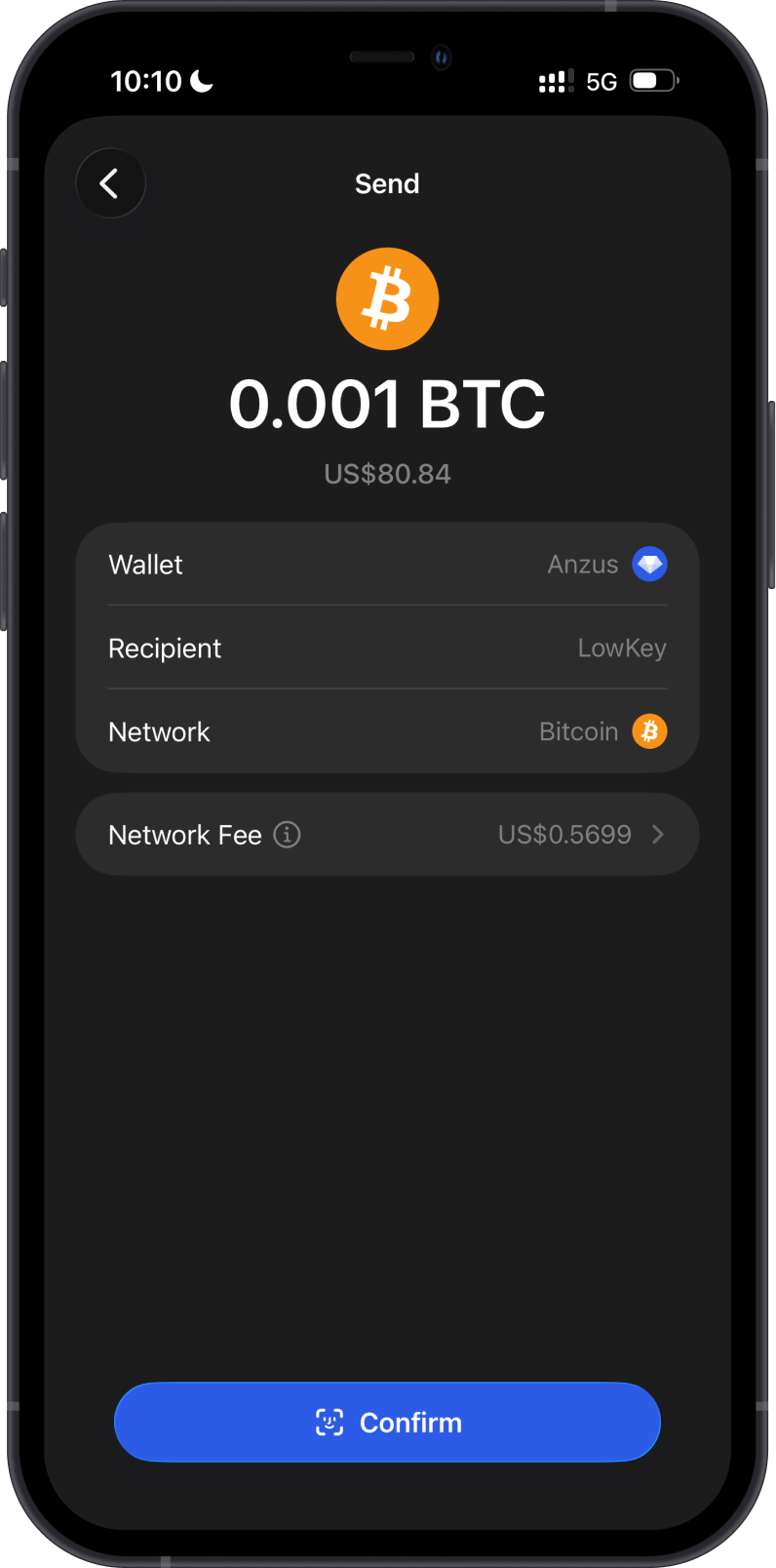
Wait for Confirmation
After authentication, Gem Wallet submits the transaction to the Bitcoin network. A newly submitted transaction can initially show Pending, together with an estimated confirmation time.
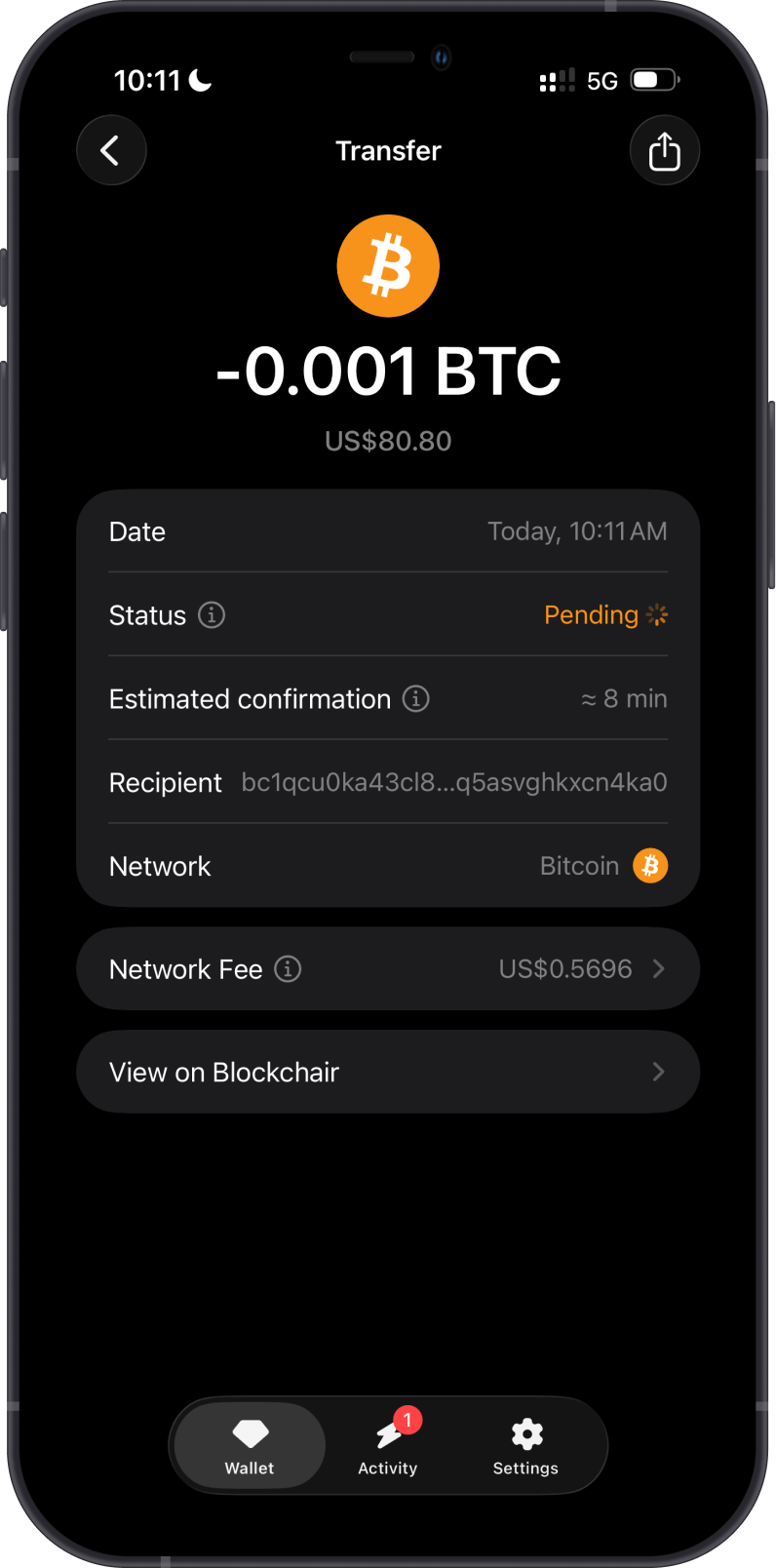
Gem Wallet does not receive the network fee. It is paid to Bitcoin miners for processing and confirming the transaction.
Review the Network Fee
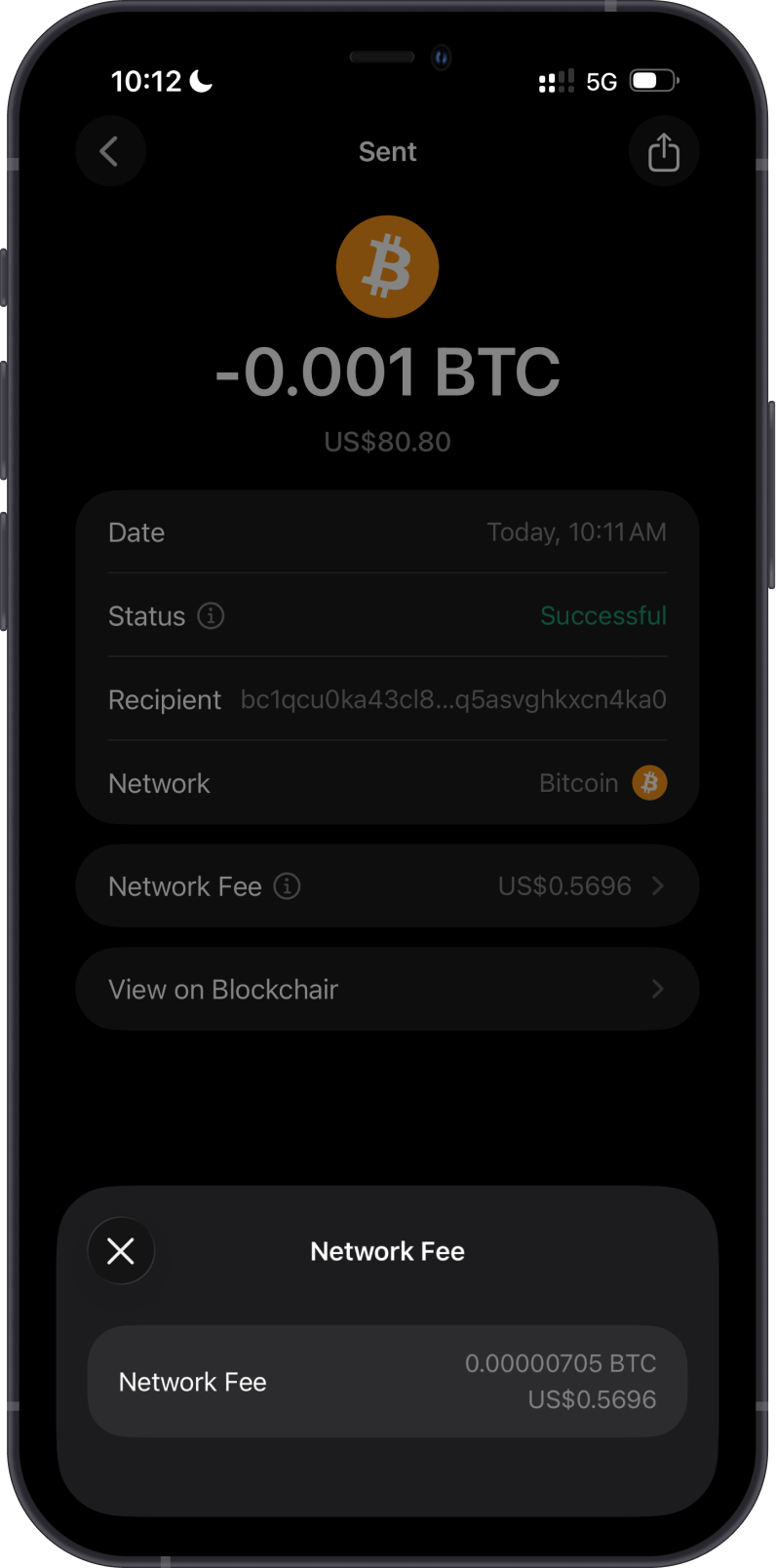
You can review the transaction by opening it from the Bitcoin transaction history. Select Network Fee to confirm the fee paid in BTC and its displayed fiat value.
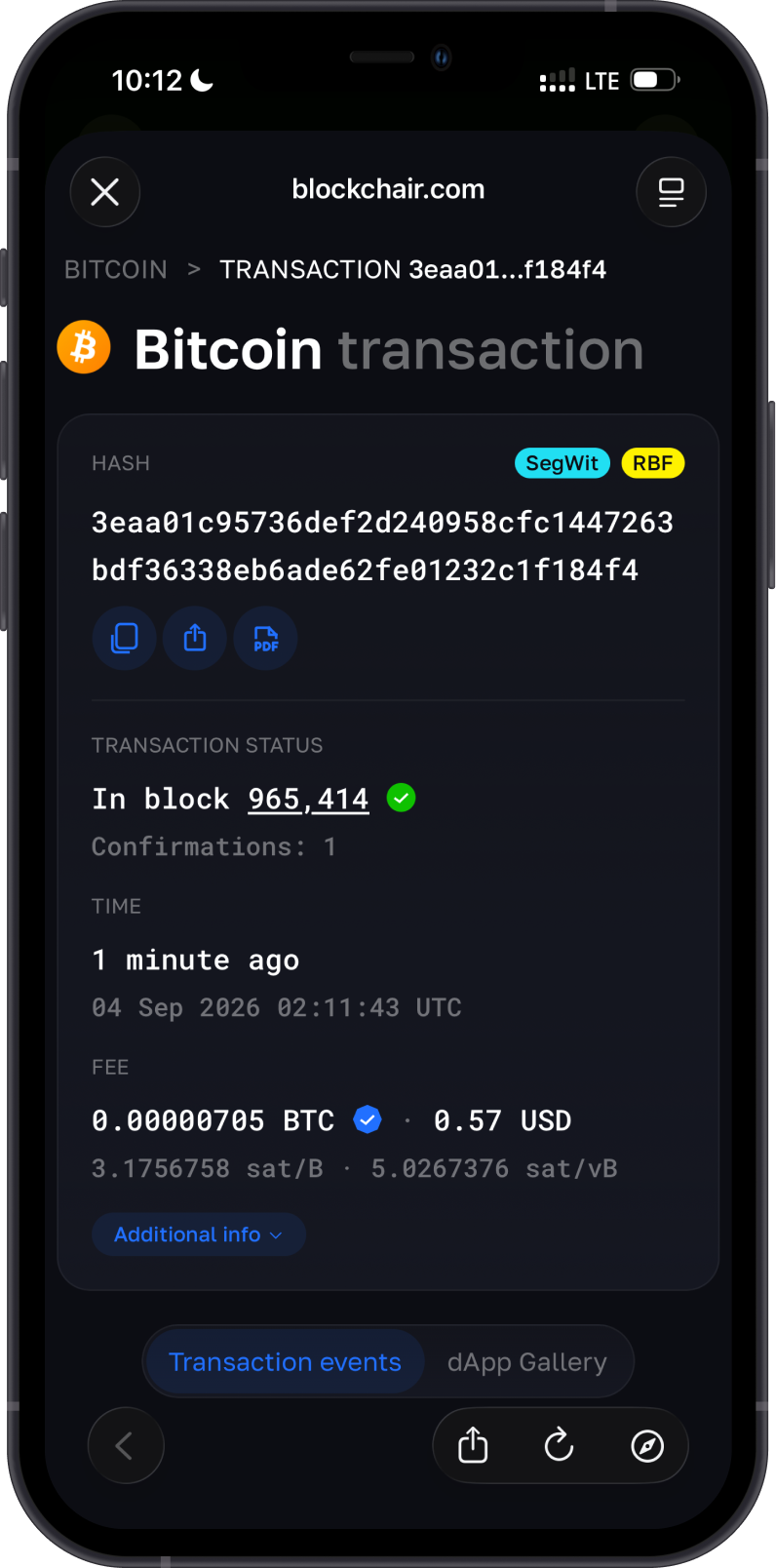
Select View on Blockchair to inspect the public Bitcoin transaction. The explorer shows information such as the transaction hash, confirmation status, total fee, and effective fee rate.
Custom Bitcoin Fee Reminders
- Explorer fee rates may use more precision or a different unit; verify that you are comparing sat/vB.
- Review the Normal and Fast rates in Gem Wallet before choosing Custom.
- Check current Bitcoin fee conditions using a reputable mempool or blockchain explorer.
- Consider how urgently the transaction needs to confirm.
- Confirm that the wallet balance covers both the send amount and total fee.
If a custom-fee transaction remains pending, do not immediately submit the payment again. Follow Why Is My Crypto Transaction Pending? and inspect the original transaction first.
For more information about transaction fees across supported networks, read What Are Network Fees?.