Staking TRON (TRX) with Gem Wallet
Staking TRON (TRX) is a process that allows you to earn TRX by participating in the network's consensus mechanism. This guide will take you through the steps needed to stake your TRX using Gem Wallet, ensuring you can maximize your returns securely and efficiently.
- Your TRON (TRX) will be locked when you stake it.
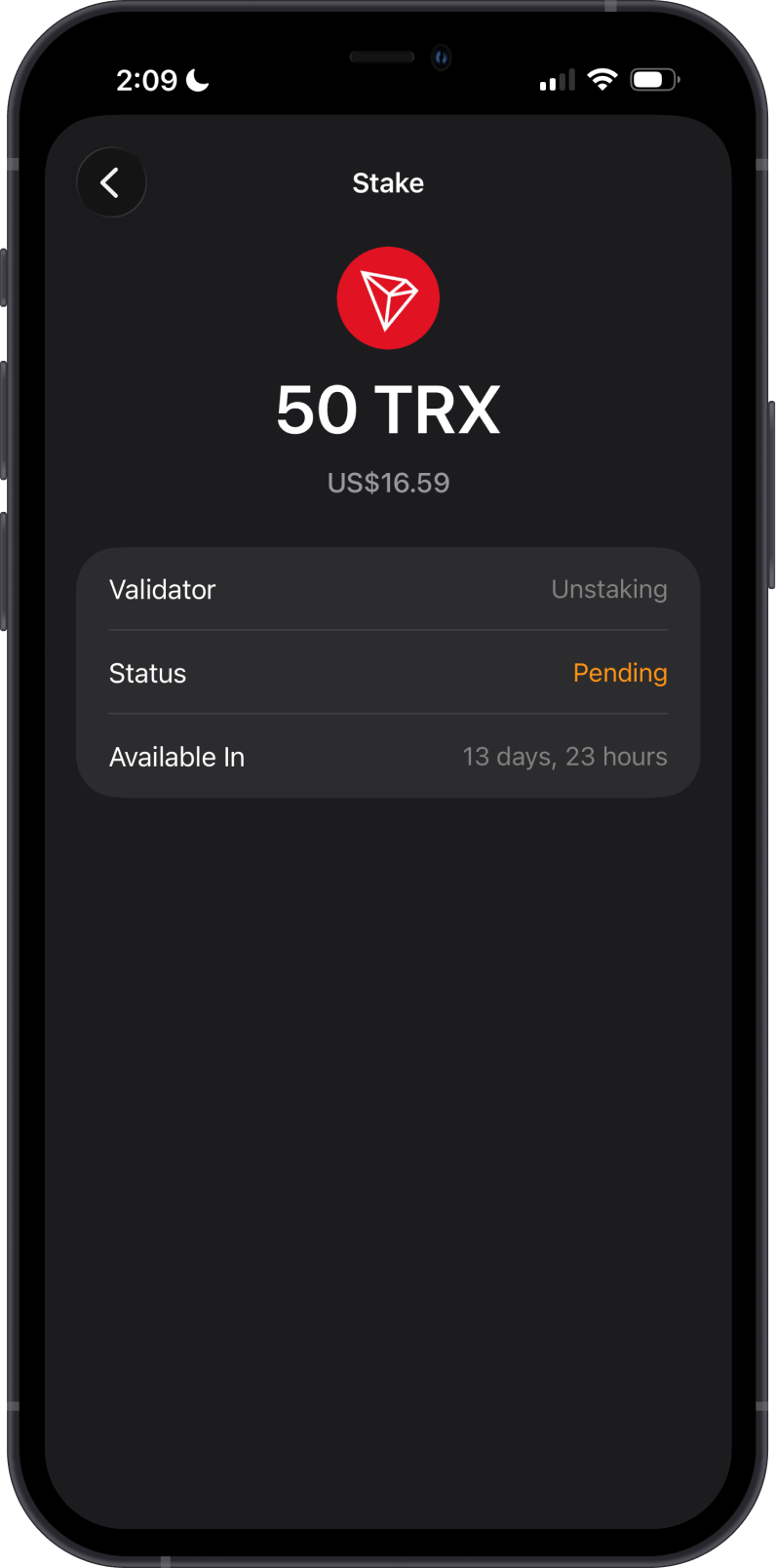
- Unstaked TRX remains locked for 14 days before it becomes available.
- The minimum staking amount is 1 TRX.
- Always have some extra amount of TRX that will be needed for transaction fees.
- Staking TRX has two parts: freezing your tokens and then staking them with a validator.
How to Stake TRON on Gem Wallet
Always check that you are using the latest version of the app for optimal performance and security.
Fund Your TRON Wallet
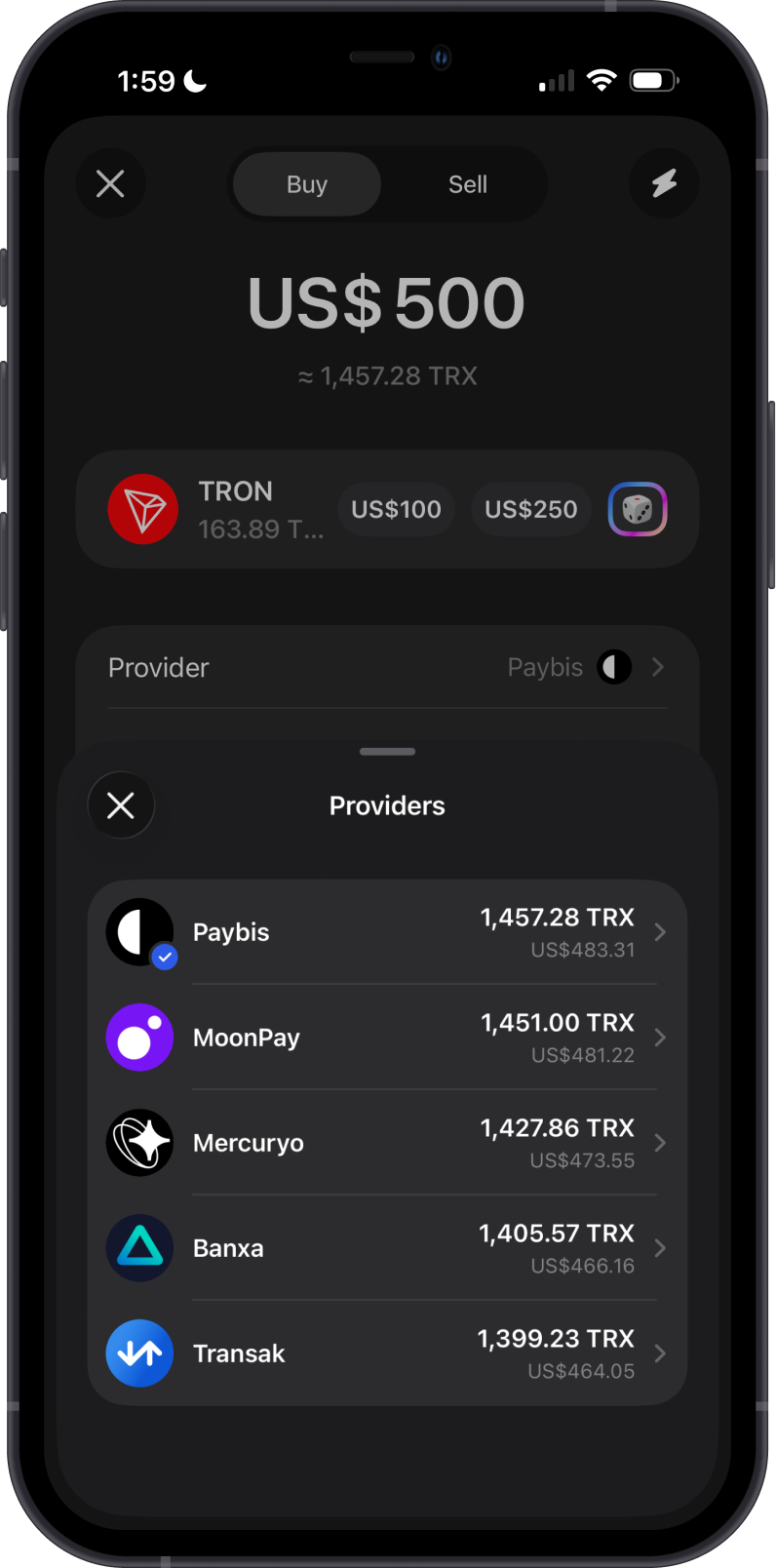
Before you can start staking, ensure that your TRON wallet is funded with TRX tokens. The easiest way to get TRX is to buy it directly with Gem Wallet. Tap Buy, select a provider, and follow the provider's instructions to complete your purchase.
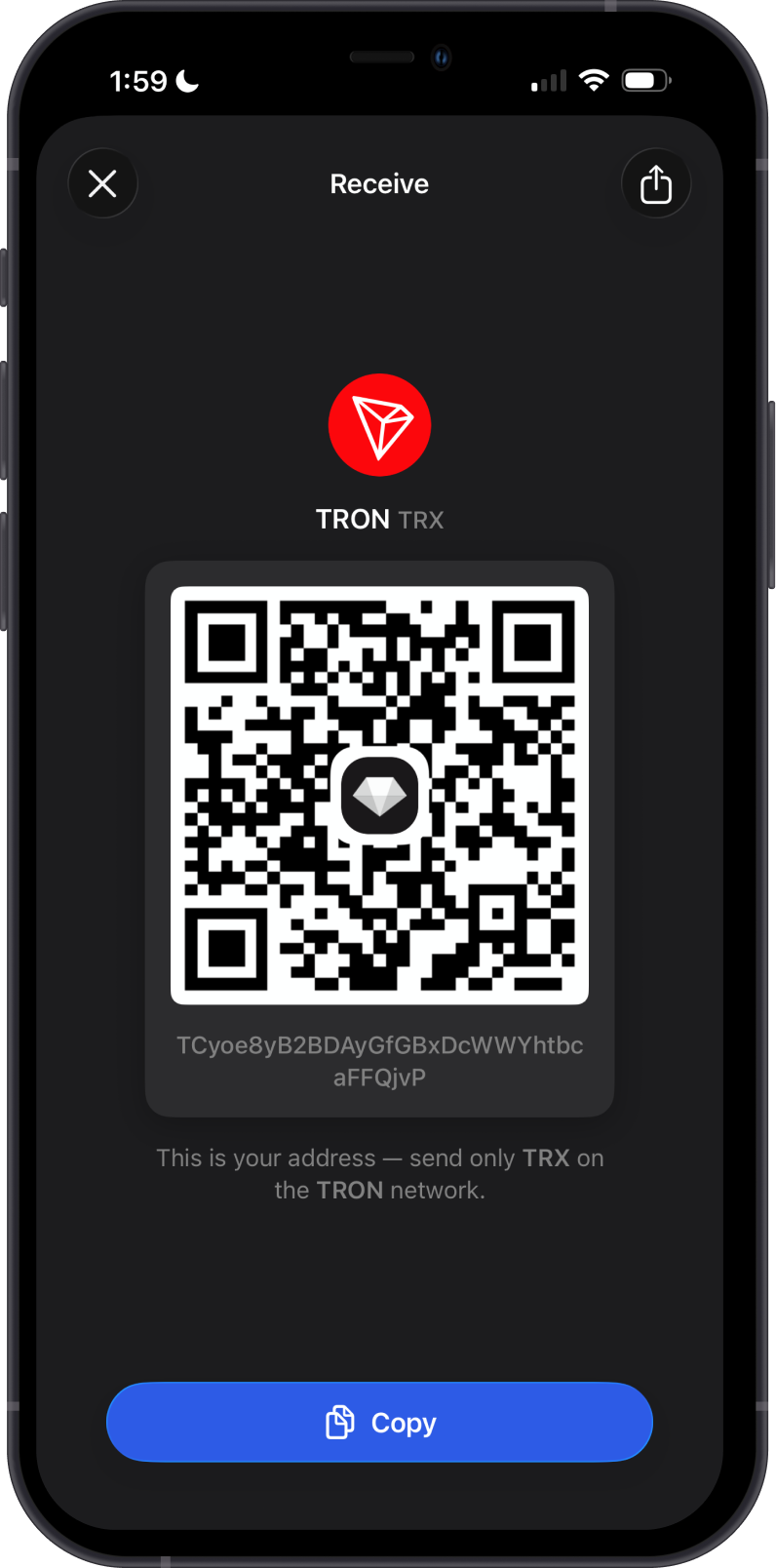
Alternatively, you can buy TRX tokens from various cryptocurrency exchanges such as Binance, Coinbase, or Kraken. Make sure you have a verified account on one of these platforms to purchase the tokens. Once you have purchased TRX, transfer the tokens to your Gem Wallet.
Make sure that you copy the TRON wallet address correctly when sending TRX from another wallet to avoid any loss of funds.
Freeze your TRX Tokens
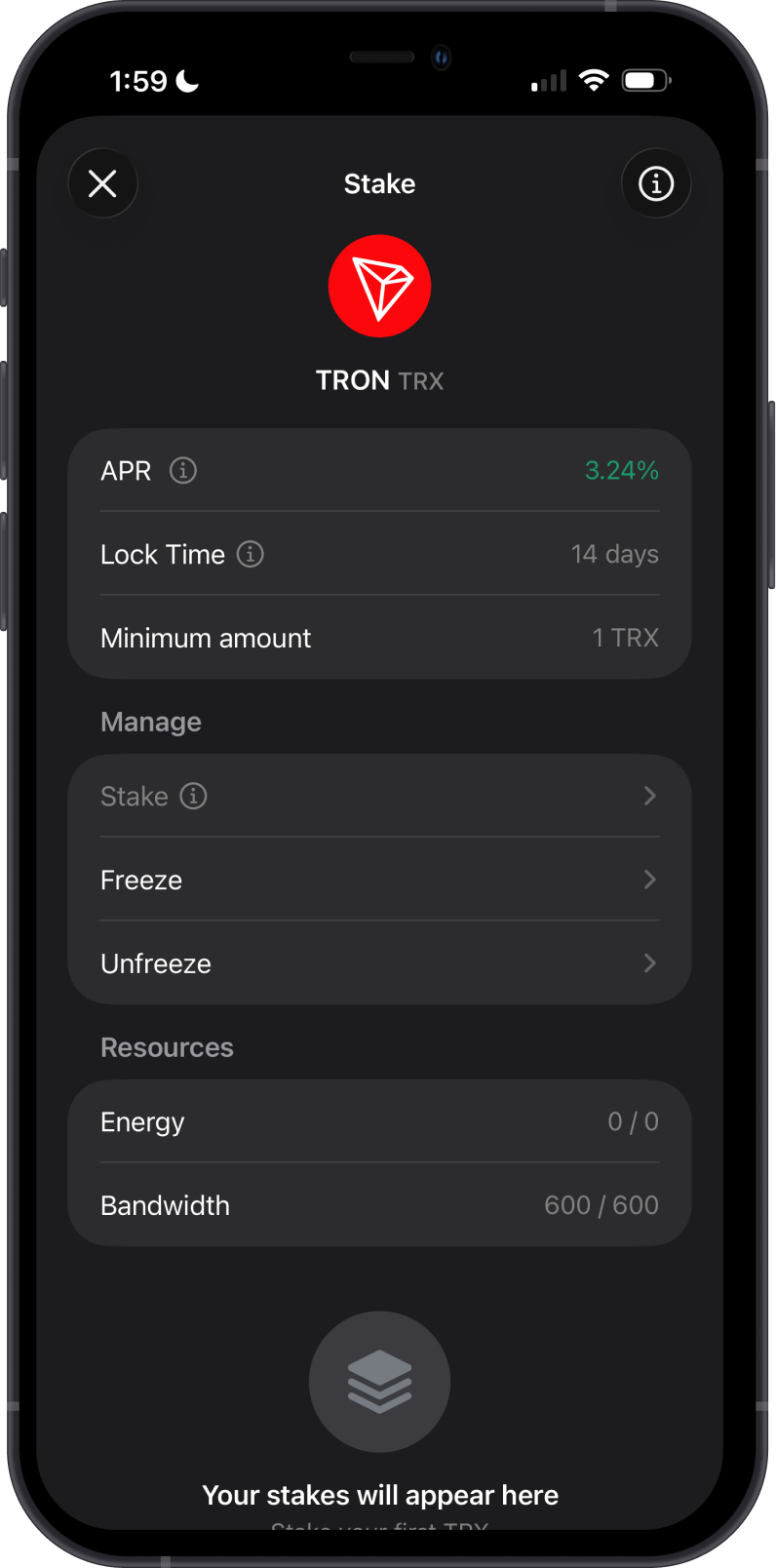
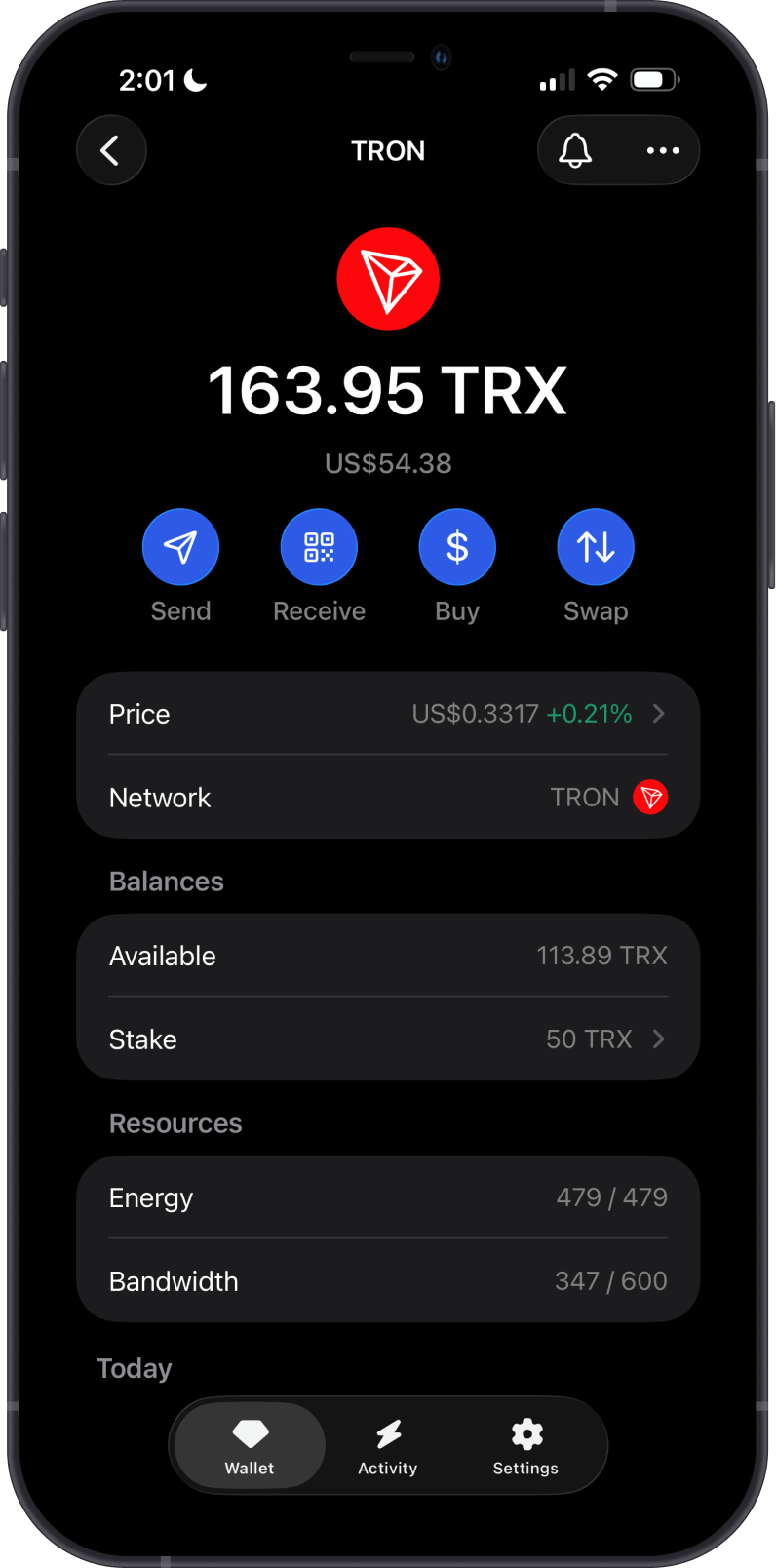
This is the first part of staking TRX tokens. Freezing TRX generates Bandwidth or Energy that can be used for transactions; it does not delegate your TRX to a validator. A Freeze transaction in Gem Wallet appears as a Stake transaction on the TRON explorer.
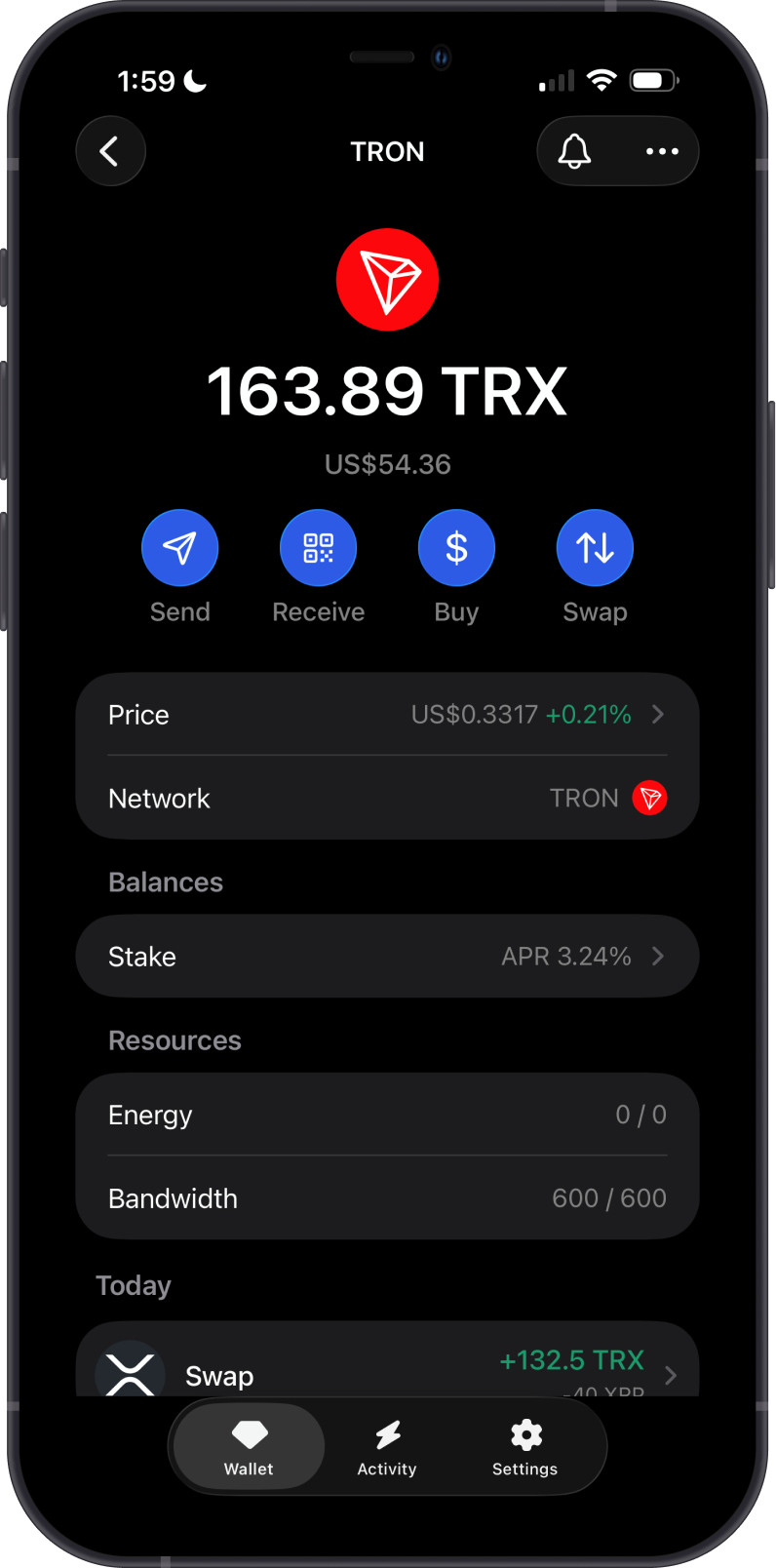
Open your TRON wallet and tap Stake. On the Stake screen, review the APR, lock time, and minimum amount, then tap Freeze.
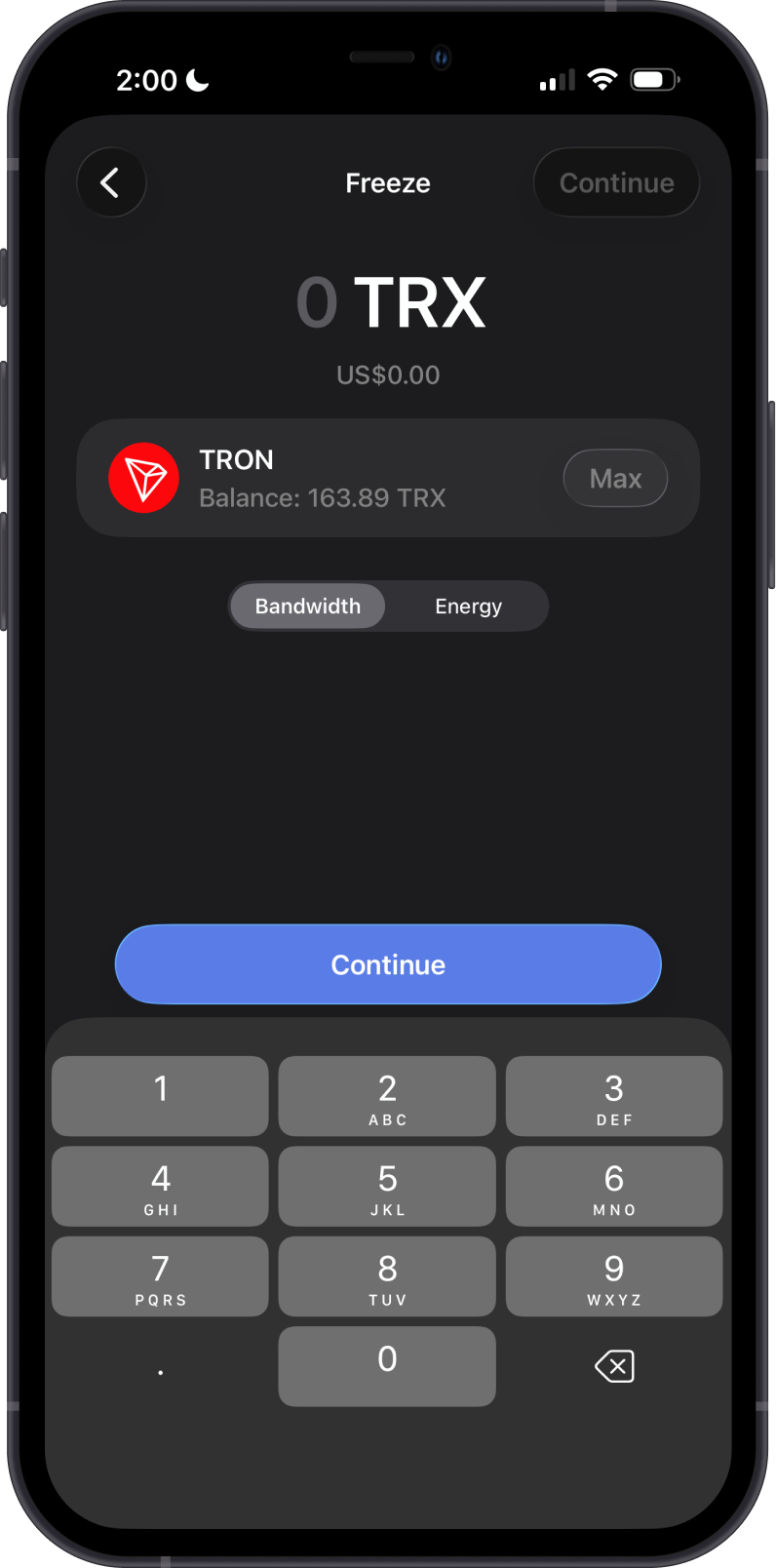
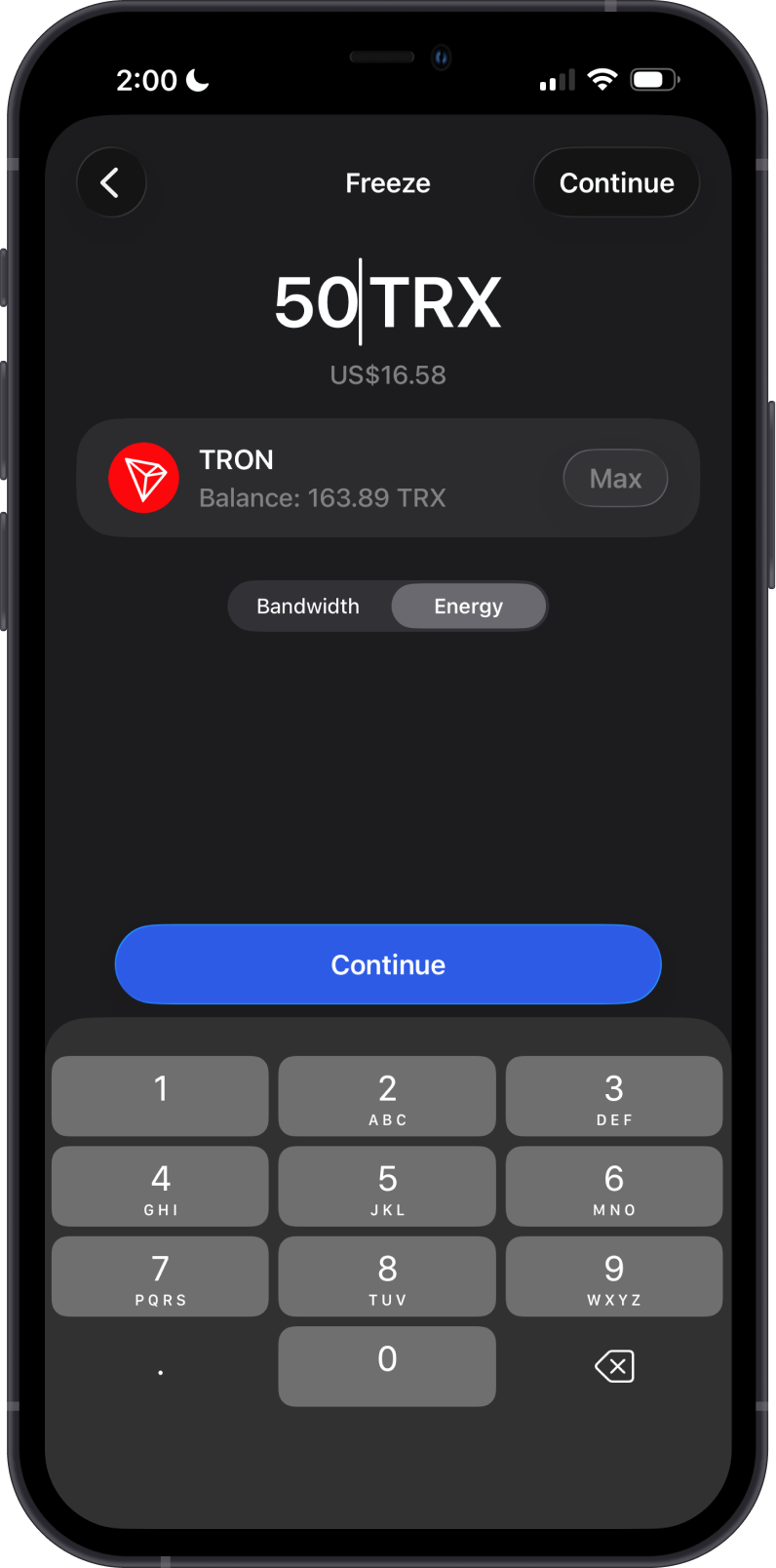
Choose Bandwidth or Energy
It is highly recommended to freeze your TRX for Energy as this can greatly reduce the amount of TRX spent for Network fees.
For this guide, select Energy, enter the amount of TRX that you want to freeze, and tap Continue. Keep some TRX available to submit the transaction.
Confirm Freeze Transaction
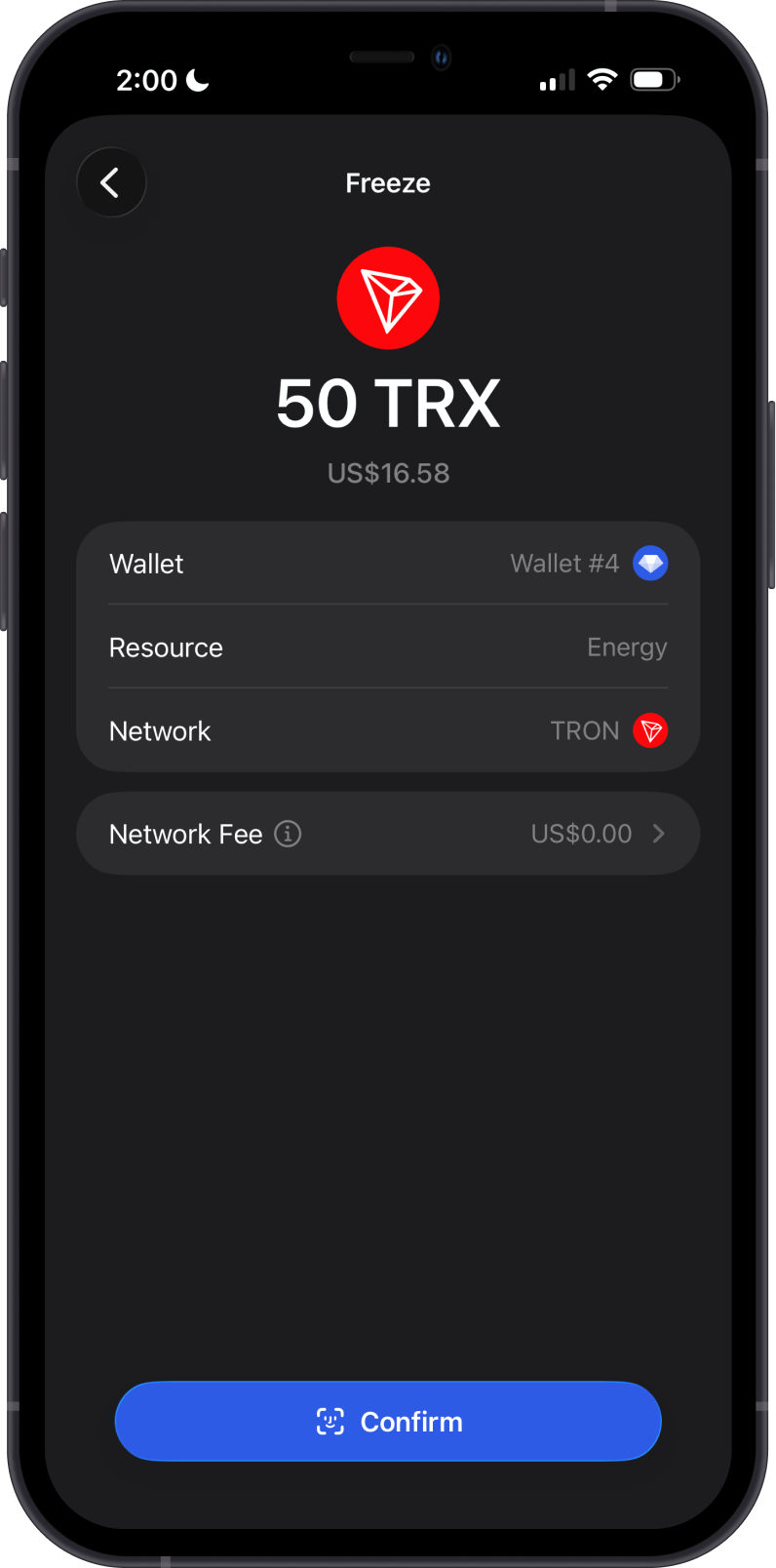
On the confirmation screen, verify the resource type and TRX amount. Tap Confirm to freeze your TRX.
Frozen tokens cannot be transferred. To make them available again, you must unstake or unfreeze them, then wait through the 14-day lock period.
Stake your TRX Tokens
This is the second part of staking TRX tokens. Staking, also called delegating, uses your frozen TRX as votes for a Super Representative and allows you to earn TRX rewards. A Stake transaction in Gem Wallet appears as a Vote transaction on the TRON explorer.
Choose a TRON Validator
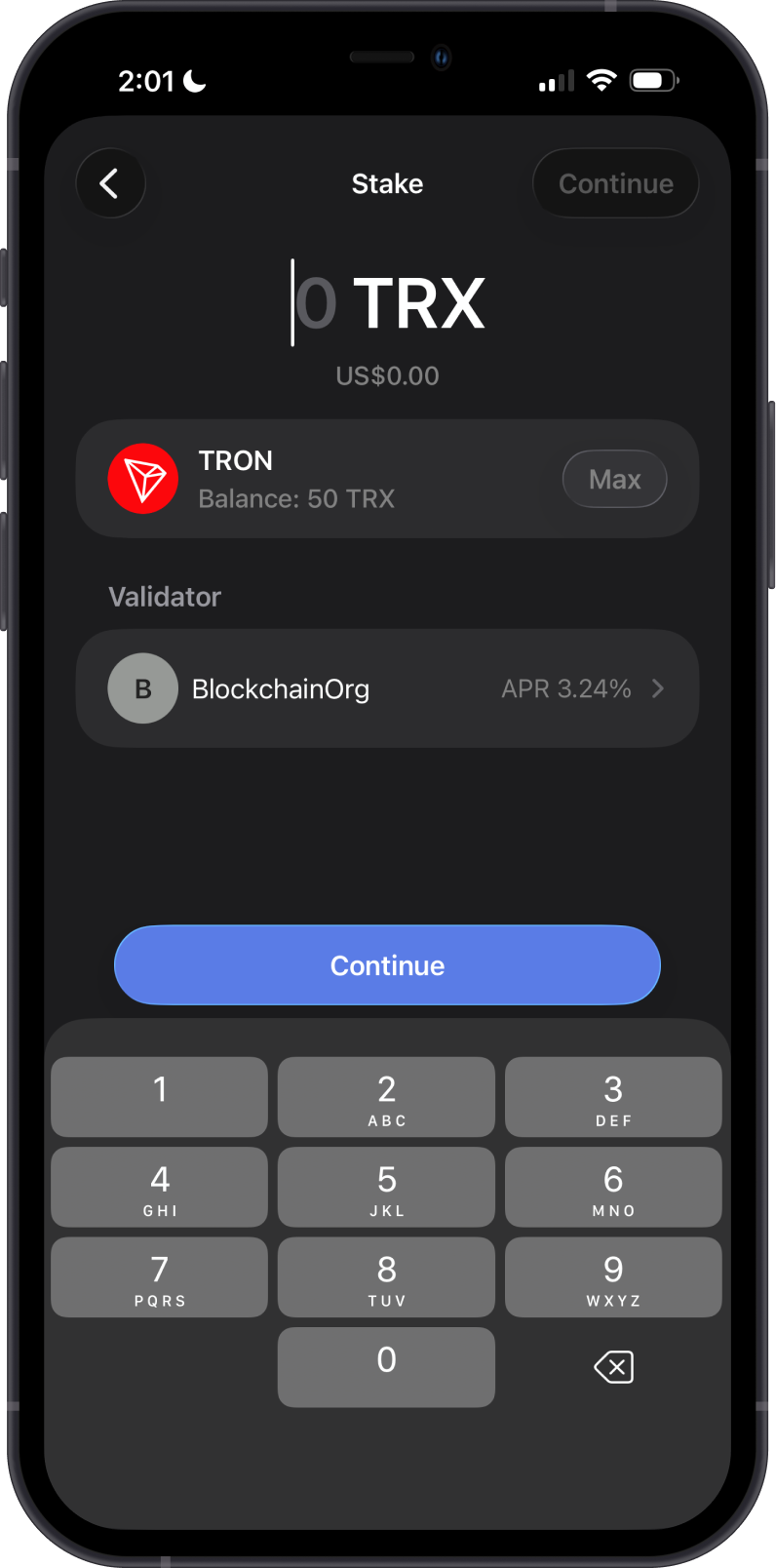
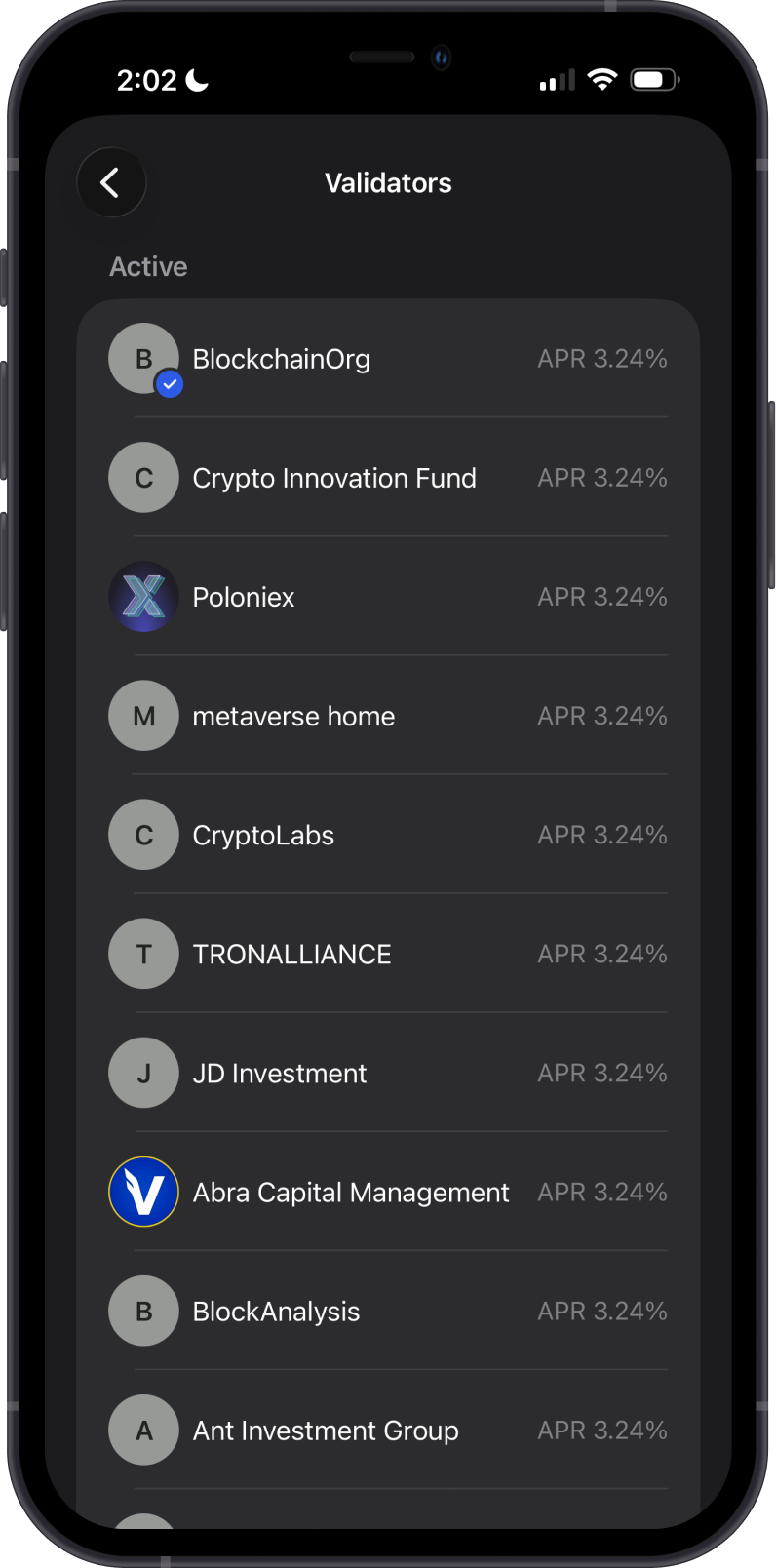
From the TRON Stake screen, tap Stake under Manage. Tap the Validator field to view the available validators, then select one from the list.
Look for validators with high uptime, low commission rates, and a good reputation in the community. You can find more detailed information about TRON validators here.
Input Stake Amount
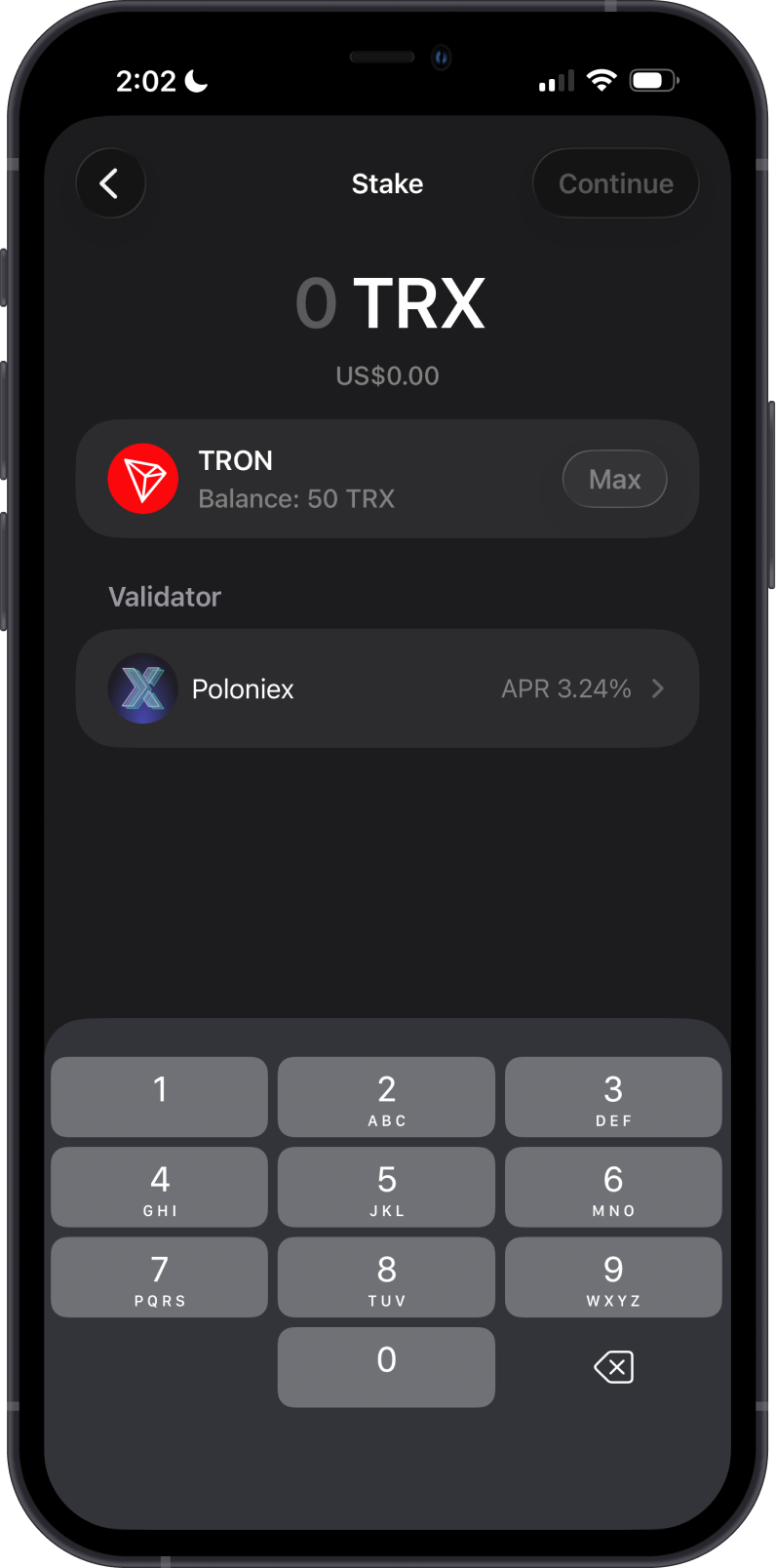
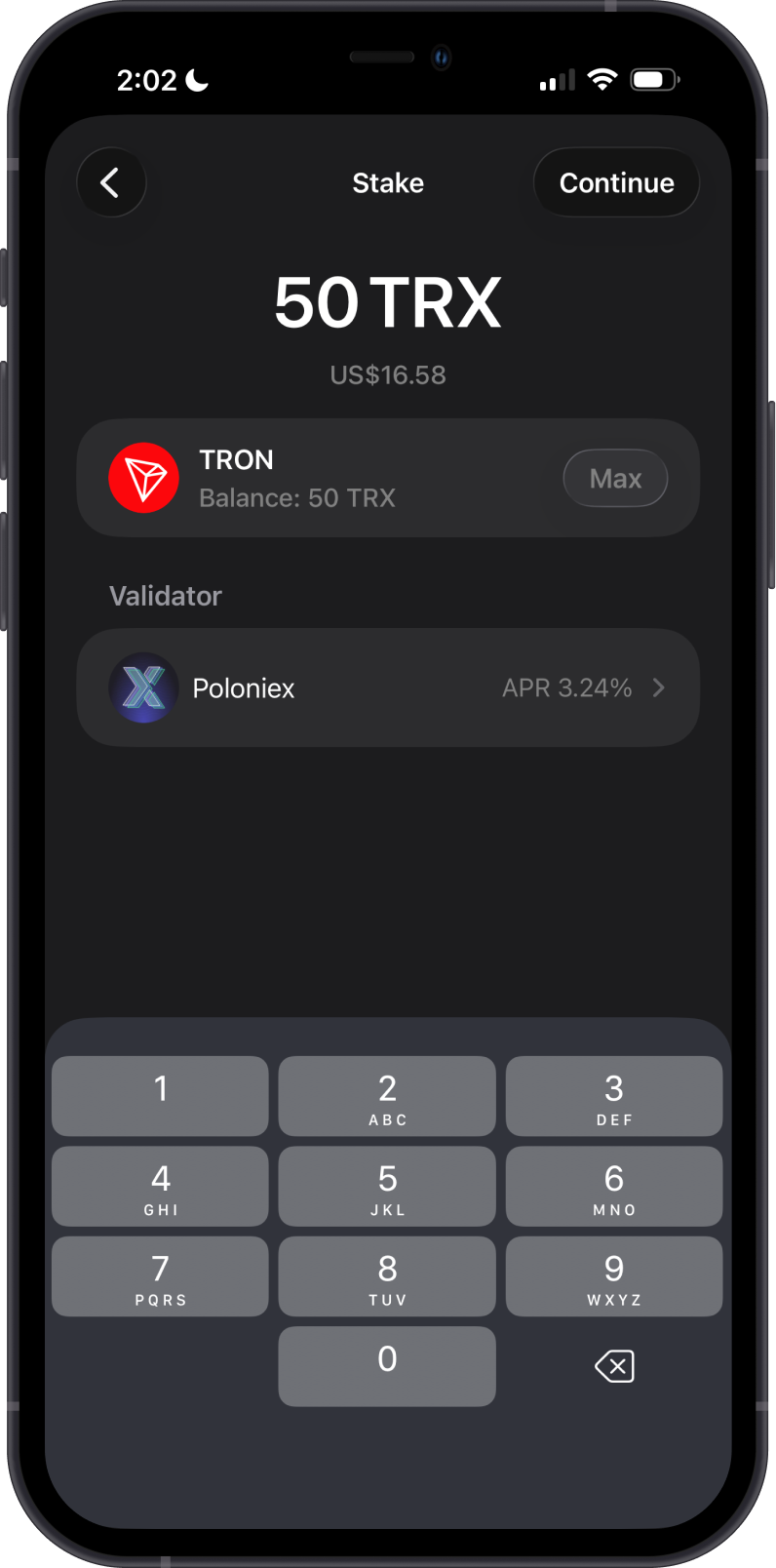
After selecting a validator, enter the amount of frozen TRX that you want to stake. Tap Continue.
Confirm Stake Transaction
Double-check the validator and the amount of TRX you are staking, then tap Confirm. The transaction will be submitted to the TRON network.
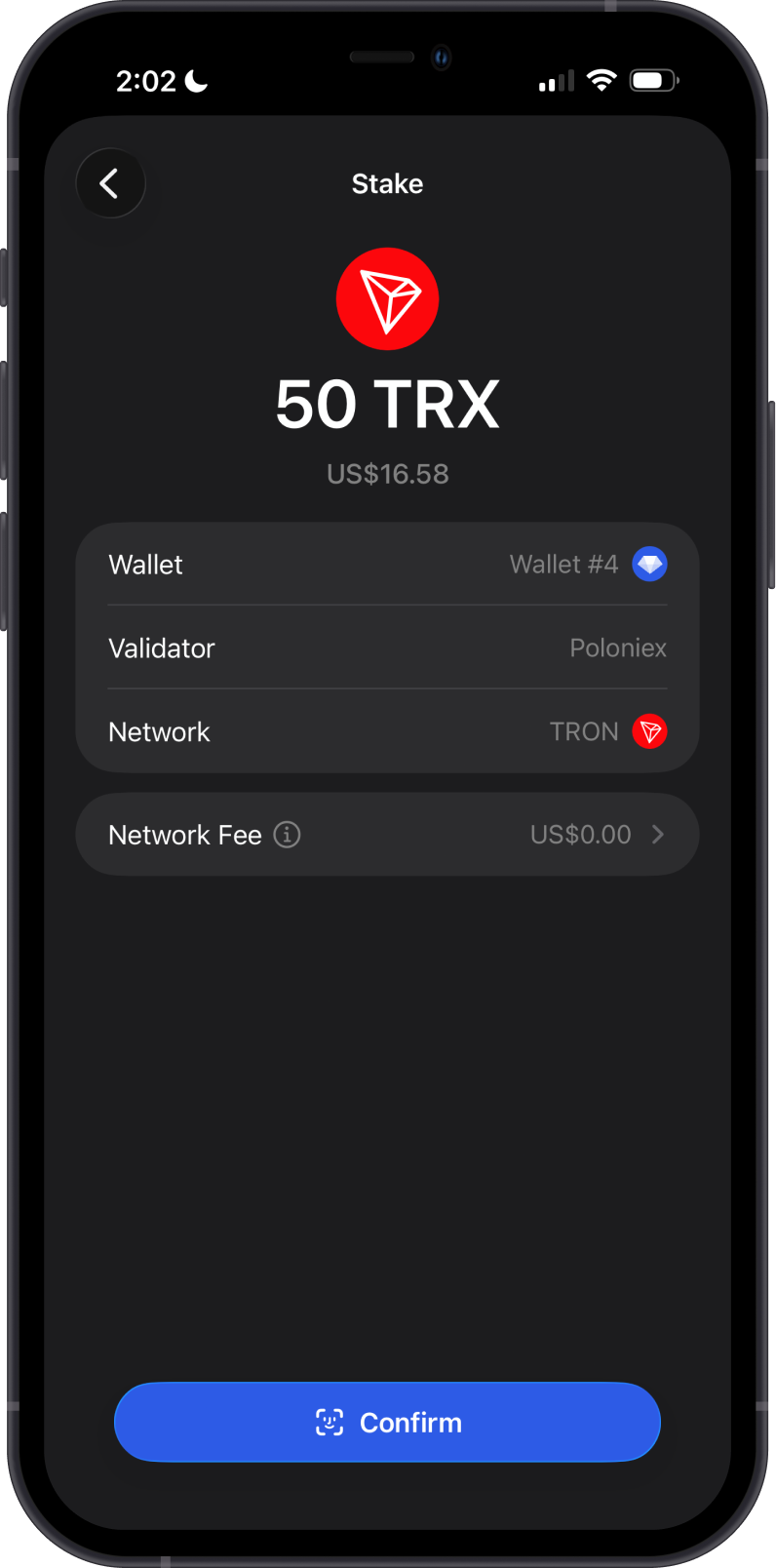
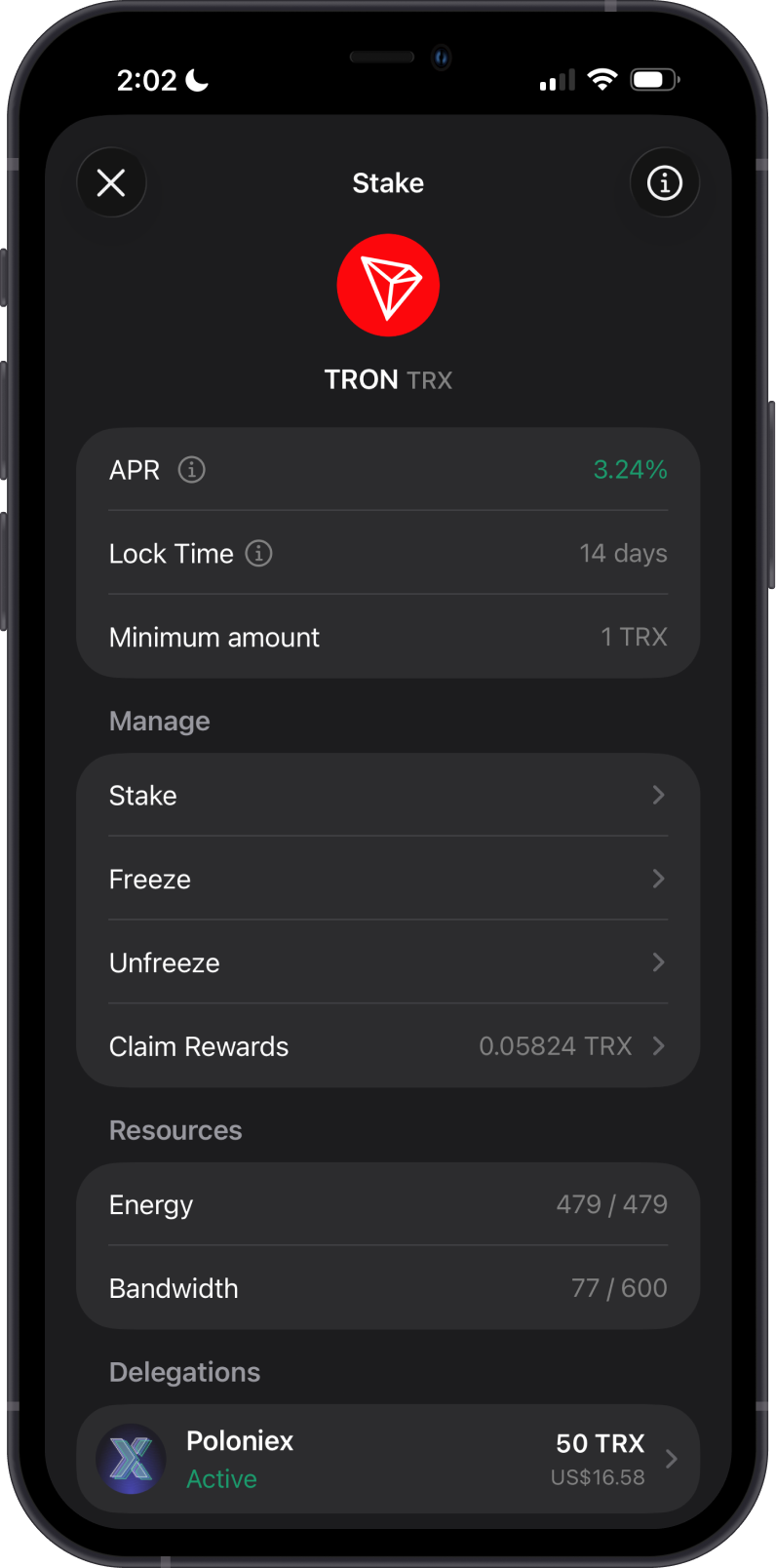
The transaction will just take a few seconds to be confirmed on the TRON Network. Congratulations, you have successfully staked TRON with Gem Wallet.
TRON Staking Rewards
TRON staking rewards vary by validator and can be claimed manually. Tap a delegation under Delegations on the Stake screen to view its details.
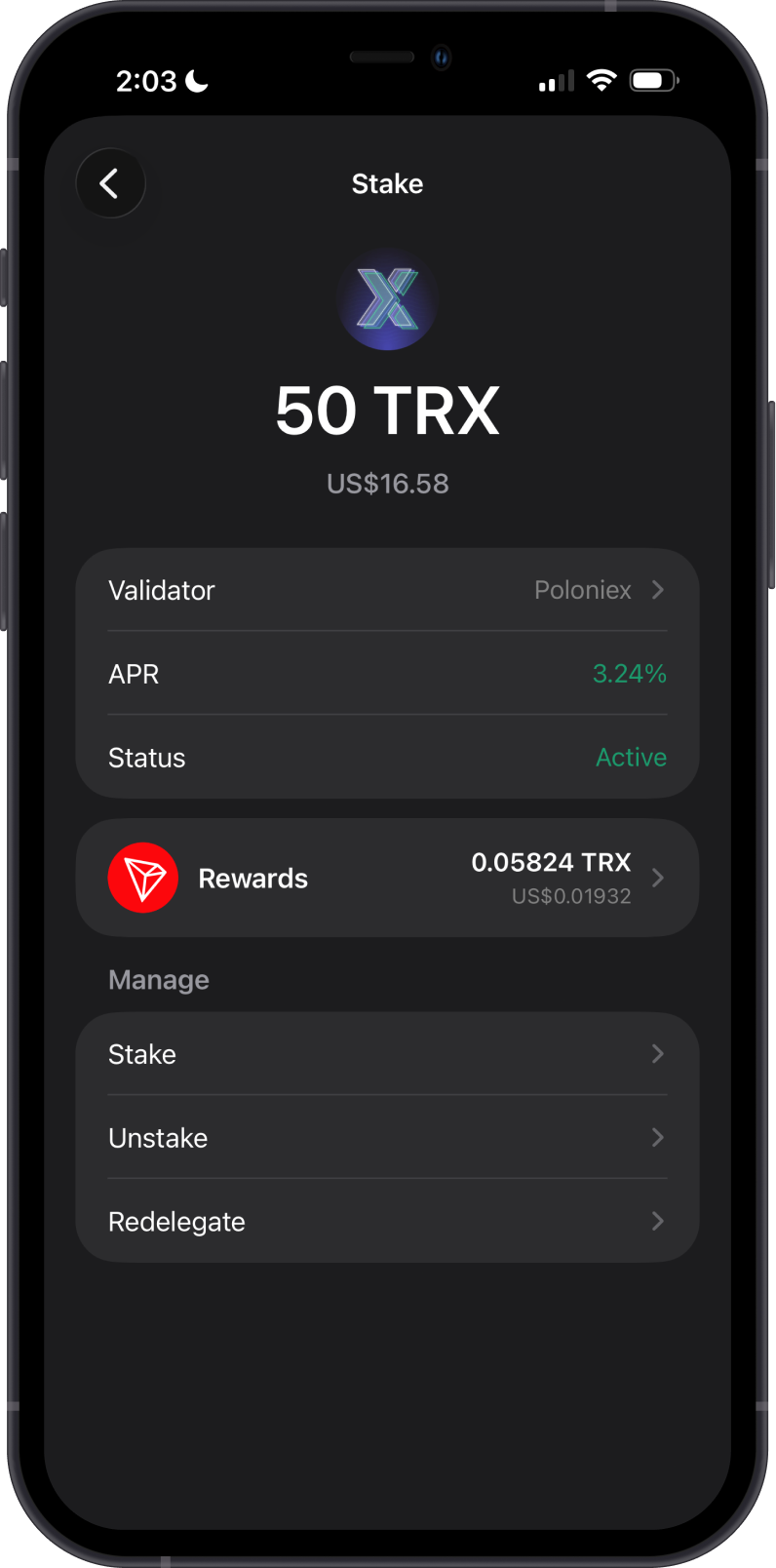
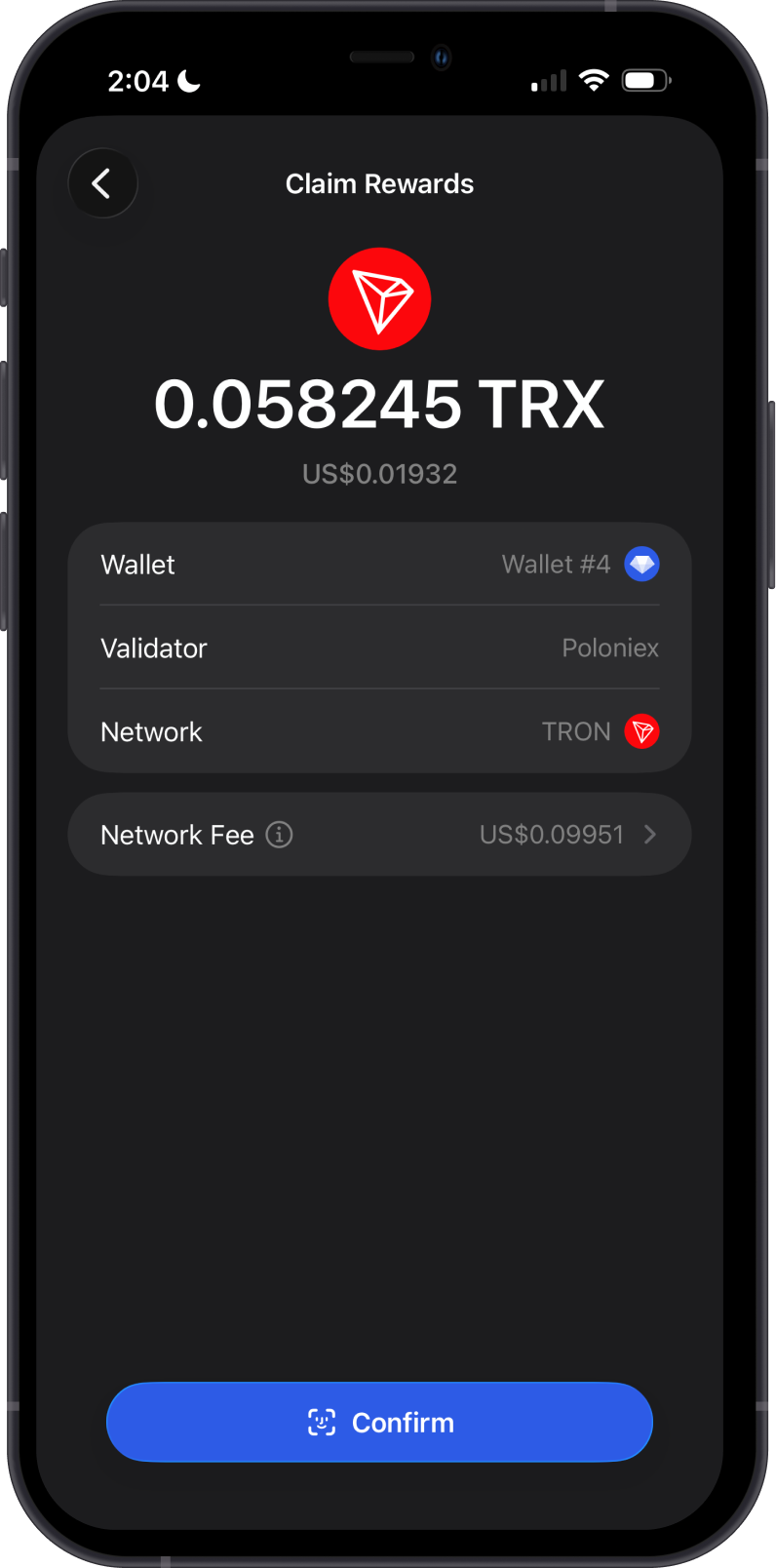
Staking TRON (TRX) in Gem Wallet earns you TRX token rewards. Simply tap "Claim Rewards" to manually collect your TRX staking rewards.
Reduce Network Fees with TRX Staking
Another benefit of staking TRX is that it helps lower network fees on the TRON blockchain by increasing the network's resource pool. Staked tokens provide bandwidth and energy, reducing the need for users to burn TRX for transaction costs.
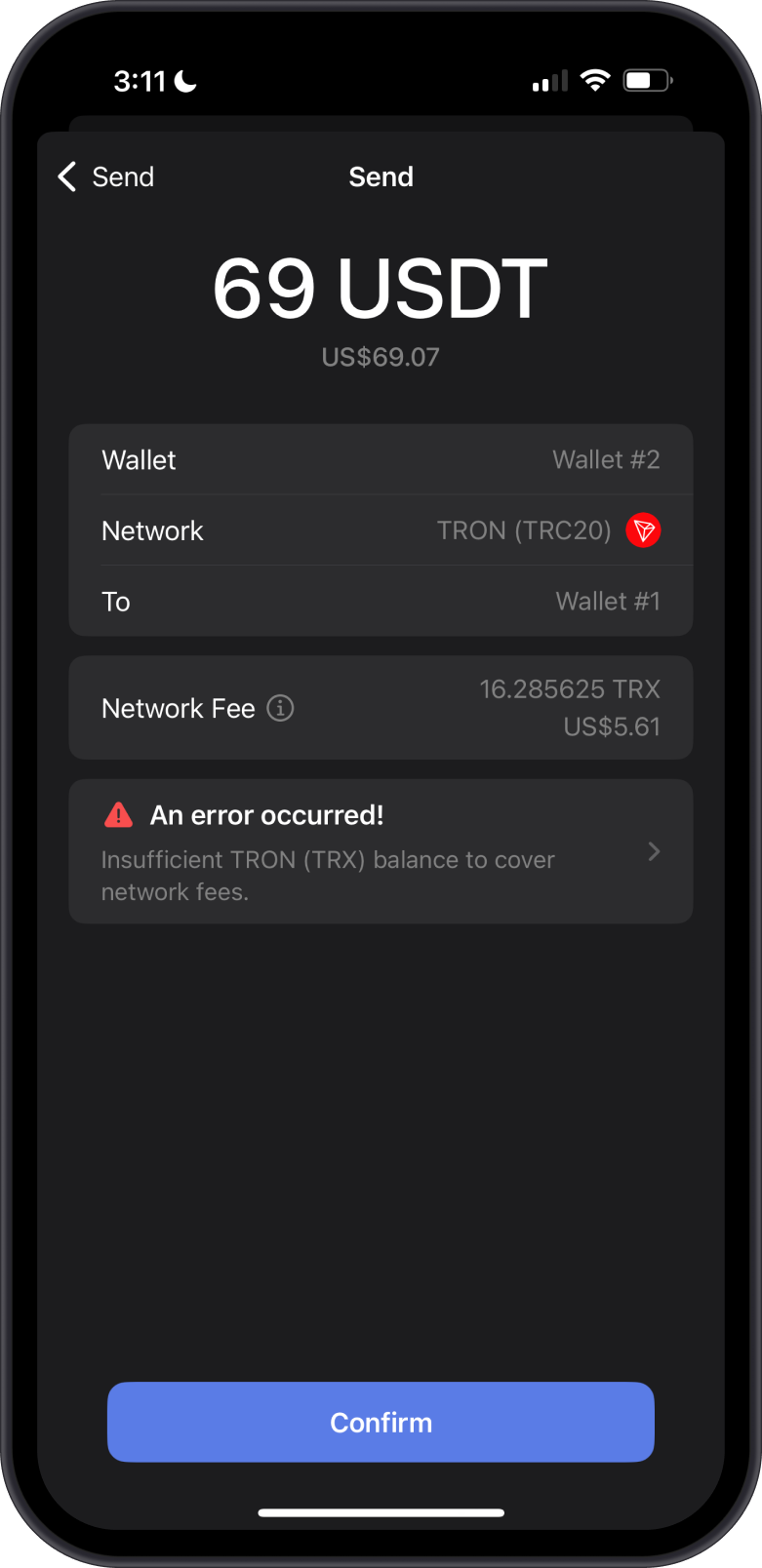
As an example, notice how much TRX is required to send USDT-TRC20 for Network fees. This transaction will require almost 17 TRX which is about $5.61 (as of writing).
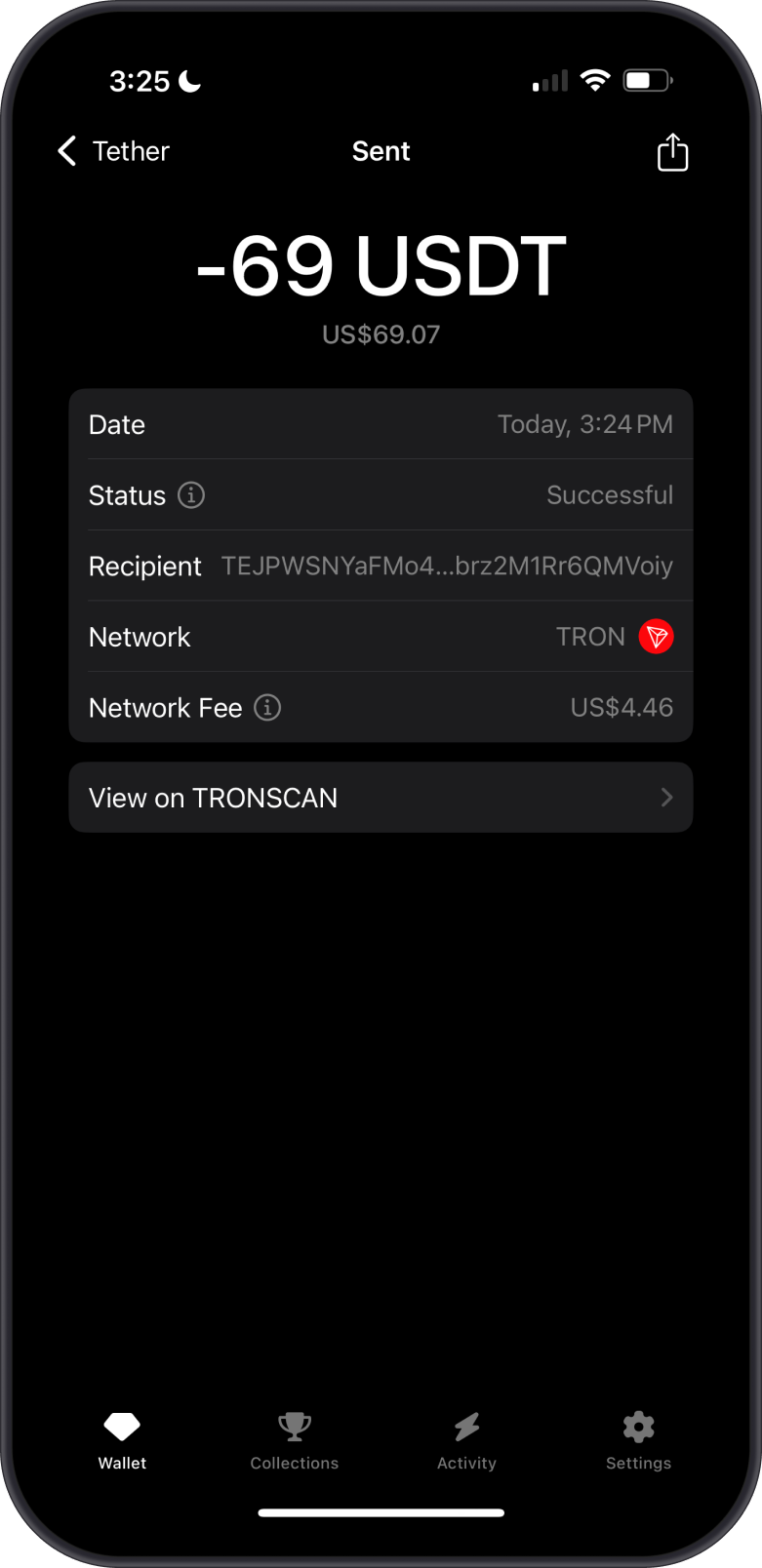
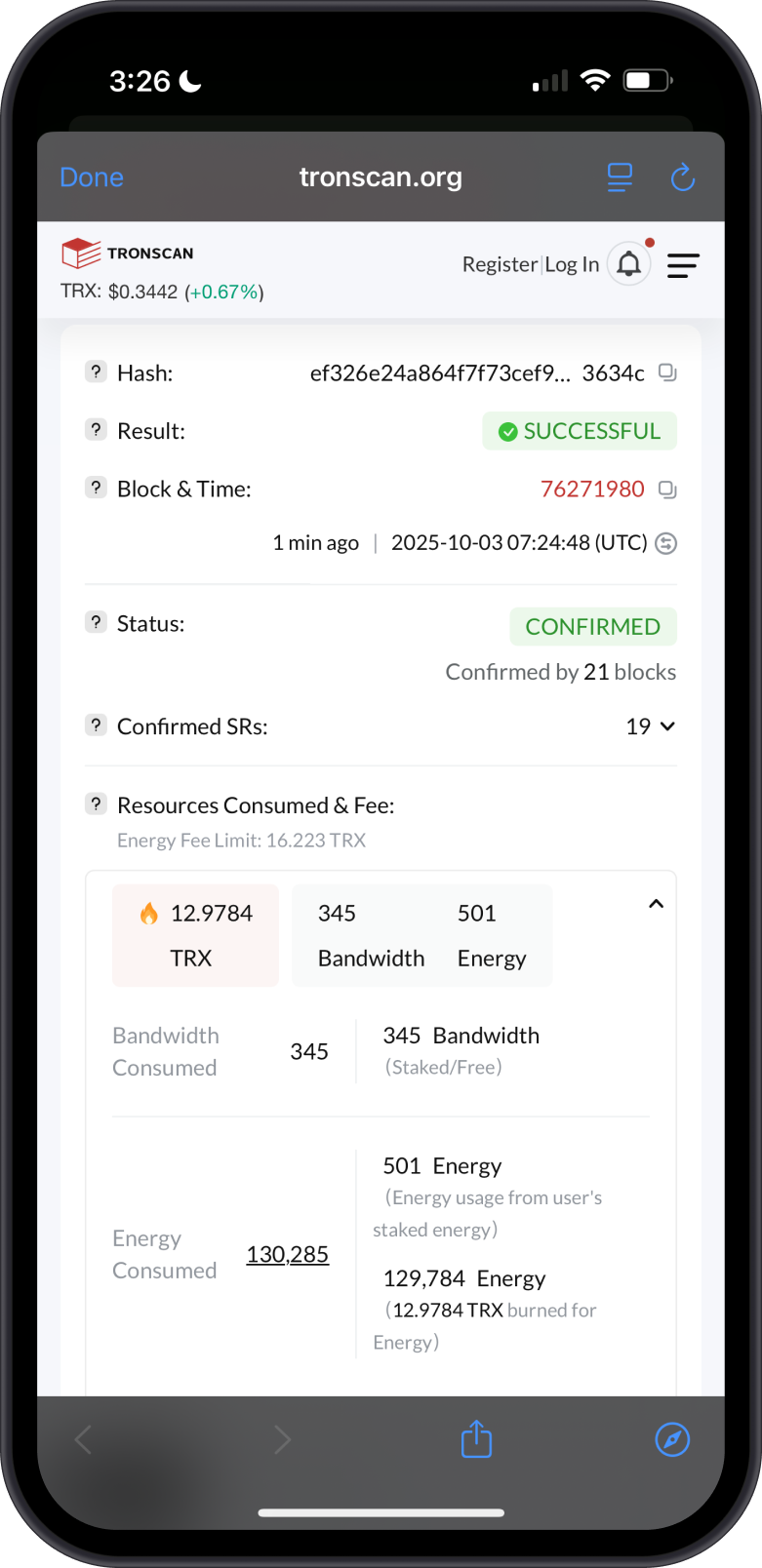
Now, compare it to the spent TRX when you have some TRX staked. Bandwidth and Energy are spent before your TRX balance is used, making the fees lower. The more TRX you stake, the more resources available for your to spend.
Redelegating or Unstaking Your Tokens
Staking TRX tokens to a validator on the TRON network allows you to earn passive rewards by supporting network security and operations. By delegating your tokens, you contribute to the blockchain’s consensus mechanism while receiving a share of the staking rewards. It’s a way to grow your holdings without active trading, though validator reliability and fees should be considered.
To change validators, open your staking details, tap Redelegate, select the amount and new validator, and continue to confirmation. To stop staking, tap Unstake, enter the amount, and continue to confirmation.
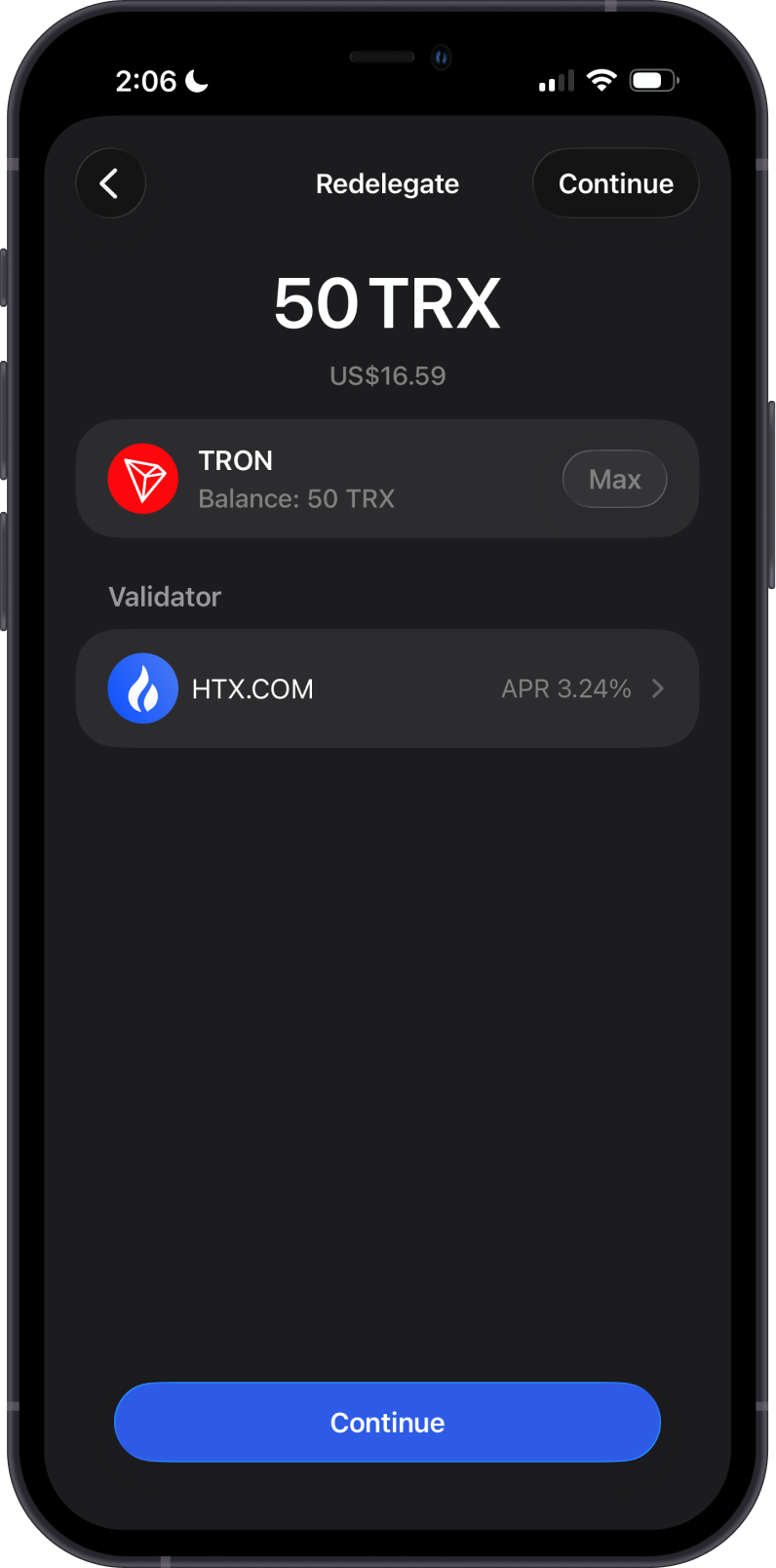
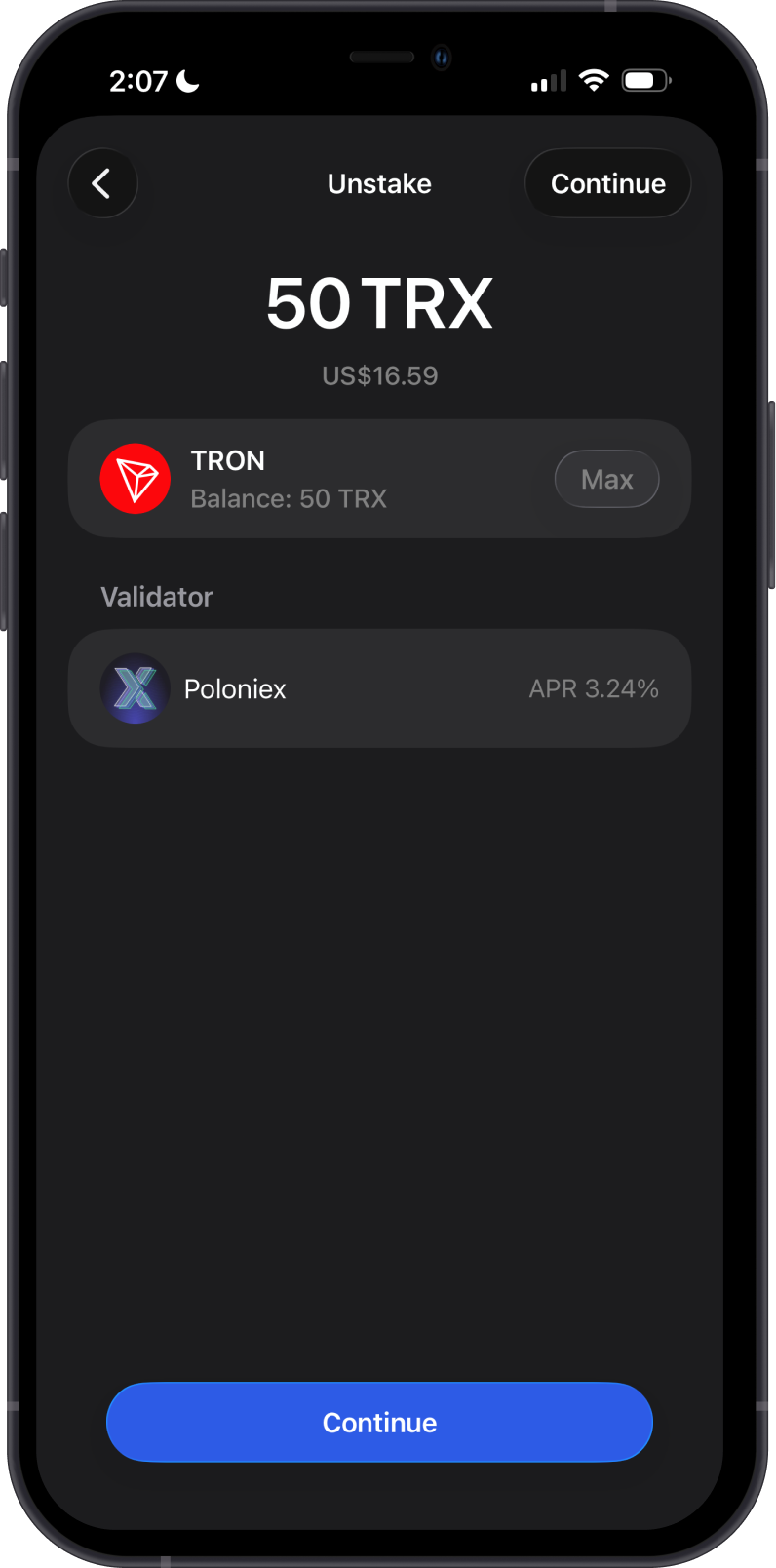
Unstaked TRX no longer earns staking rewards. The app displays the pending status and when the TRX will become available.
Unfreezing your TRX Tokens
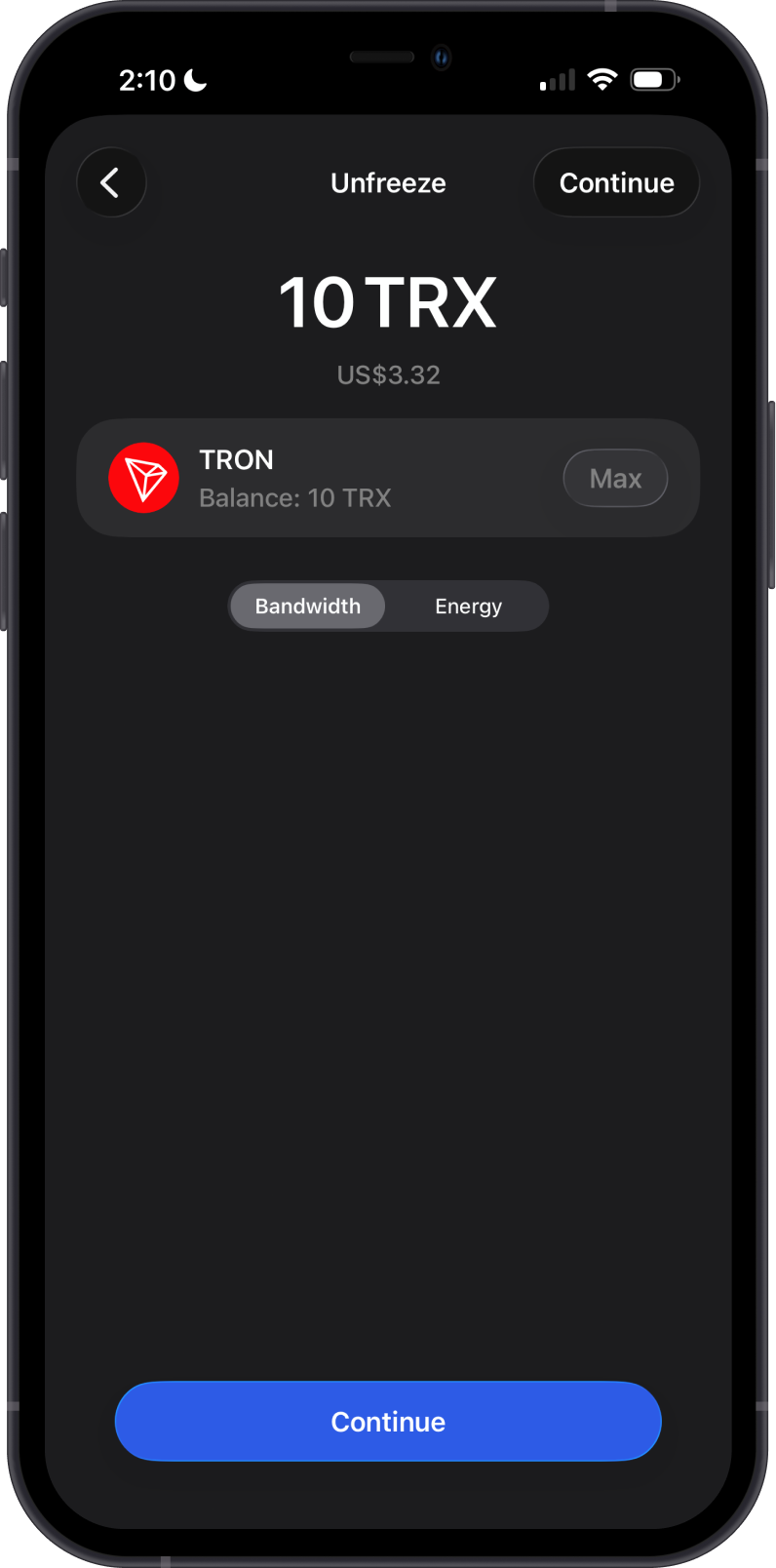
To release frozen TRX that is not delegated to a validator, open the TRON Stake screen and tap Unfreeze under Manage. Enter the amount, choose whether to remove Bandwidth or Energy resources, tap Continue, and confirm the transaction. The app will show when the TRX becomes available after the 14-day lock period.
Is Staking TRON on Gem Wallet Secure?
Yes, Gem Wallet is a secure and open-source wallet for staking TRON. Here are some reasons why you need to stake your TRX with Gem Wallet:
- Transparency: Open-source wallets have publicly available code that can be reviewed and audited by anyone.
- Community Trust and Collaboration: Being open-source fosters a collaborative environment where developers and security experts continuously improve the wallet.
- No Hidden Backdoors: Open-source wallets are less likely to have hidden backdoors or malicious code, as the open nature of the code allows for thorough scrutiny by the community, minimizing the risk of unauthorized access.
Staking TRON (TRX) using Gem Wallet is a great way to earn passive income while supporting the network. By following these steps and tips, you can ensure a smooth and secure staking experience.