WalletConnect Guide
How to Use WalletConnect with Gem Wallet
WalletConnect lets you connect Gem Wallet to supported decentralized applications (dApps) without exposing your private keys. Gem Wallet can use WalletConnect across multiple blockchains, including both EVM and supported non-EVM networks.
The complete supported-network lists are linked below by chain type.
- EVM chains use the Ethereum Virtual Machine and share a common dApp connection model. Examples include Ethereum, BNB Chain, Polygon, Arbitrum, Optimism, Base, and Avalanche.
- Non-EVM chains use different blockchain architectures. Gem Wallet also supports WalletConnect connections on compatible networks such as Solana, Sui, The Open Network (TON), and TRON.
WalletConnect availability depends on both the blockchain and the dApp. Before connecting, confirm that the dApp supports WalletConnect on the network you want to use.
The WalletConnect Flow
Step 1 - Open a Supported DApp
Open the official dApp website and tap Connect or Connect Wallet. Select the correct blockchain when the dApp asks you to choose a network.
Step 2 - Choose WalletConnect
Tap WalletConnect, then select Gem Wallet if it appears in the wallet list. Follow the prompt to open Gem Wallet.
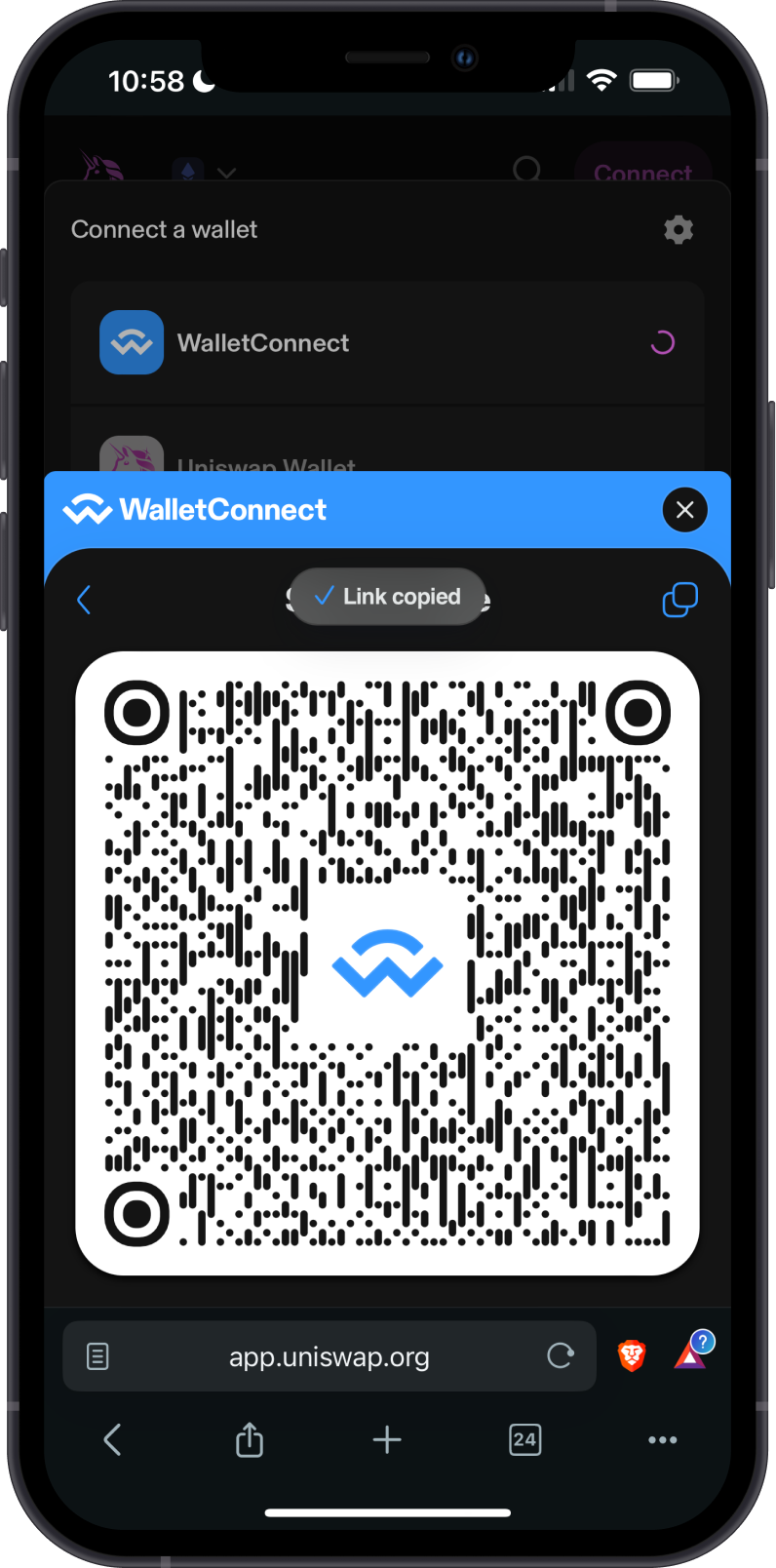
If Gem Wallet is not listed, open the WalletConnect QR code and either:
- Scan the QR code from Gem Wallet when the dApp is open on another device.
- Copy the WalletConnect URI when the dApp and Gem Wallet are on the same device.
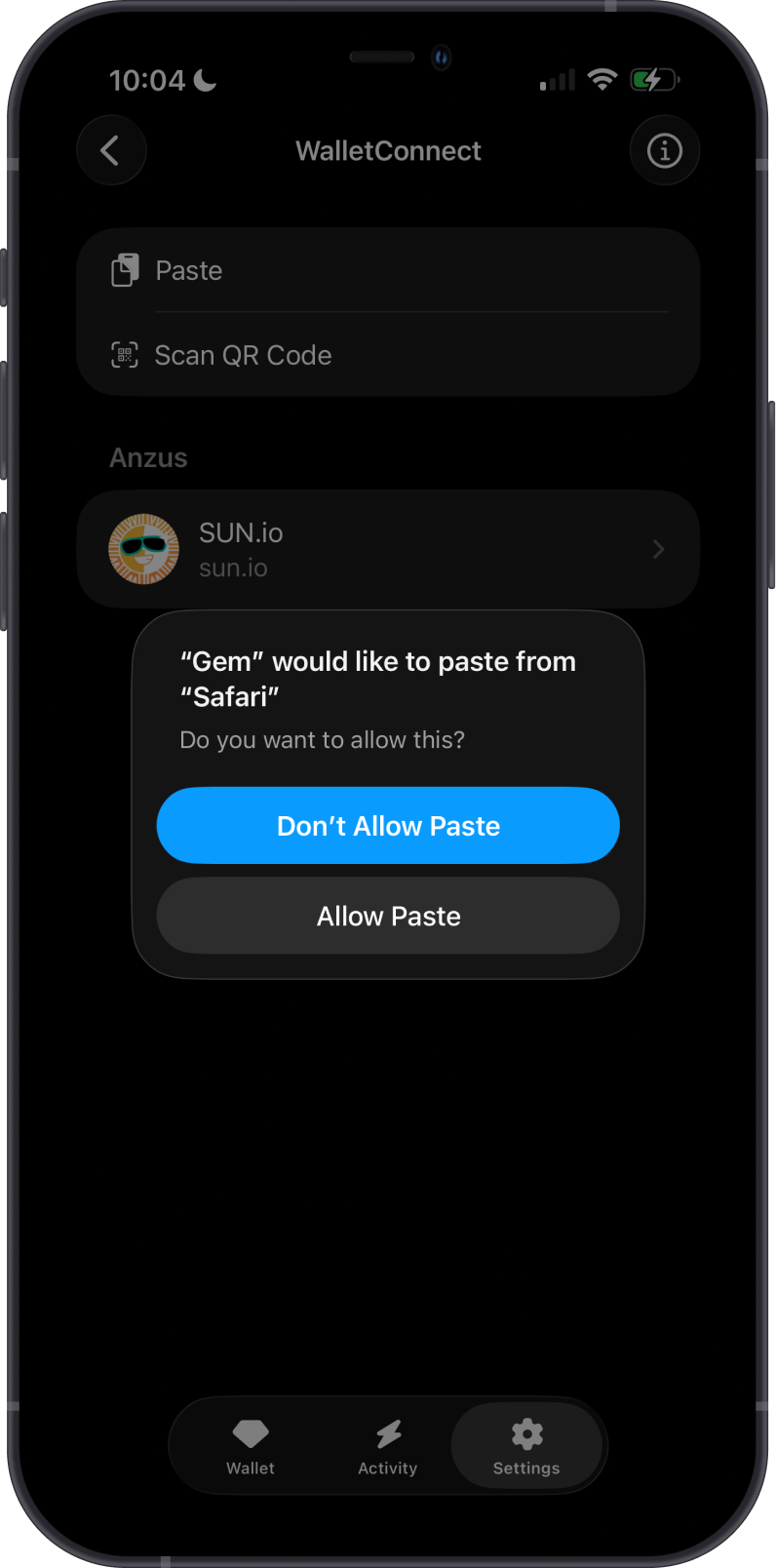
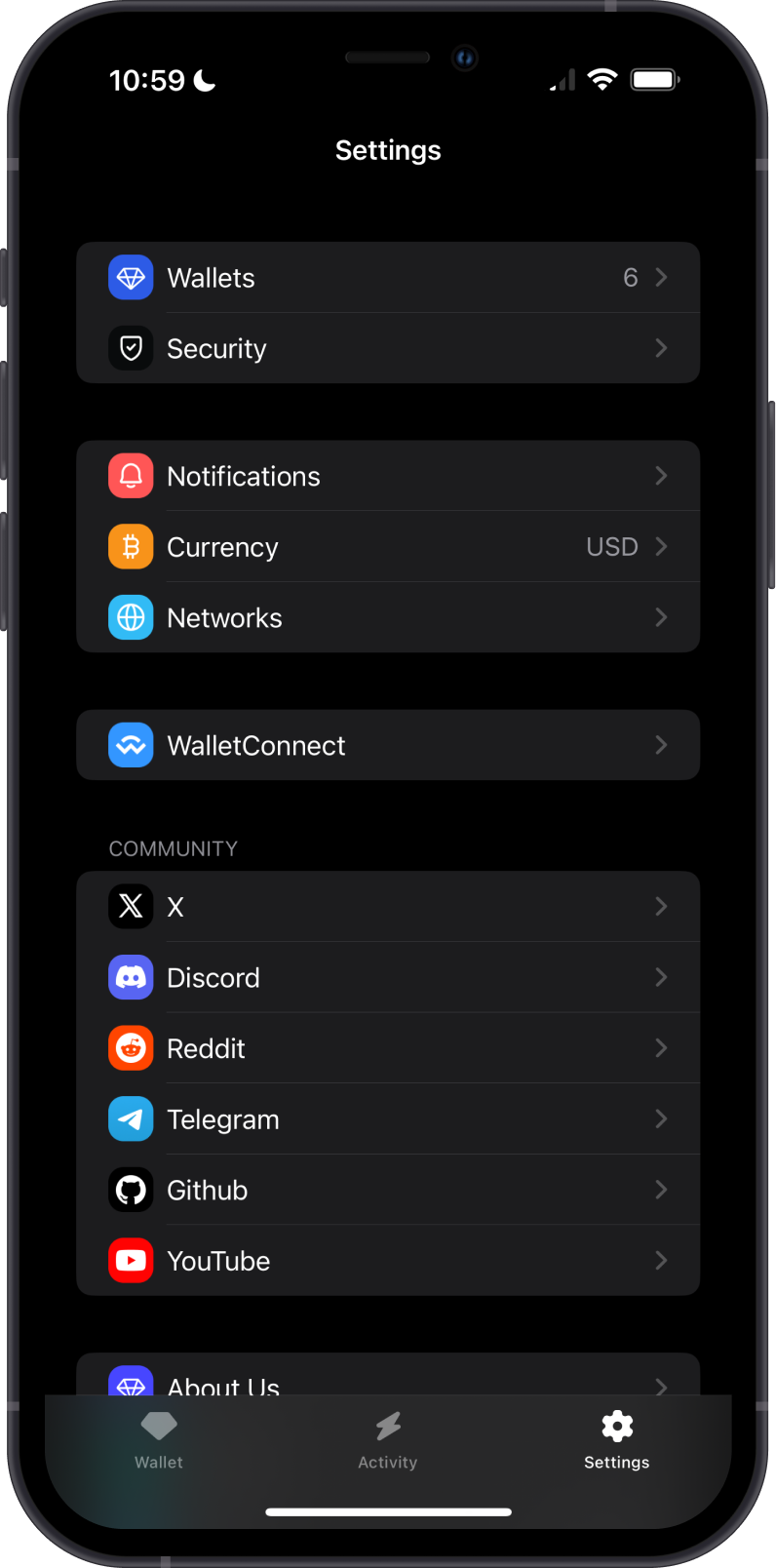
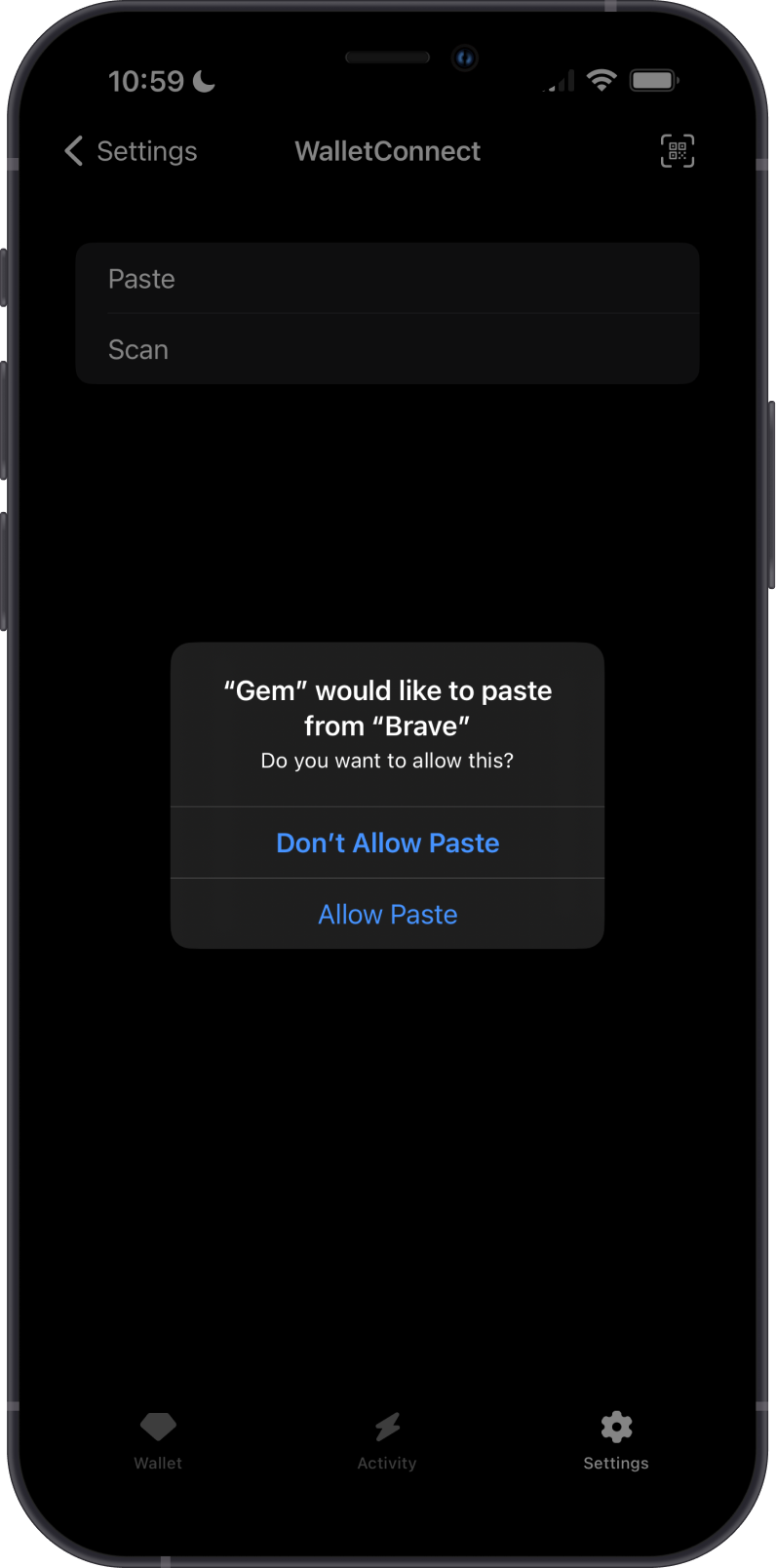
To use a copied URI, open Gem Wallet > Settings > WalletConnect, tap Paste, and allow Gem Wallet to paste the link.
Step 3 - Review and Confirm
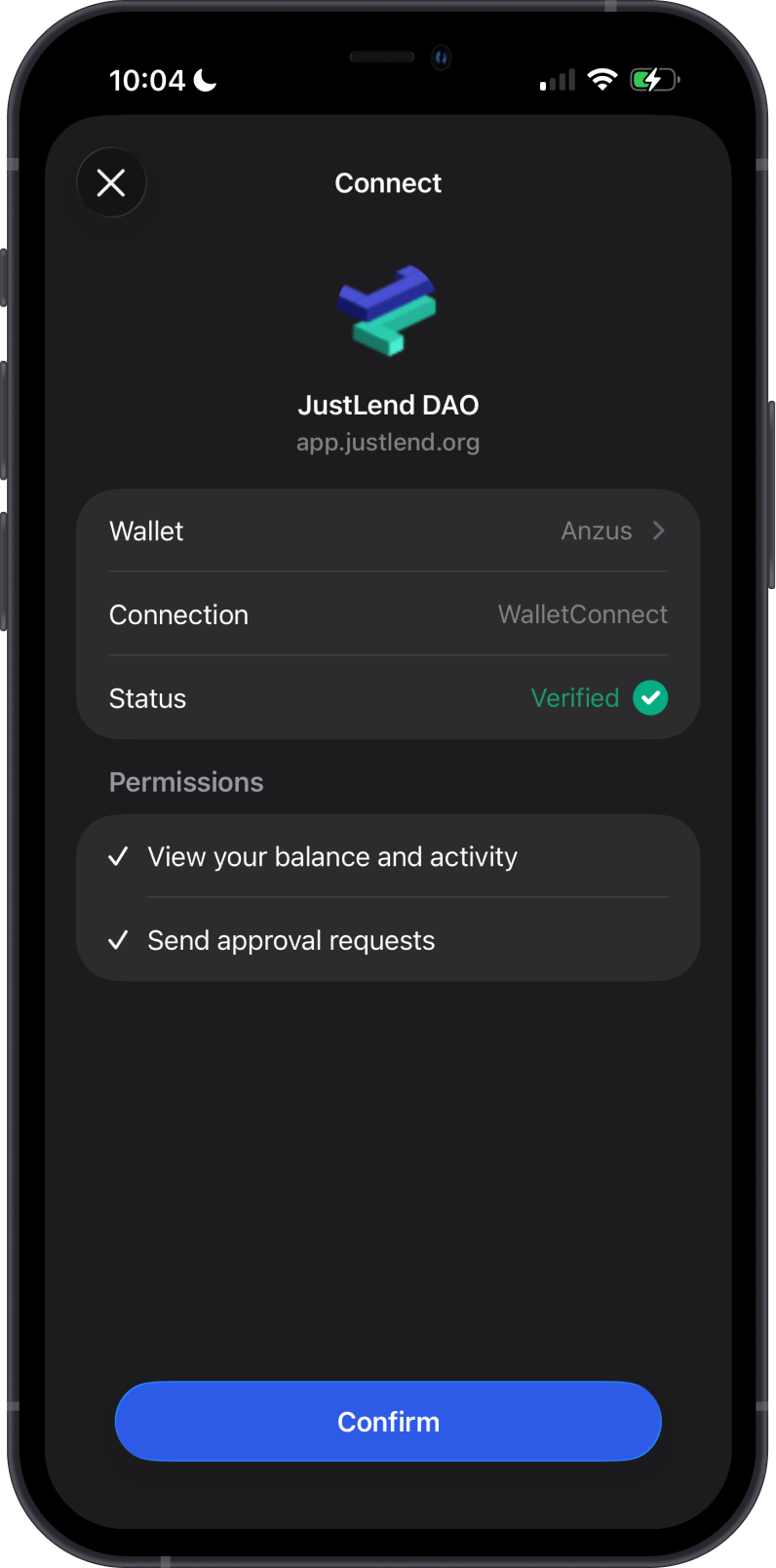
Gem Wallet will display the connection request. Verify the dApp name, website, selected wallet, network, and permissions before tapping Confirm.
After connecting, return to the dApp. Every transaction still requires a separate approval in Gem Wallet. Review the asset, amount, destination, network, and fee before confirming any request.
A dApp may also request a message signature rather than a transaction. Use How to Review a WalletConnect Signature Request to inspect text, EIP-712, Permit, and supported sign-in messages.
Only connect to official dApp websites. Cancel unexpected connection or transaction requests and never approve details you do not recognize.
EVM Example: Connect to Uniswap
On an EVM dApp such as Uniswap, tap Connect, choose WalletConnect, and select Gem Wallet.
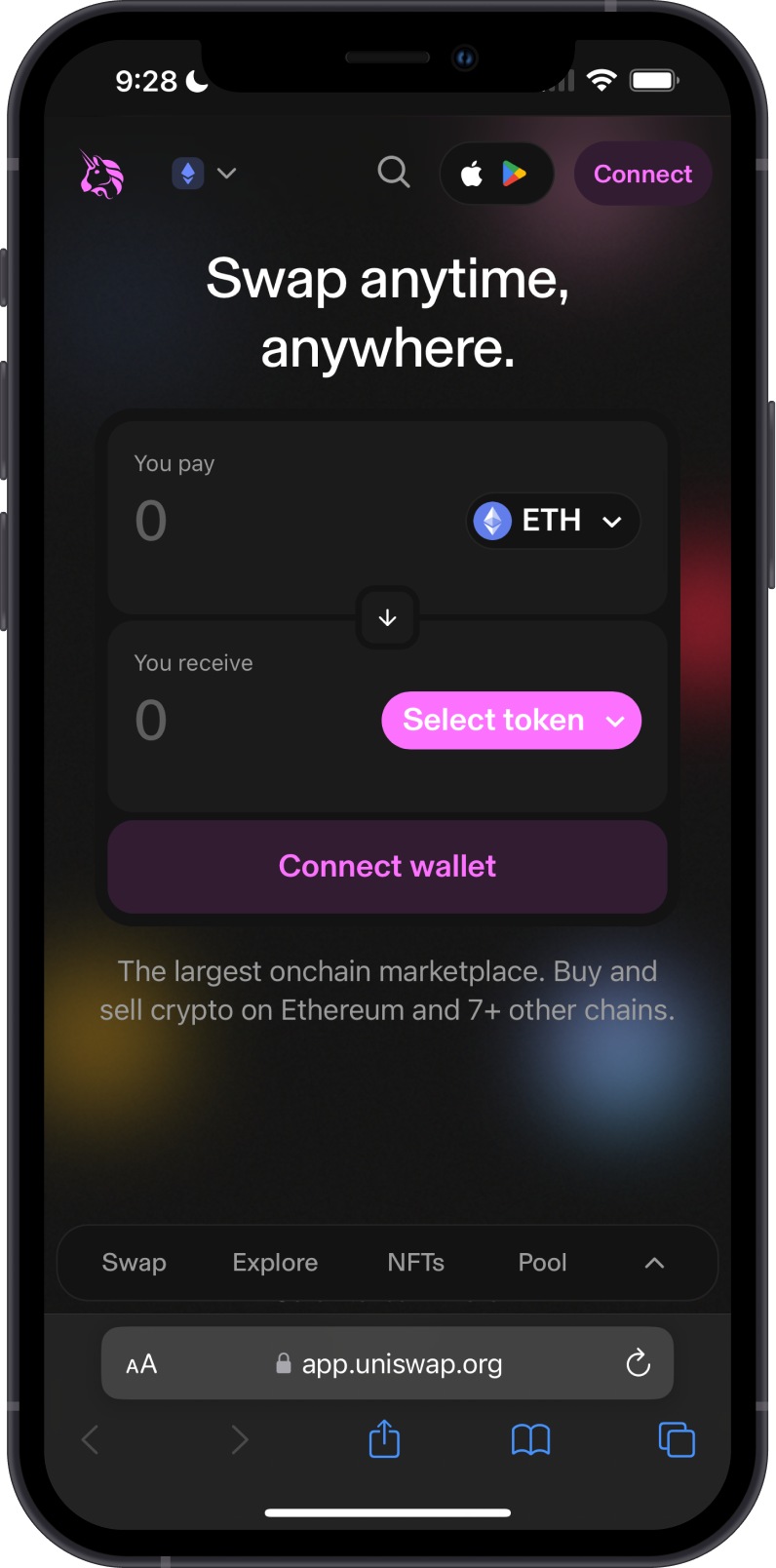
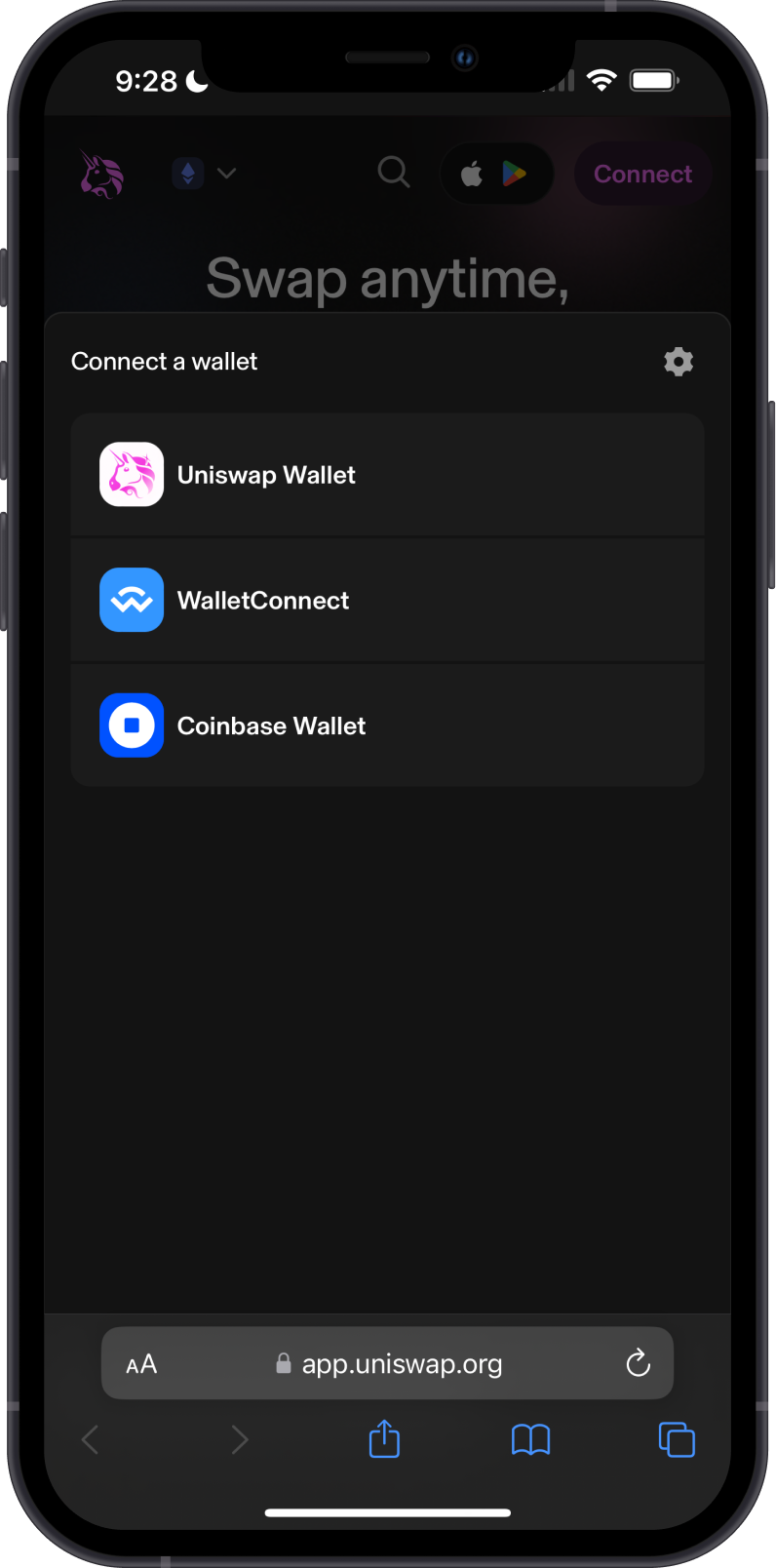
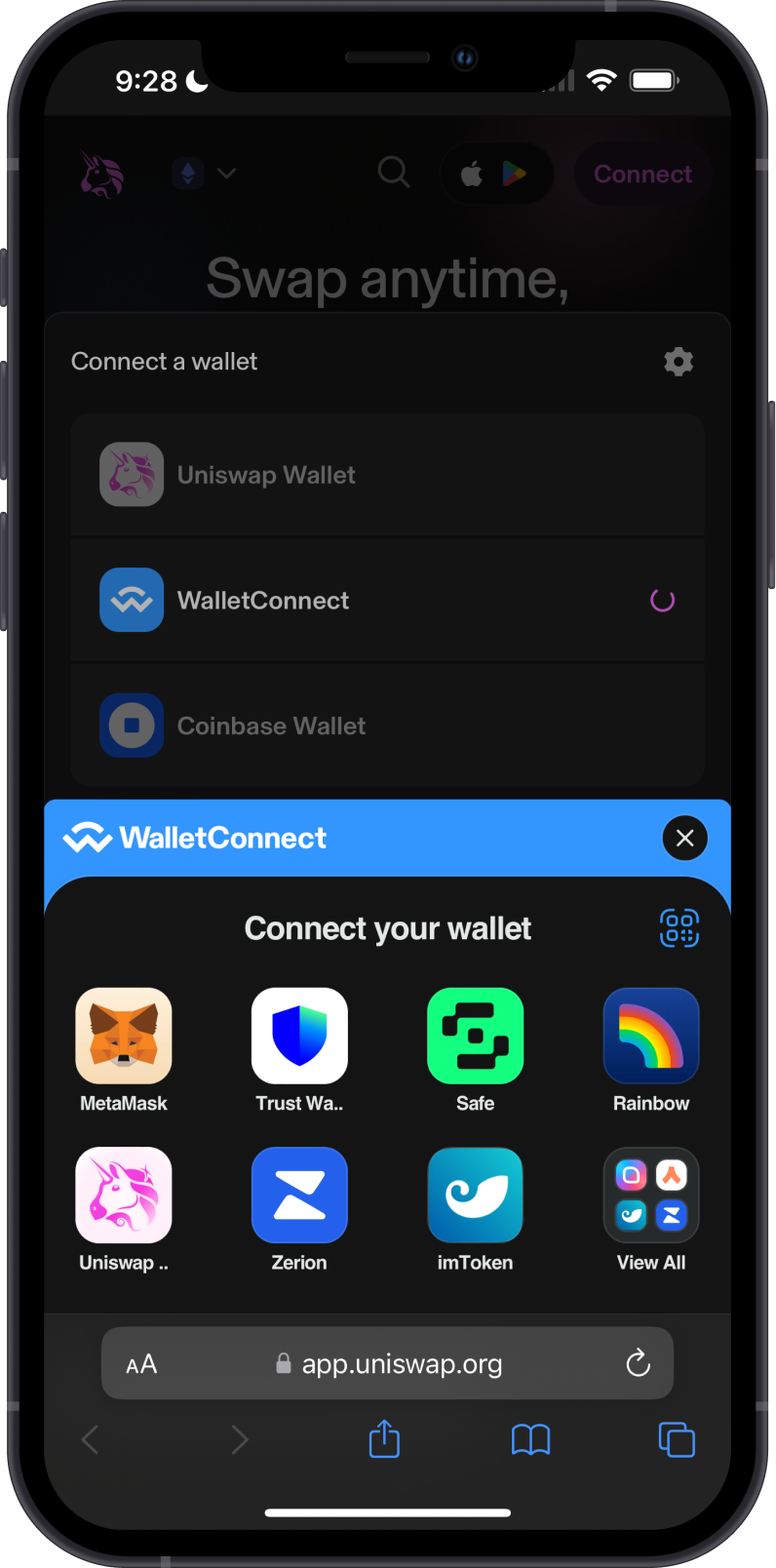
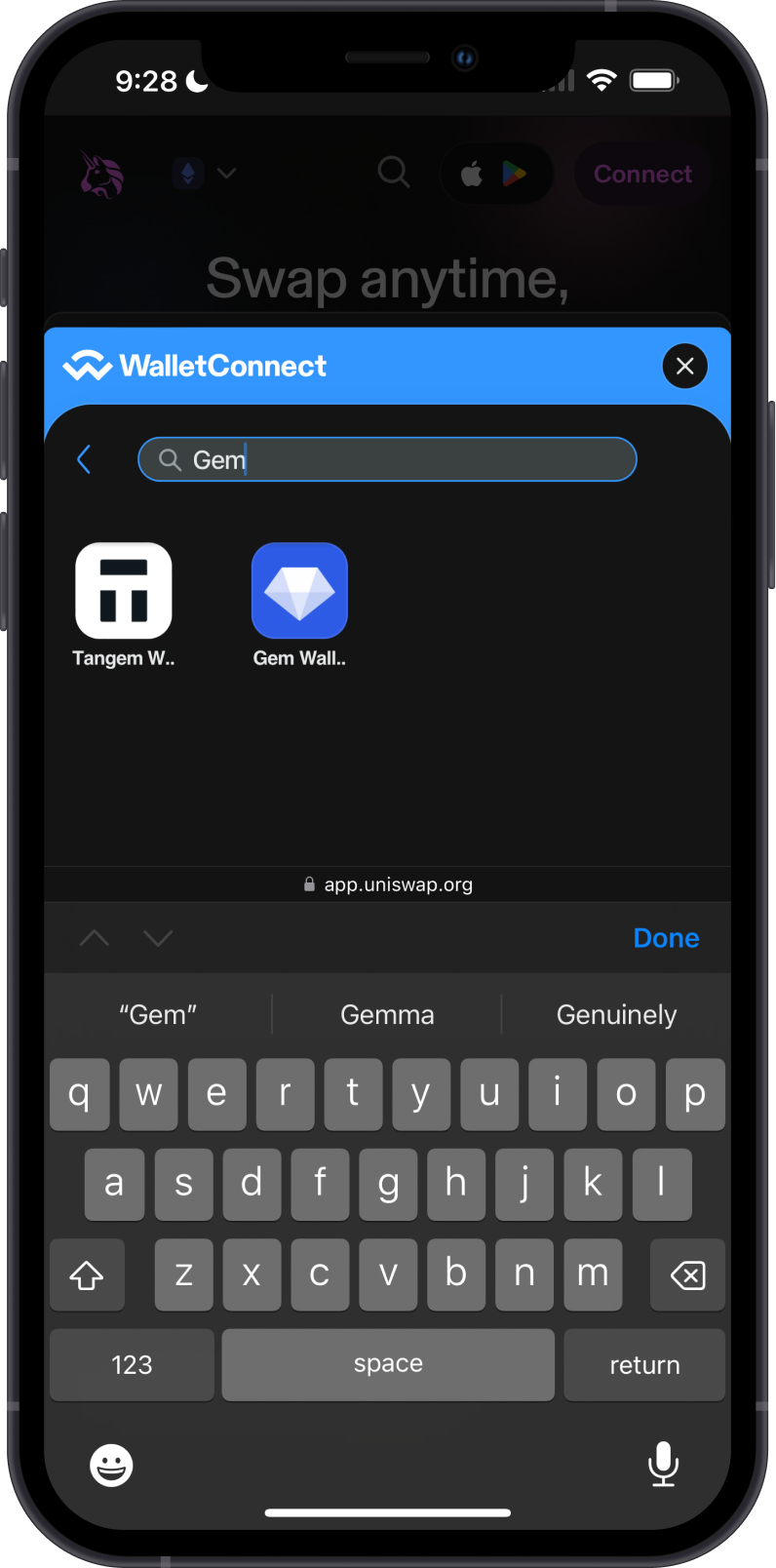
WalletConnect will open the supported wallet list. Search for Gem Wallet, then select it to send the connection request to the app.
Review the request in Gem Wallet and tap Confirm. Return to Uniswap after the connection is approved.
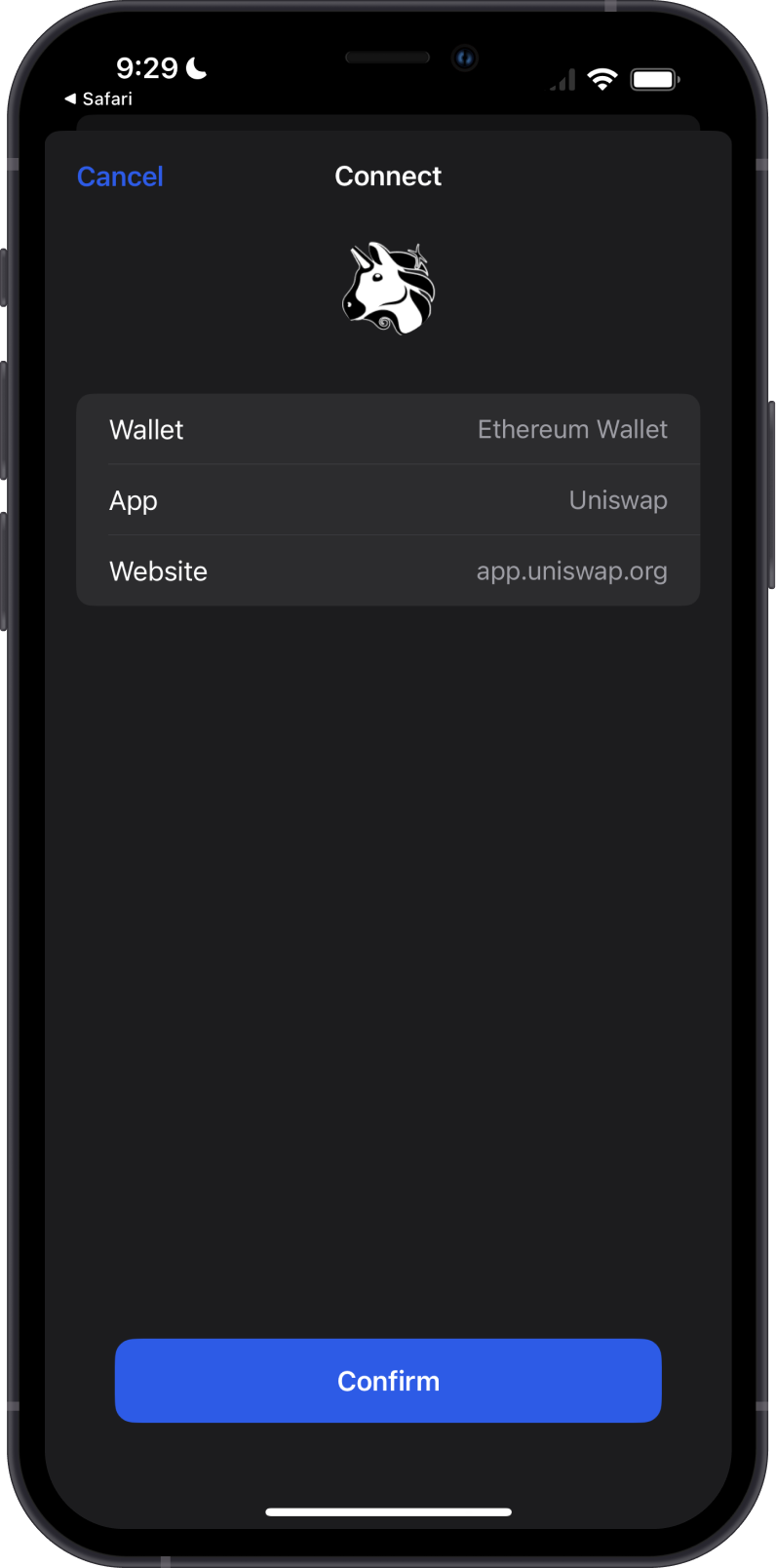
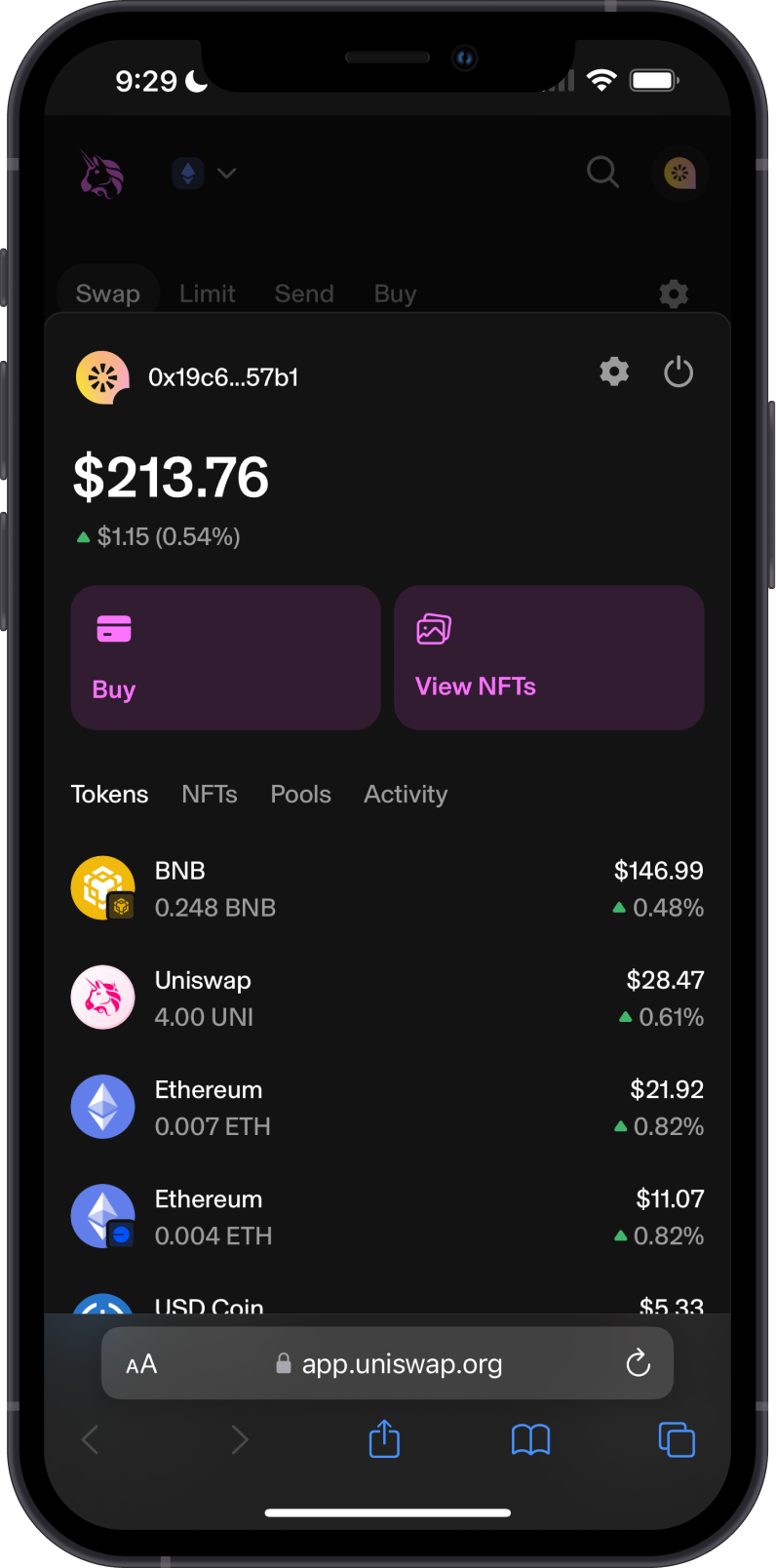
Your selected wallet address will appear in Uniswap once the connection is active. Any transaction submitted from Uniswap must still be reviewed and approved separately in Gem Wallet.
EVM Example: Connect to OpenSea
WalletConnect can also connect Gem Wallet to a compatible NFT marketplace such as OpenSea. Tap Connect Wallet, choose WalletConnect and Gem Wallet, then review and confirm the connection request in the app.
After connecting, return to OpenSea to view and manage supported NFTs associated with the selected wallet and network.
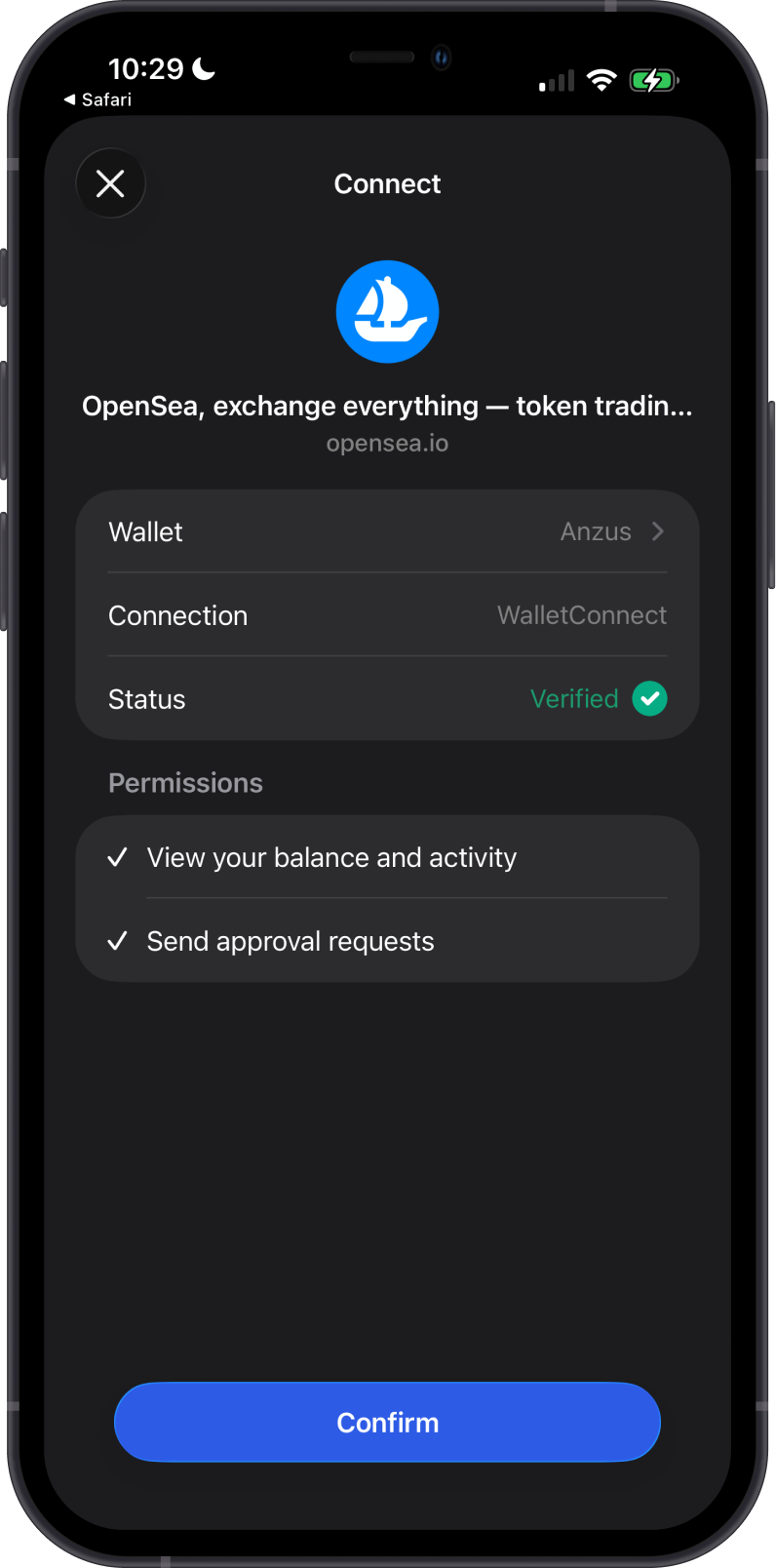
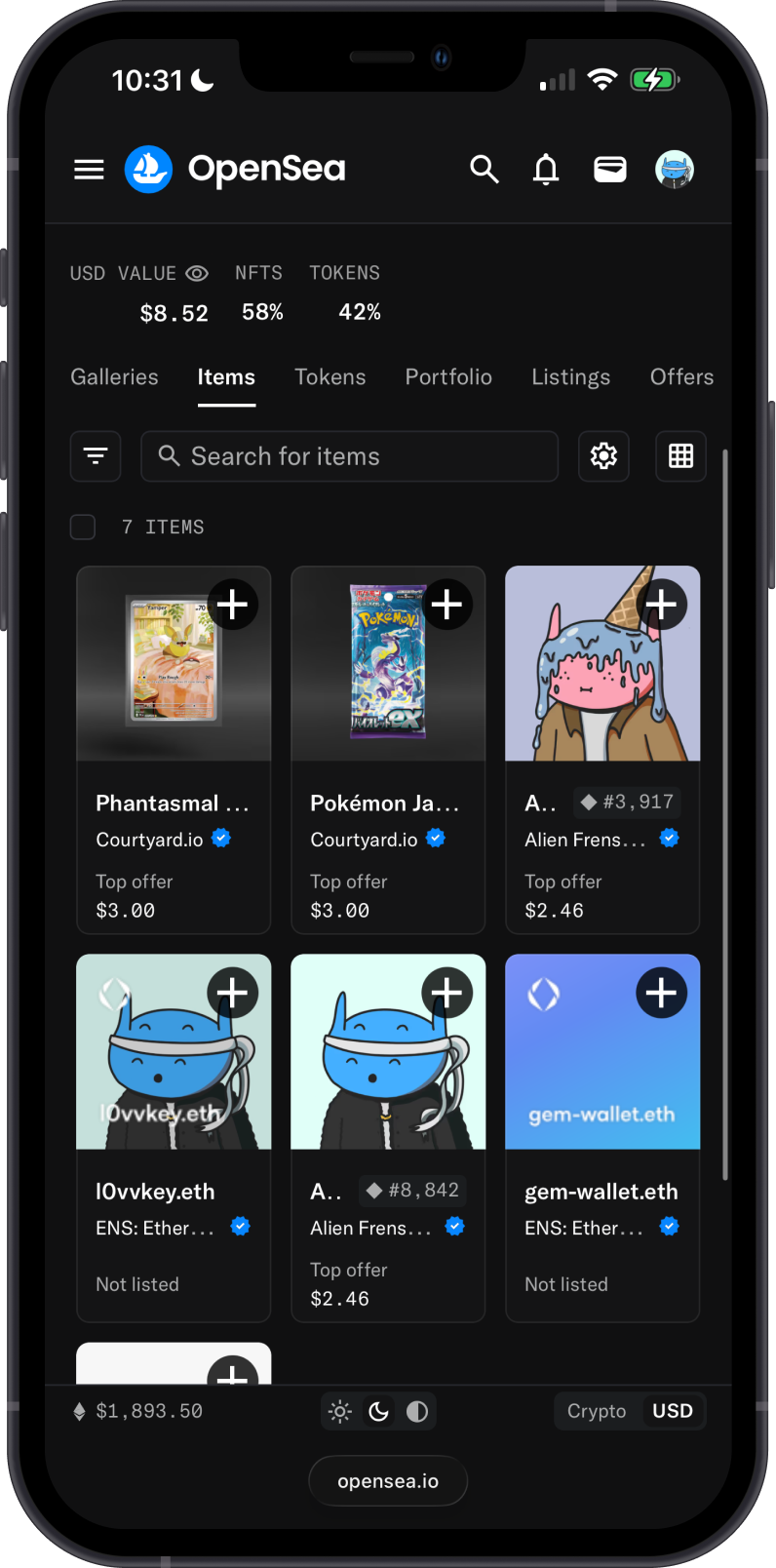
For instructions on receiving, sending, buying, and selling NFTs, see NFTs in Gem Wallet.
Non-EVM Example: Connect to a Solana DApp
On a Solana dApp, choose WalletConnect. You can copy its WalletConnect URI and paste it in Gem Wallet > Settings > WalletConnect.
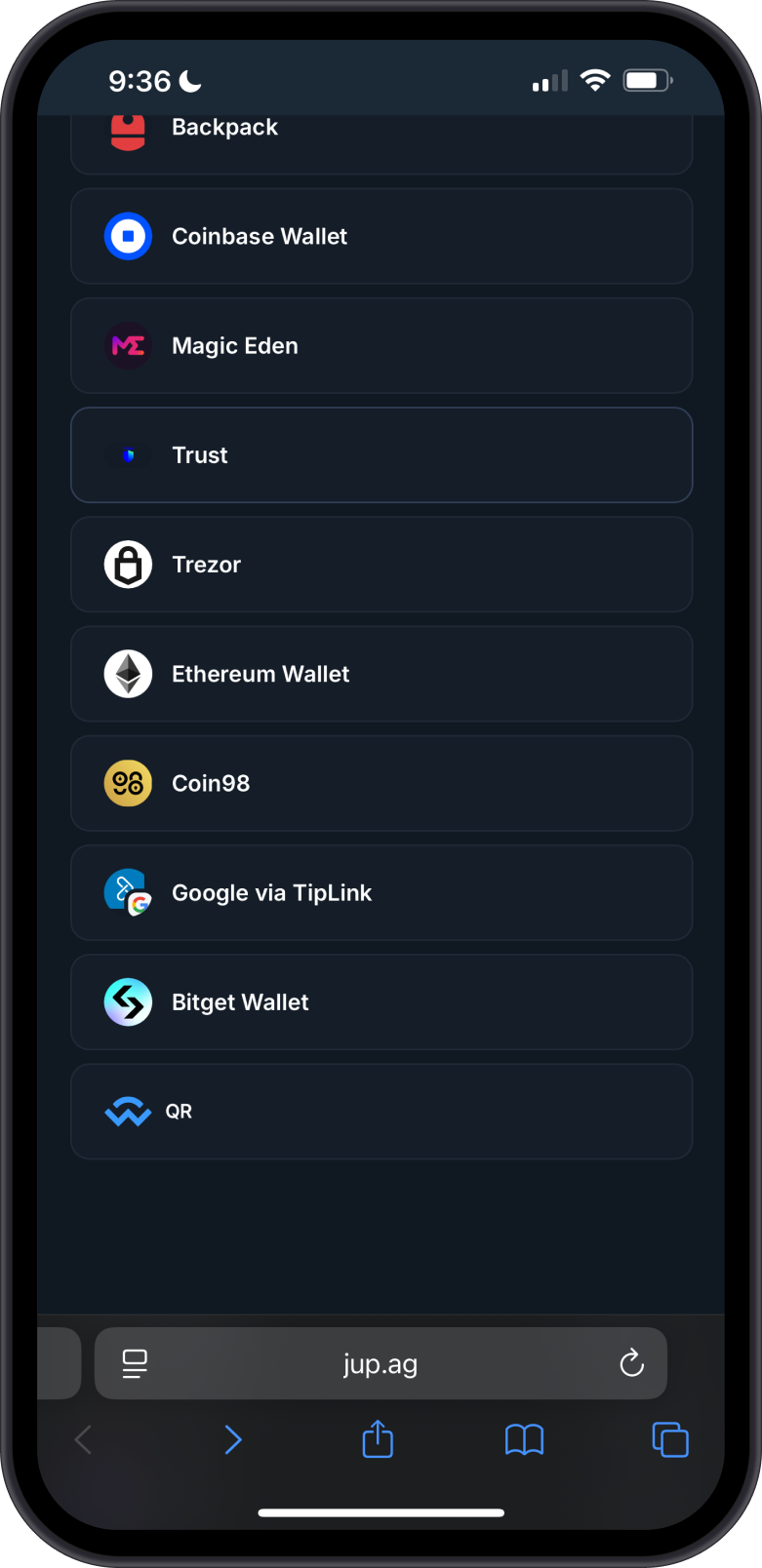
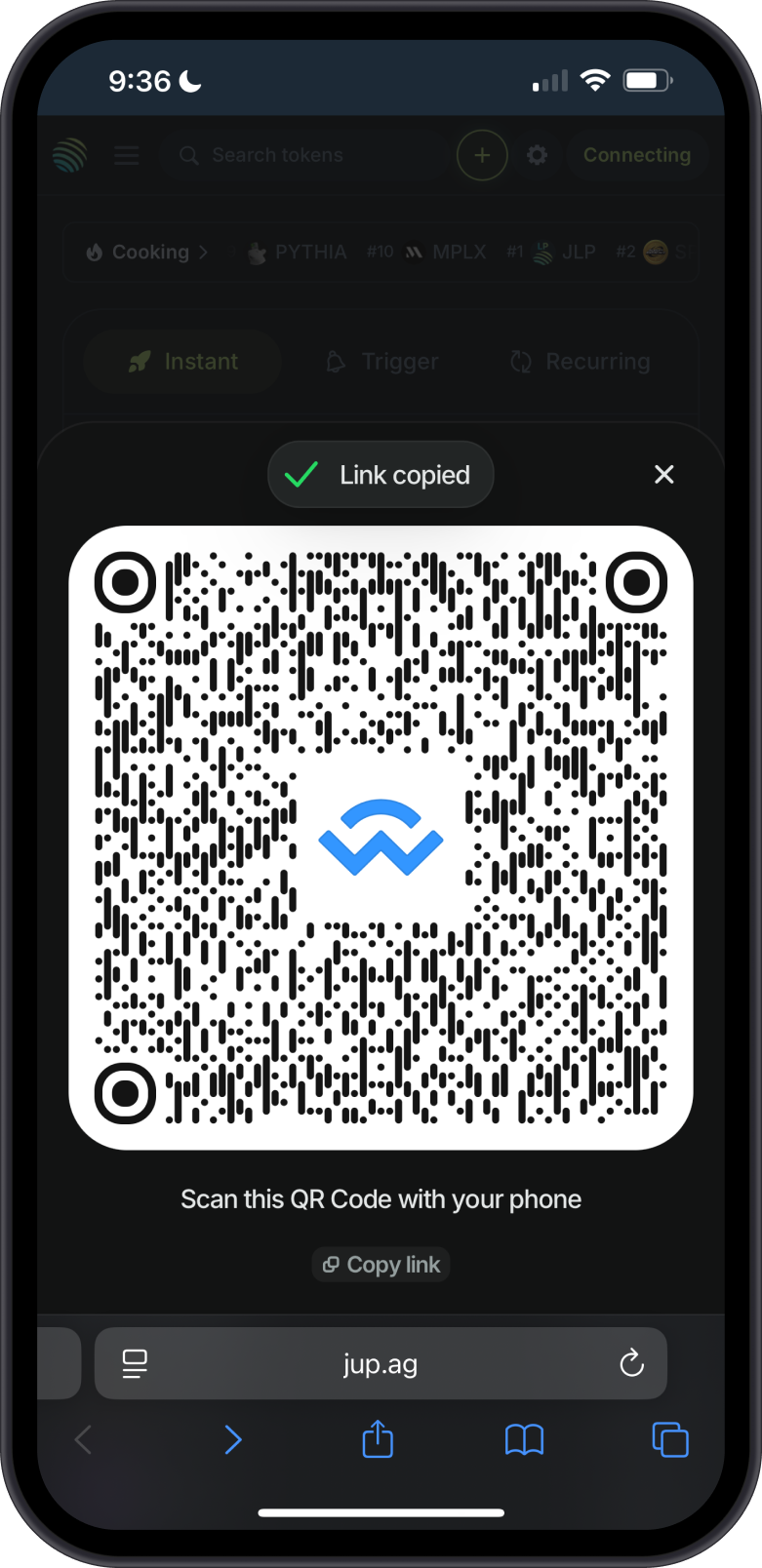
Confirm the request in Gem Wallet, then return to the dApp to interact with your connected Solana account.
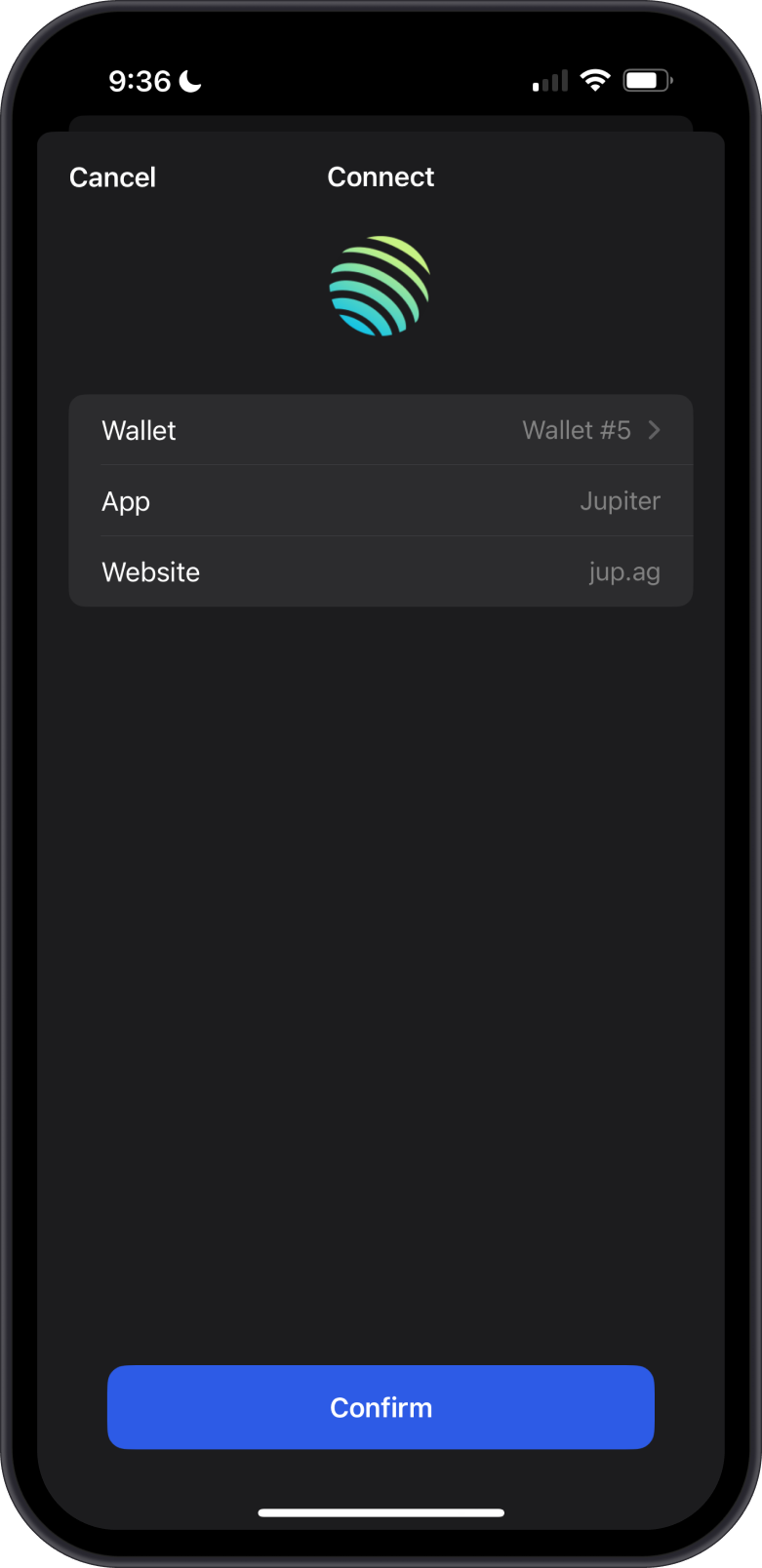
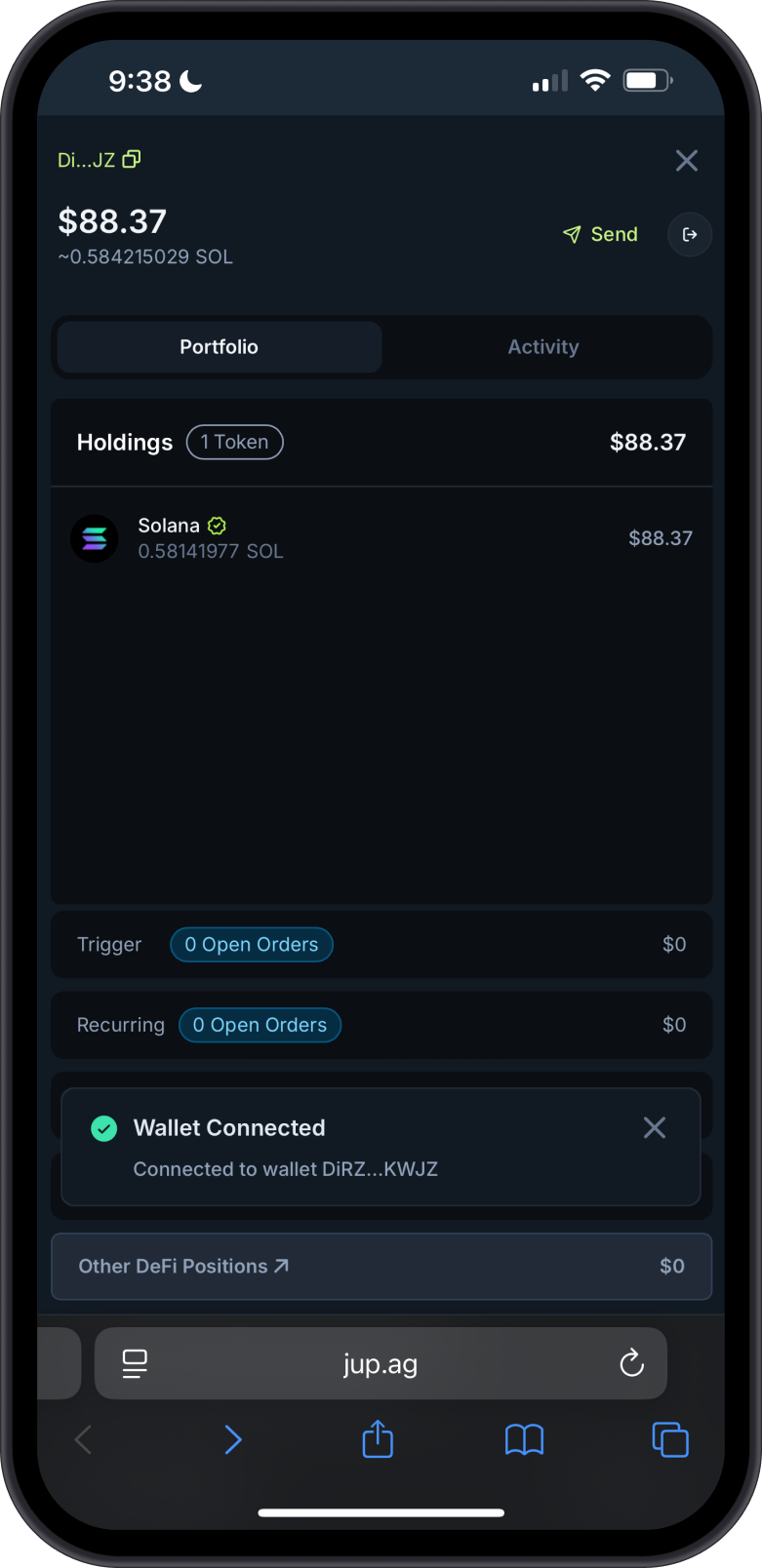
For the complete process, see Using WalletConnect with Gem Wallet on Solana.
Gem Wallet also supports structured Sign In with Solana requests from compatible dApps. This authenticates the selected Solana address by signing a message rather than sending an on-chain transaction. See Sign in with Solana Using Gem Wallet for the review and security checklist.
Non-EVM Example: Connect to a TON DApp
On a TON dApp such as DeDust, open the complete wallet list, select WalletConnect, and copy the displayed URI.
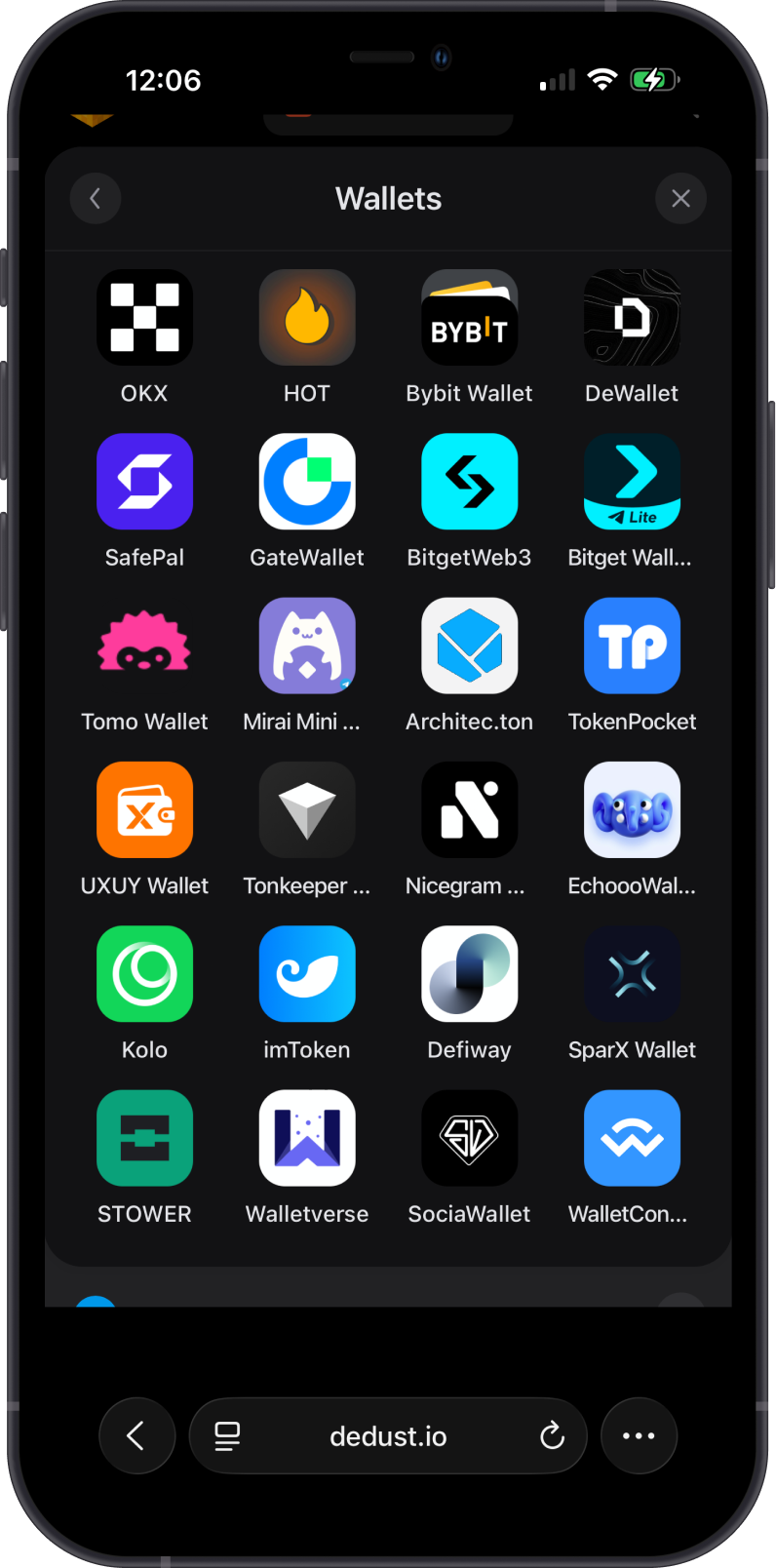
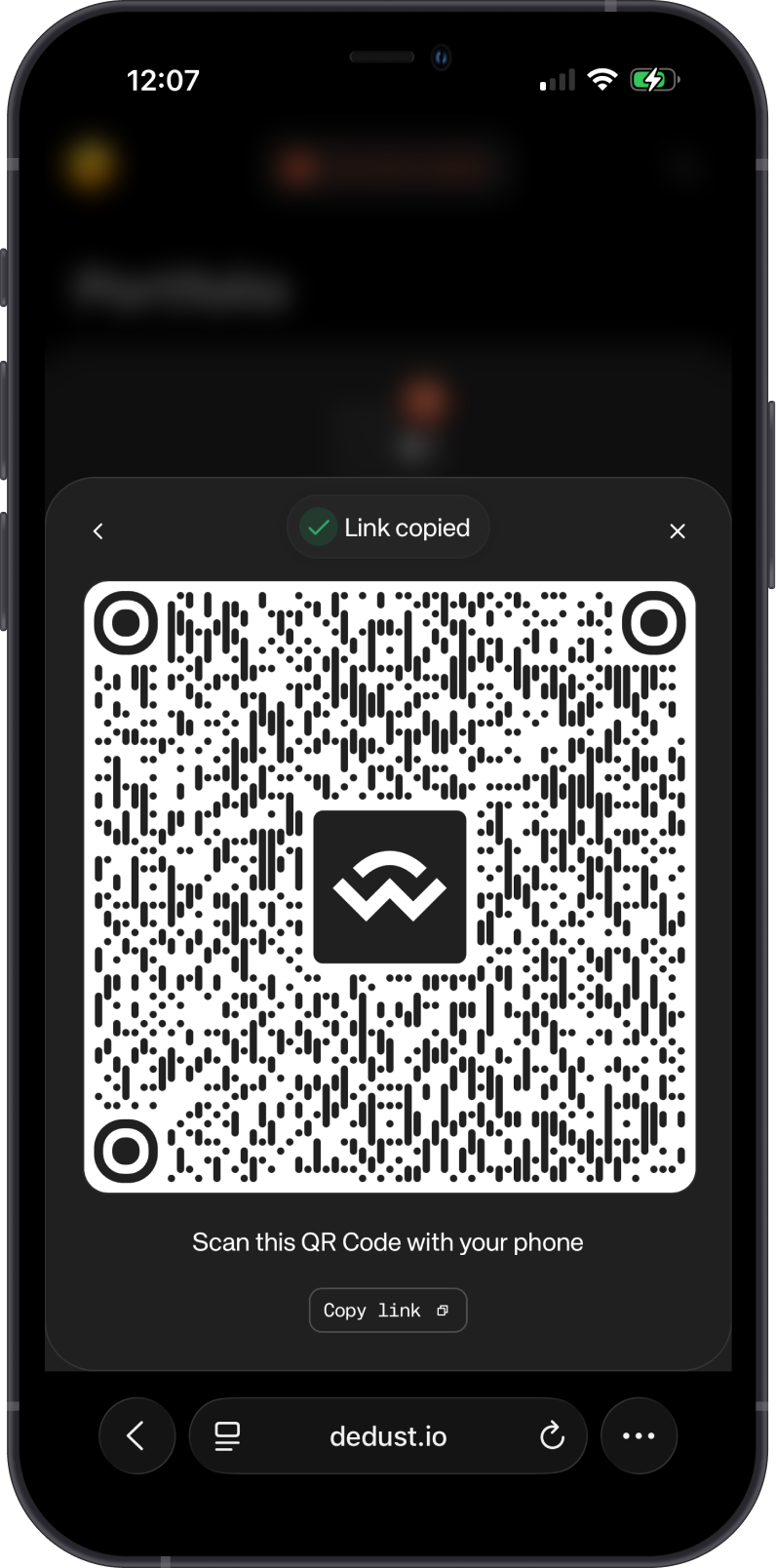
Paste the URI in Gem Wallet > Settings > WalletConnect, verify the DeDust connection request, and tap Confirm. The connected dApp can then send transaction approval requests to Gem Wallet.
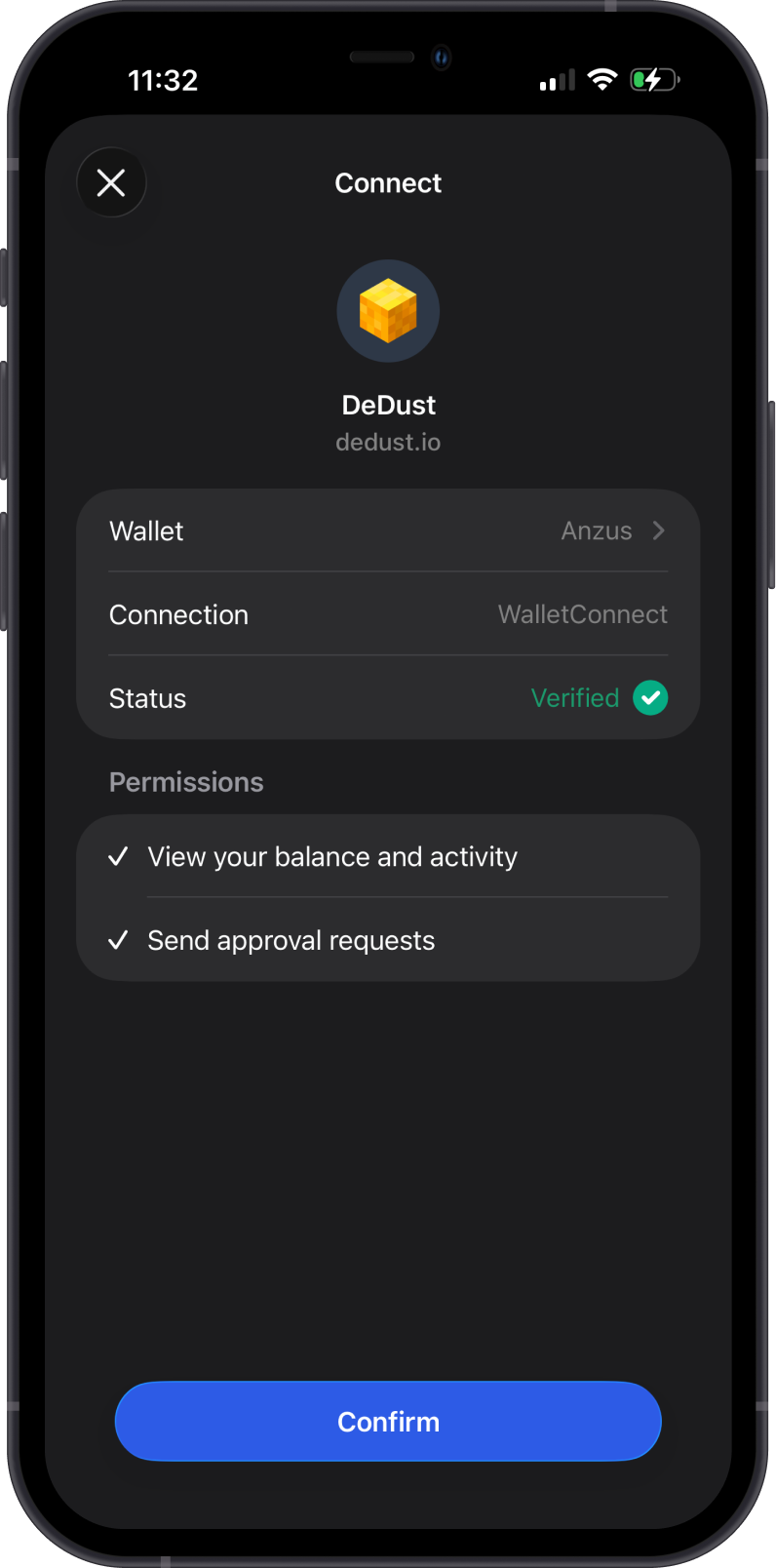
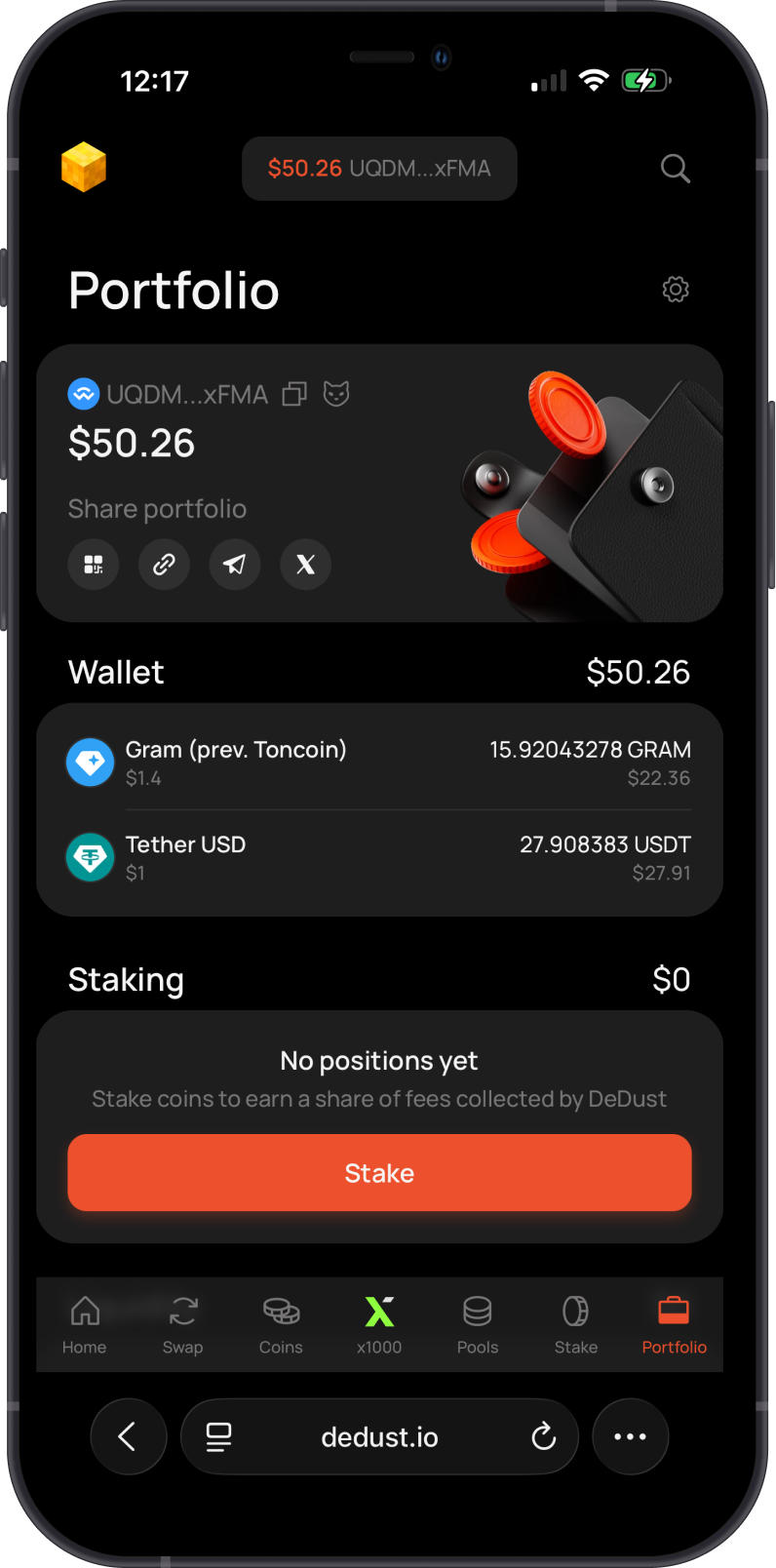
For the complete connection and swap process, see Using WalletConnect with Gem Wallet on TON.
Non-EVM Example: Connect to a Sui DApp
On a Sui dApp such as Bluefin, tap Connect, choose WalletConnect, and select Gem Wallet from the complete wallet list.
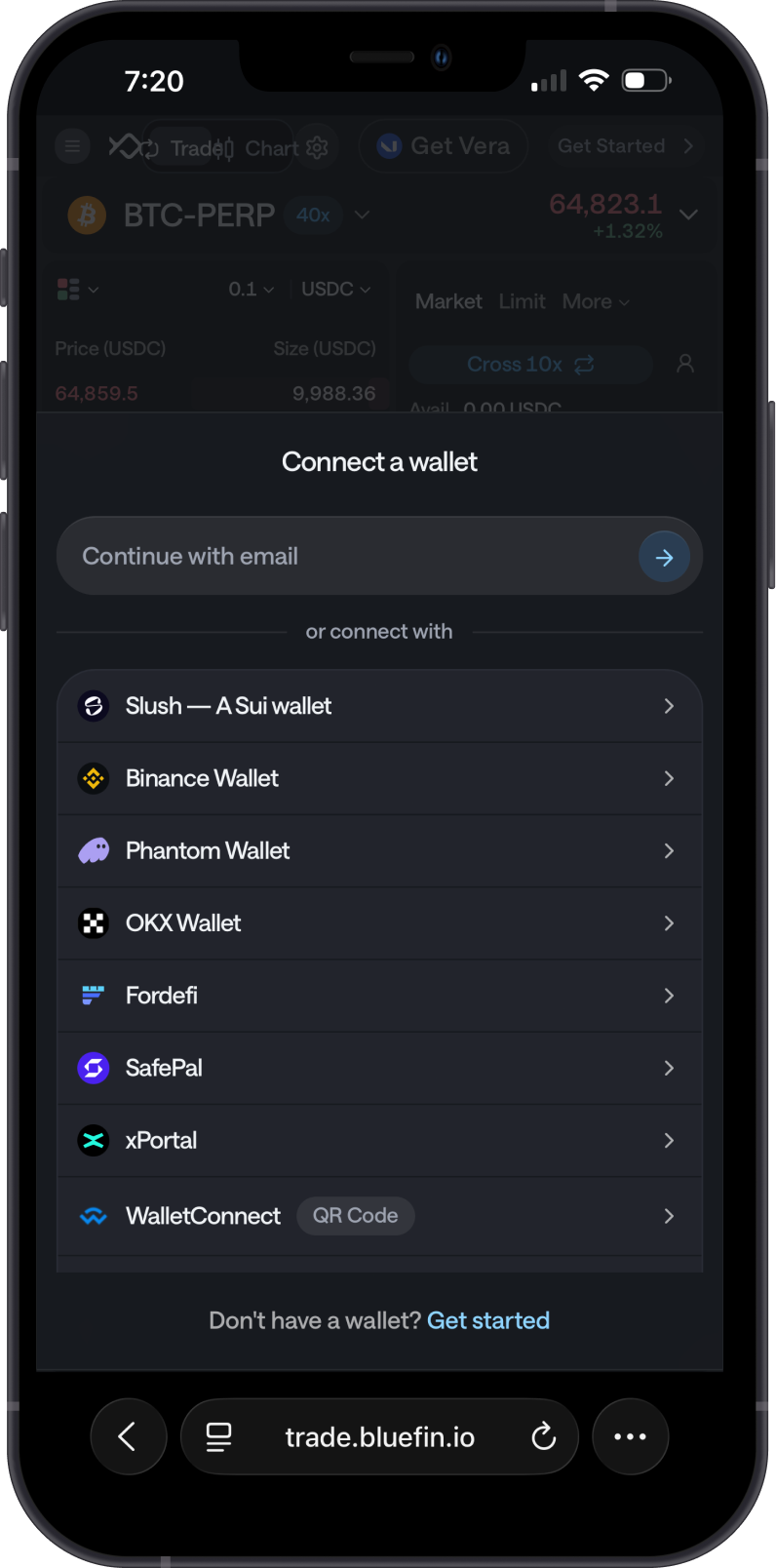
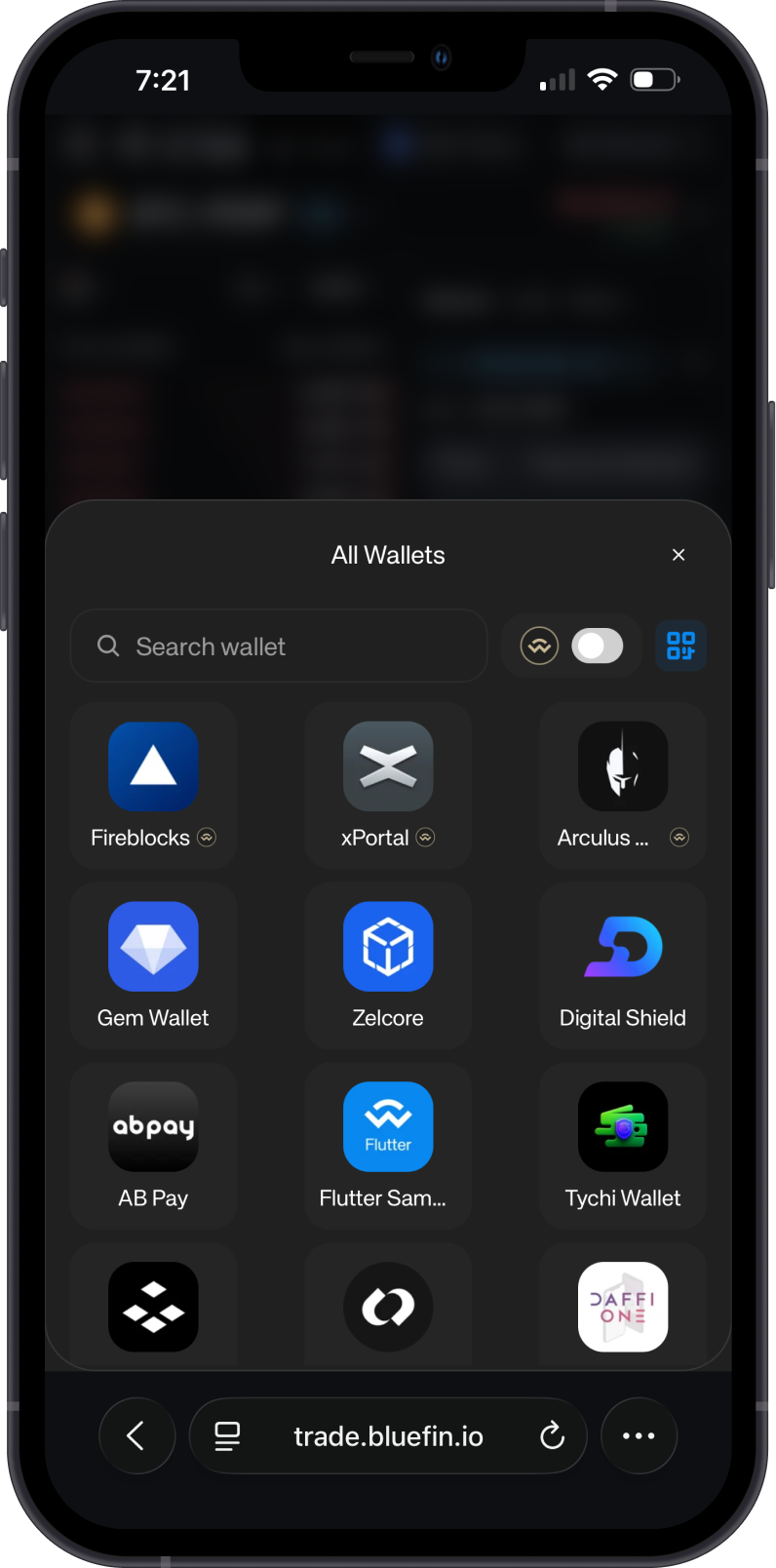
Review the verified Bluefin connection request in Gem Wallet and tap Confirm. The connected dApp can then send transaction approval requests to Gem Wallet.
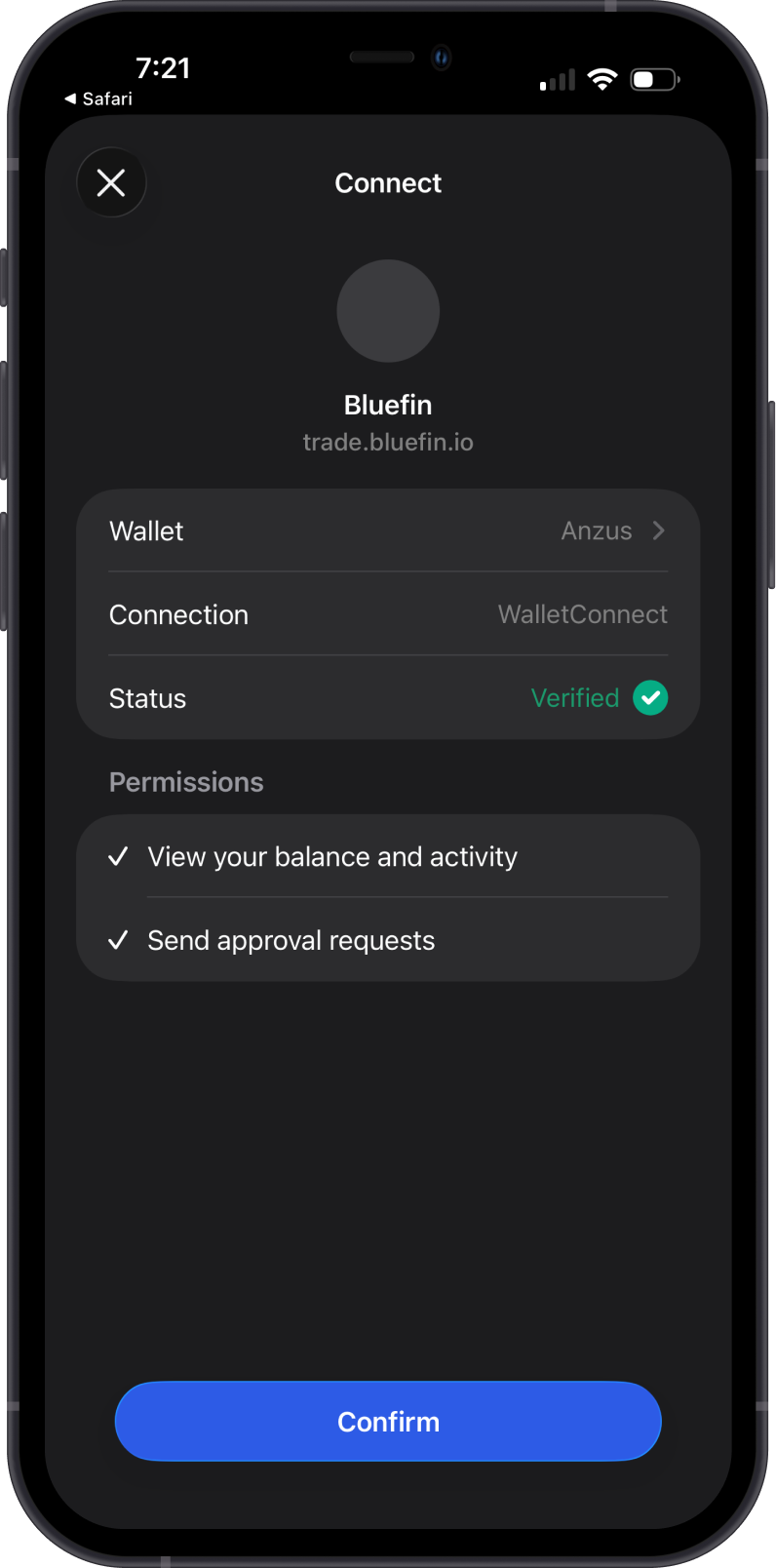
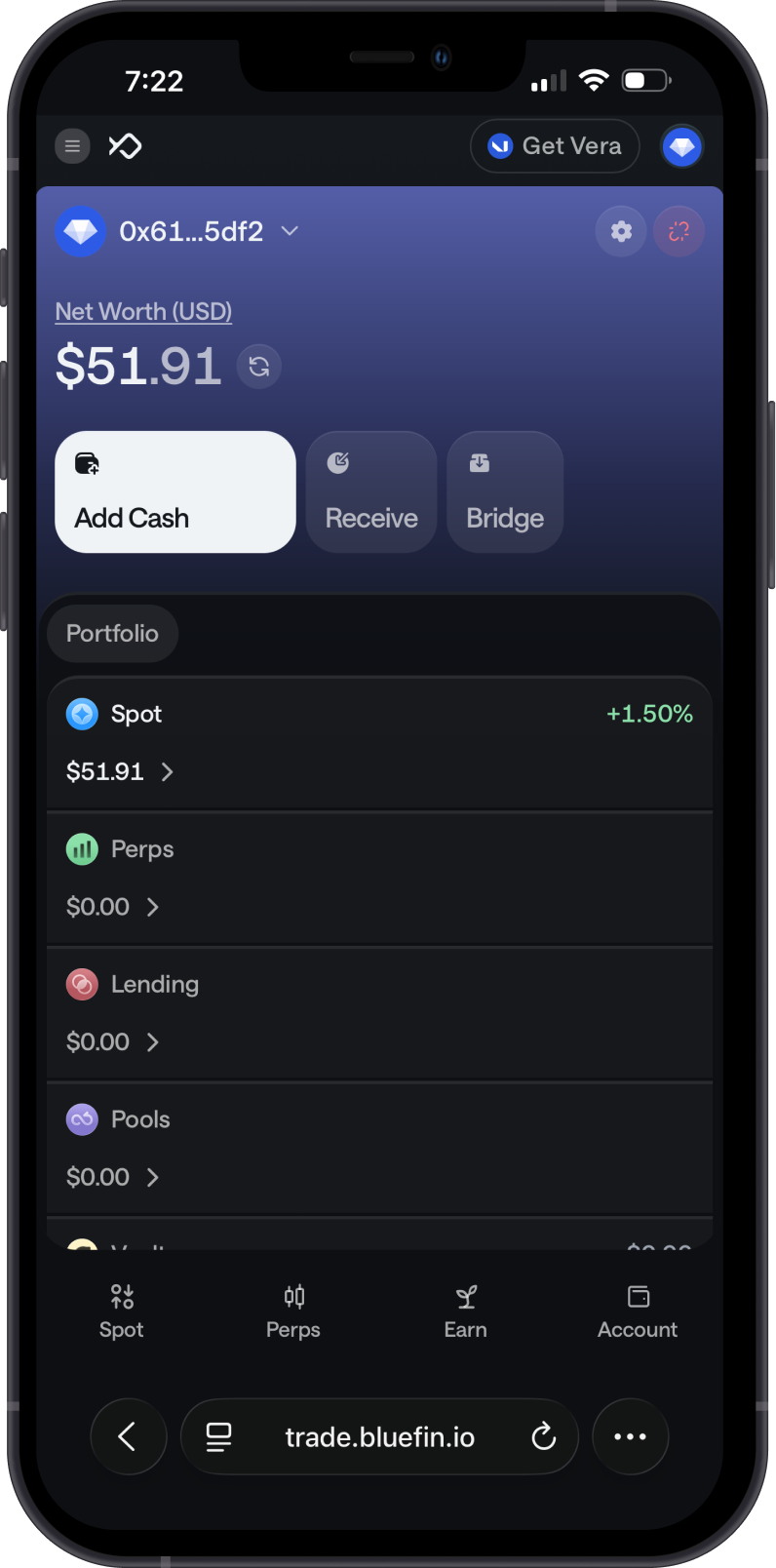
For the complete connection and swap process, see Using WalletConnect with Gem Wallet on Sui.
Non-EVM Example: Connect to a TRON DApp
On a TRON dApp such as JustLend DAO, tap Connect Wallet, choose WalletConnect, and copy its connection link or scan the displayed QR code.
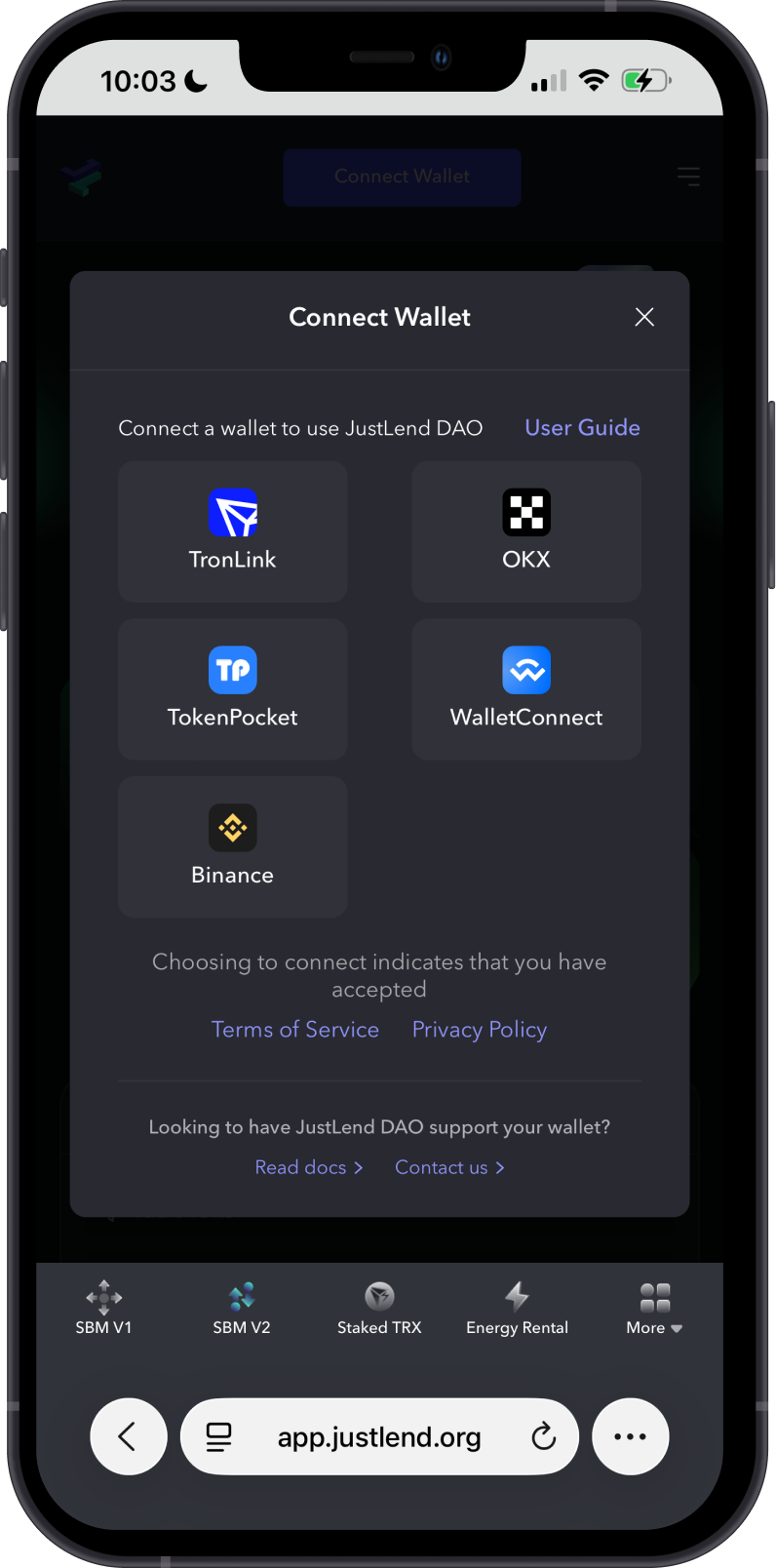
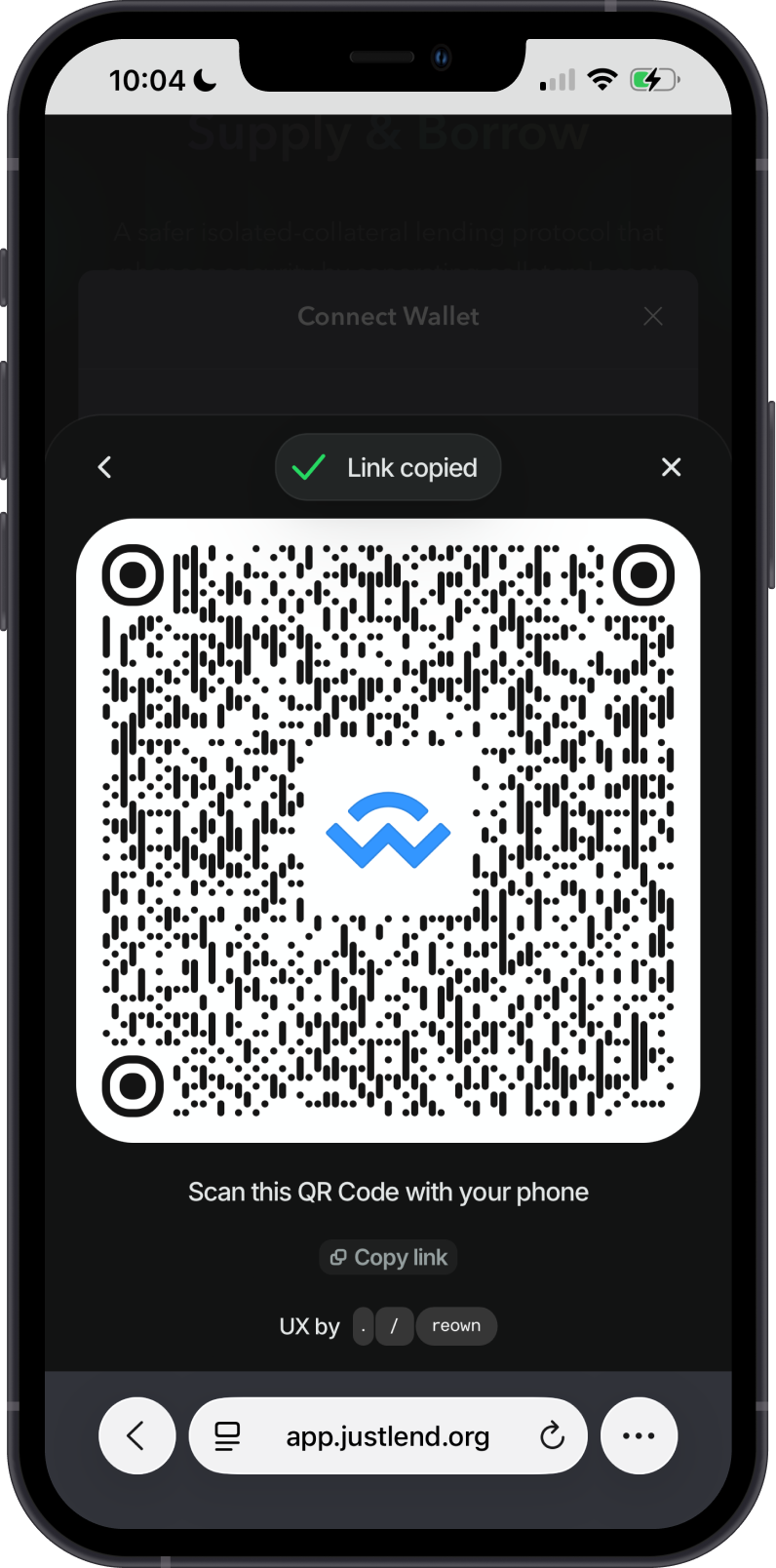
Paste the link in Gem Wallet > Settings > WalletConnect, verify the JustLend DAO connection request, and tap Confirm. The connected dApp can then send transaction approval requests to Gem Wallet.
For the complete connection and TRX supply process, see Using WalletConnect with Gem Wallet on TRON.
If Gem Wallet Is Not Listed
Open the WalletConnect QR code and copy its URI. In Gem Wallet, go to Settings > WalletConnect, tap Paste, and confirm the connection request.
Manage or Disconnect a Session
Open Gem Wallet > Settings > WalletConnect to view active connections. Select a session to review its dApp, website, wallet, and connection date. Tap Disconnect when you no longer use the dApp.
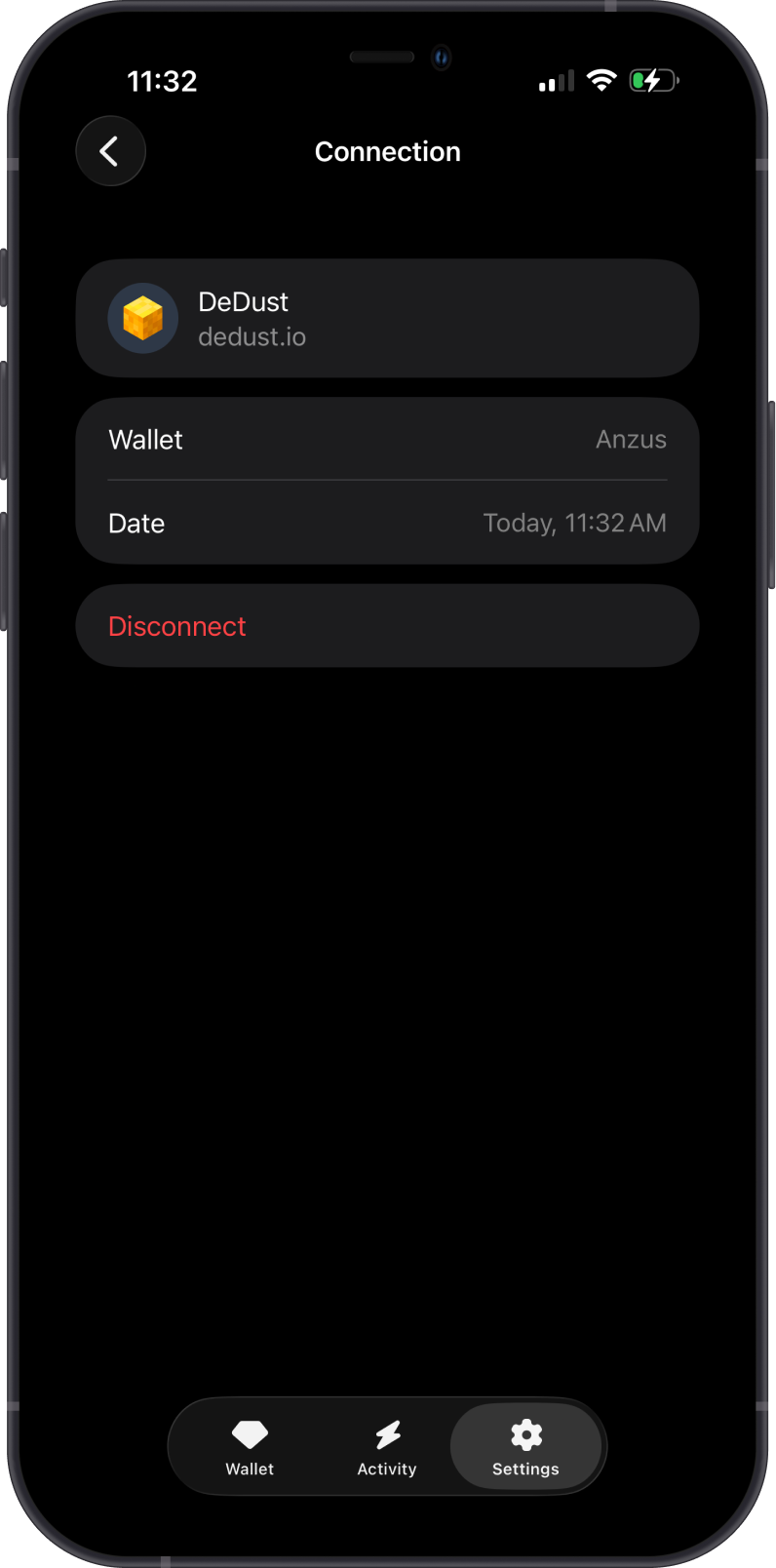
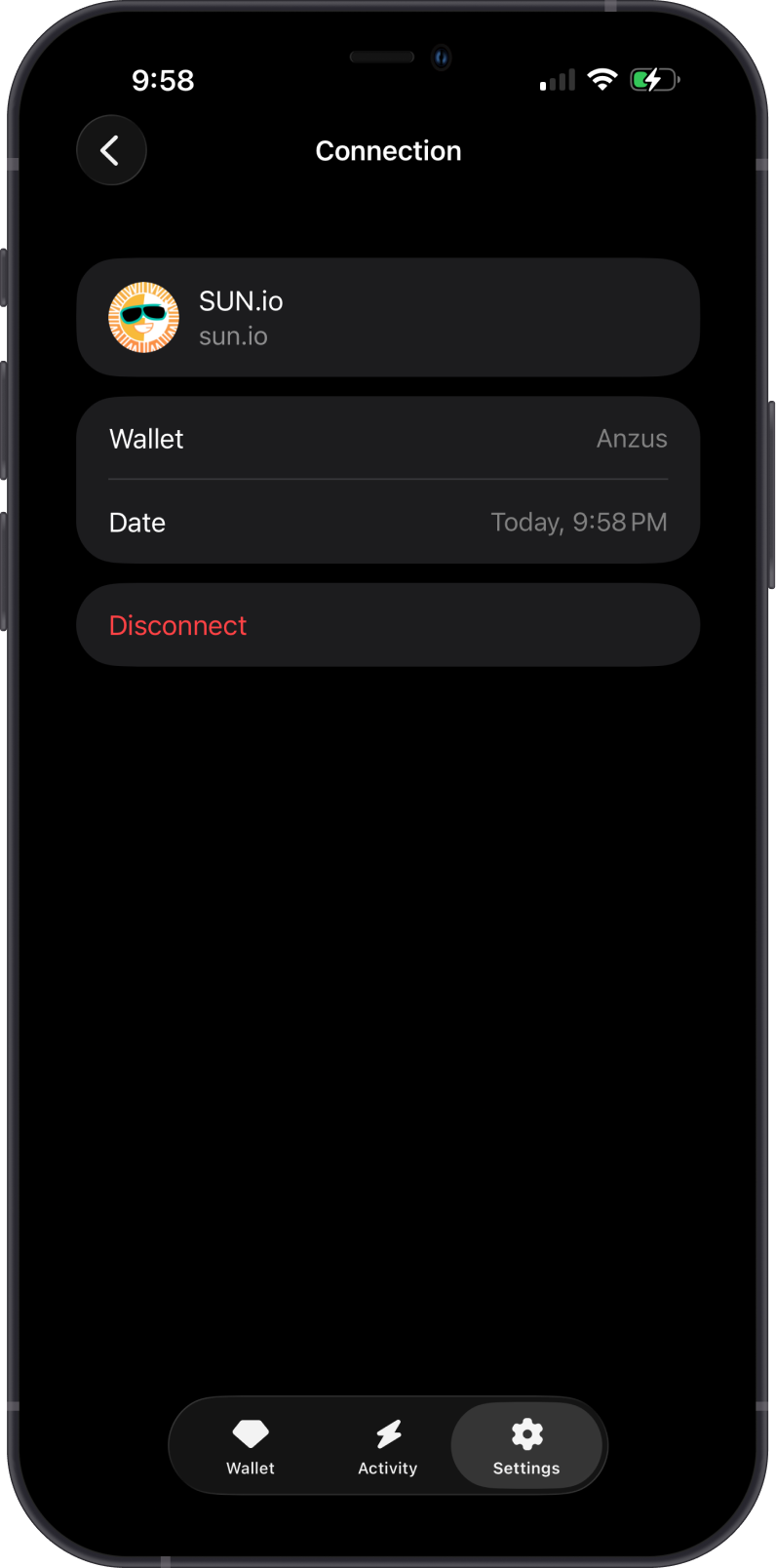
Disconnecting closes the selected session but does not move assets or remove the wallet from Gem Wallet. You can reconnect to the dApp later if needed.
Disconnecting also does not cancel token approvals already recorded on-chain. If a dApp received an allowance that you no longer trust, follow How to Revoke a Suspicious Token Approval.
If the connection was made to a fake or compromised website, use What to Do After Connecting to a Malicious dApp to choose the correct response for a connection, signature, approval, transaction, or exposed Secret Phrase.